Appearance
Information Panel
Overview
The Information Panel is a sophisticated feature identification and attribute exploration system that provides comprehensive access to spatial data through intelligent popup interfaces and interactive content management. This advanced tool integrates seamlessly with Horizon's unified popup service to deliver context-aware feature information, customizable content presentation, multi-layer feature navigation, and flexible docking capabilities for enhanced spatial data exploration and analysis workflows.
Core Features
Default Configuration
- Pre-configured popup settings
- Layer-specific content display
- Customizable information presentation
Content Structure
- Title text configuration
- Detailed feature information
- Attribute organization
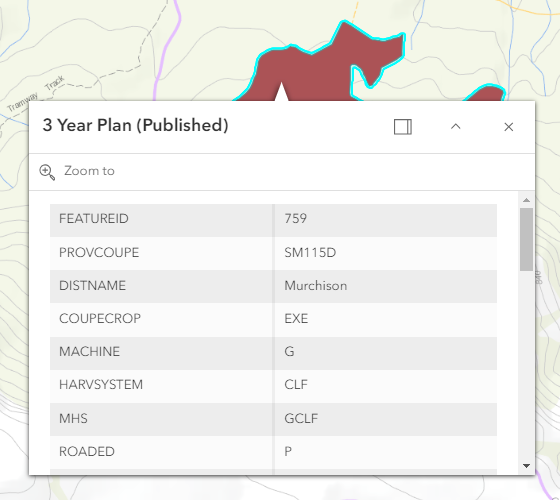
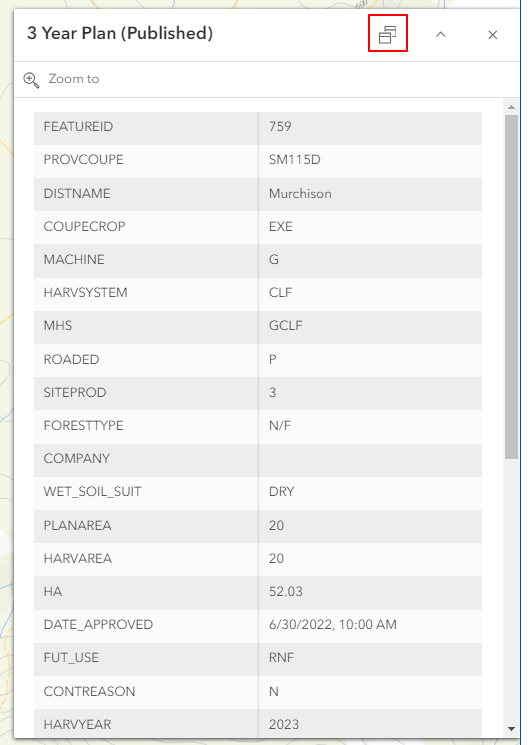
Panel Options
- Docking functionality
- Position customization
- View persistence
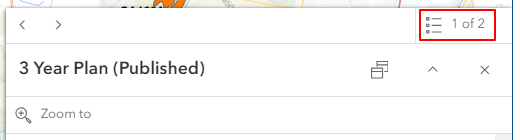
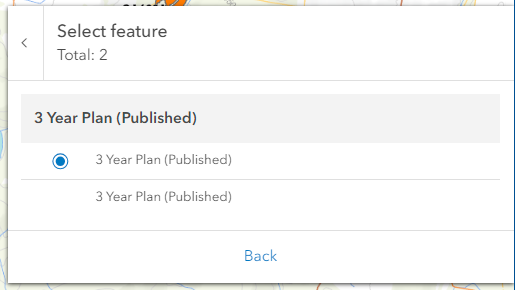
Multiple Layer Support
- Layer list access
- Radio-button feature selection
- Overlapping feature management
How It Works
The Information Panel uses a hybrid approach to display feature data:
- Feature Layers and Map Image Layers: Use the native ArcGIS popup system with automatic attribute display
- WMS Layers: Use a custom GetFeatureInfo integration that queries the WMS service and merges results into the popup
When multiple overlapping features from different layers exist at a click location, the panel merges all results and lets you navigate between them.
INFO
Popups are automatically suppressed when editing tools are active (e.g., Map Editor, Unified Editors) to avoid interference. They re-enable when you close the editor.
Using the Panel
Basic Operations
- Click a feature on the map to display its attributes in the popup
- Review the content in the popup window
- Use the dock button to anchor the panel to the side
- Click another feature to update the popup
Layer Navigation
- When multiple overlapping features are found, use the layer list to navigate between them
- Switch between features using the navigation arrows or the Select feature list
- Review attributes from different layers without re-clicking
Troubleshooting
| Issue | Solution |
|---|---|
| No popup display | Check layer visibility and editing status |
| Incorrect information | Verify layer properties and data |
| Overlapping access issues | Use layer list to navigate features |
Video Tutorial
Watch this guide on using the Information Panel: