Appearance
Scale Selector
Overview
The Scale Selector is a dropdown control located at the top of the map interface that lets you choose from 20 predefined cartographic scales. Horizon automatically snaps the map to the nearest preset scale when you zoom using the scroll wheel or keyboard, ensuring consistent visualization across different workflows.
Accessing the Tool
The Scale Selector is always visible in the centre top panel of the map interface, next to the View Selector.
- Click the Scale Selector dropdown at the top of the map
- The current scale is displayed in the selector (e.g.
1:10,000) - Select a new scale from the dropdown list
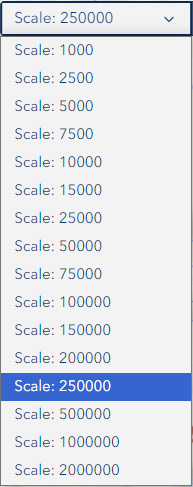
Available Scales
Horizon provides 20 predefined scales covering street-level detail through to state-wide overviews:
| Scale | Typical Use |
|---|---|
| 1:500 | Individual tree or asset level |
| 1:1,000 | Site-level detail |
| 1:2,500 | Coupe or small area planning |
| 1:5,000 | Coupe-level operations |
| 1:7,500 | Local area context |
| 1:10,000 | Standard working scale (default startup) |
| 1:15,000 | Neighbourhood context |
| 1:20,000 | District-level view |
| 1:25,000 | Topographic map equivalent |
| 1:30,000 | Regional planning |
| 1:40,000 | Regional overview |
| 1:50,000 | Multi-district view |
| 1:75,000 | Broad area overview |
| 1:100,000 | State forest overview |
| 1:150,000 | Wide regional view |
| 1:200,000 | Large regional context |
| 1:250,000 | State-level planning |
| 1:500,000 | Multi-region view |
| 1:1,000,000 | State overview |
| 1:2,000,000 | Full state extent |
How It Works
Selecting a Scale
- Click the Scale Selector dropdown
- Choose a scale from the list — the map zooms to that level immediately
- The selector updates to show the active scale
Automatic Snap Behaviour
When you zoom using the scroll wheel or keyboard shortcuts, the map automatically snaps to the nearest predefined scale. This ensures:
- Consistent map display across sessions
- Predictable layer visibility behaviour
- Reliable print output at known scales
INFO
The selector is temporarily disabled while a View switch is in progress. It re-enables once the view has finished loading.
Screen Reader Support
Scale changes are announced to screen readers via an ARIA live region. The selector also includes an aria-label for accessibility.
Troubleshooting
| Issue | Solution |
|---|---|
| Scale not changing | Ensure no view switch is in progress; refresh the page |
| Selector is greyed out | A view switch is loading — wait for it to complete |
| Map zooms to wrong scale | The auto-snap feature rounds to the nearest preset; this is expected |
| Layers disappear at scale | Some layers have visibility ranges; check Layer Panel settings |
| Scale resets after search | The auto-snap feature rounds to the nearest preset; this is expected |