Appearance
View Selector
Overview
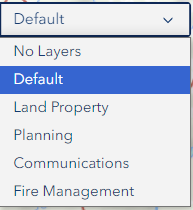
The View Selector is a dropdown control located at the top of the map interface that lets you switch between predefined map views. Each view configures a complete map state — layers, basemap, centre point, and zoom scale — in a single action. Views are defined on the server and shared across all users for consistent team workflows.
How It Works
Selecting a View
- Click the View Selector dropdown at the top of the map (next to the Scale Selector)
- Choose a view from the list
- A loading notification appears showing the number of layers being loaded
- The map replaces all current layers, repositions the camera, and applies the view's basemap
Each view stores the following configuration:
| Property | Description |
|---|---|
| Name | Display name shown in the dropdown |
| Layers | The set of data layers to load |
| Centre | The map centre point (X, Y coordinates) |
| Scale | The target zoom scale to apply |
| Basemap | The basemap to activate |
INFO
Switching views replaces all current layers on the map. If you need to keep your current layers, use the Layer Panel to add individual layers instead.
What Happens During a Switch
- Any in-progress view switch is cancelled automatically
- Both the Scale Selector and View Selector are disabled during loading
- All layers for the new view are loaded in parallel for speed
- The map is updated atomically — existing layers are removed and new layers are added together
- The camera moves to the view's centre point and scale
- A success notification confirms the switch, or a warning lists any layers that failed to load
Available Views
Views are configured on the server and may vary by deployment. Common examples include:
| View Name | Purpose |
|---|---|
| No Layers | Clear the map to an empty state |
| Default View | Standard working view with core layers |
| Land Property View | Property and land tenure layers |
| Planning View | Planner-specific data and boundaries |
| Communications View | Engagement and communications layers |
| Fire Management View | Fire operations and burn planning layers |
INFO
The list of views is loaded from the server at startup. Your administrator can add, remove, or modify views without requiring a software update.
Troubleshooting
| Issue | Solution |
|---|---|
| View not loading | Check your network connection; refresh the page |
| Some layers missing after load | Those layer services may be unavailable; a warning notification lists failures |
| Selector is greyed out | A view switch is already in progress — wait for it to complete |
| View loads but map is blank | The view may be configured for a different geographic area; check the map extent |
| Slow to switch views | Views with many layers take longer; layers load in parallel for speed |
See Also
- Scale Selector — Control the zoom level independently from view switching
- Layer Panel — Add or remove individual layers without switching views
- Bookmark — Save and restore complete map states including custom layer configurations