Appearance
Measure Tool
Overview
The Measure Tool is a sophisticated spatial measurement system that provides precise distance and area calculations with advanced bearing computation capabilities. Built on ArcGIS measurement technology, this tool delivers professional-grade measurement functionality with real-time calculations, coordinate system transformation support, and intelligent bearing analysis for comprehensive spatial analysis and navigation applications.
Measurement Types
Dual Distance Measurement
The Measure Tool supports two simultaneous distance measurements (Line 1 and Line 2), each with its own independent bearing calculation. This allows you to measure two different routes or segments on the map at the same time without losing the first measurement.
- Line 1: First distance measurement with bearing display
- Line 2: Second independent distance measurement with its own bearing display
- Both lines remain visible on the map simultaneously
- Each line shows per-segment distances when multiple segments are drawn
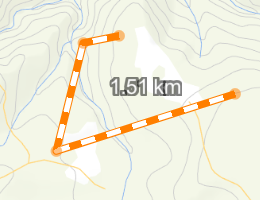
Distance Measurement Features
- Precise Linear Distances: Calculates accurate measurements using geodetic calculations
- Multi-Segment Line Support: Handles complex polylines with multiple segments and direction changes
- Per-Segment Results: Shows individual segment distances below the total distance
- Real-Time Distance Display: Live measurement updates as you draw with immediate visual feedback
- Independent Bearing Calculations: Automatically computes directional bearings for each line (Line 1 and Line 2) displayed in degrees
- Unit Selection: Choose distance units from the dropdown (metres, kilometres, feet, miles, etc.) — units update dynamically when changed
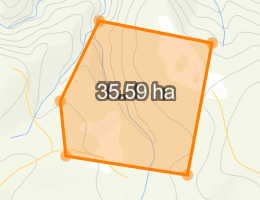
Professional Area Measurement
- Accurate Area Calculations: Computes enclosed areas using precise geodetic algorithms
- Perimeter Display: Shows the perimeter length alongside the area measurement
- Complex Polygon Support: Handles intricate polygon geometries with multiple vertices and irregular shapes
- Immediate Area Computation: Real-time area calculations as you define polygon boundaries
- Unit Selection: Choose area units from the dropdown (hectares, square metres, acres, square miles, etc.)
- Visual Feedback: Clear polygon highlighting and measurement display for enhanced user experience
Note
Switching to Area measurement will clear existing distance measurements and bearings. A confirmation dialog appears before clearing.
Tool Operations
Tool Access

- Locate Measure Tool icon in the toolbar
- Click to activate tool
Toolbar Buttons
| Button | Description |
|---|---|
| Line 1 | Activate first distance measurement |
| Line 2 | Activate second independent distance measurement |
| Area | Activate polygon area measurement |
| Clear | Reset all measurements, graphics, and bearings |
The active tool button is highlighted. Click the same button again to deactivate it without clearing results.
Drawing Distance Lines
- Click Line 1 or Line 2 to activate
- Click on the map to start your line
- Click additional points for direction changes (multi-segment)
- Double-click to complete the measurement (or press ESC to cancel the current drawing)
- The total distance and bearing are displayed in the results panel
- Per-segment distances appear below the total (e.g., "Seg 1: 120.5m", "Seg 2: 85.3m")
Drawing Area Polygons
- Click Area to activate (a confirmation dialog appears if distance measurements exist)
- Click on the map to start your polygon
- Add vertices as needed to define the boundary
- Double-click to close and complete the polygon
- Area and perimeter are displayed in the results panel
Measurement Results
Results are displayed in two sections:
Measurement Results — Shows distances and area values:
- Line 1 total distance with per-segment breakdown
- Line 2 total distance with per-segment breakdown
- Area and perimeter values
Bearing Results — Shows compass bearings:
- Line 1 bearing in degrees
- Line 2 bearing in degrees
Clear Measurements
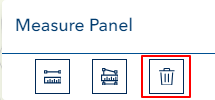
Click the Clear button (reset icon) to remove all measurements, graphics, and bearings from the map. The button is disabled when no measurements exist.
TIP
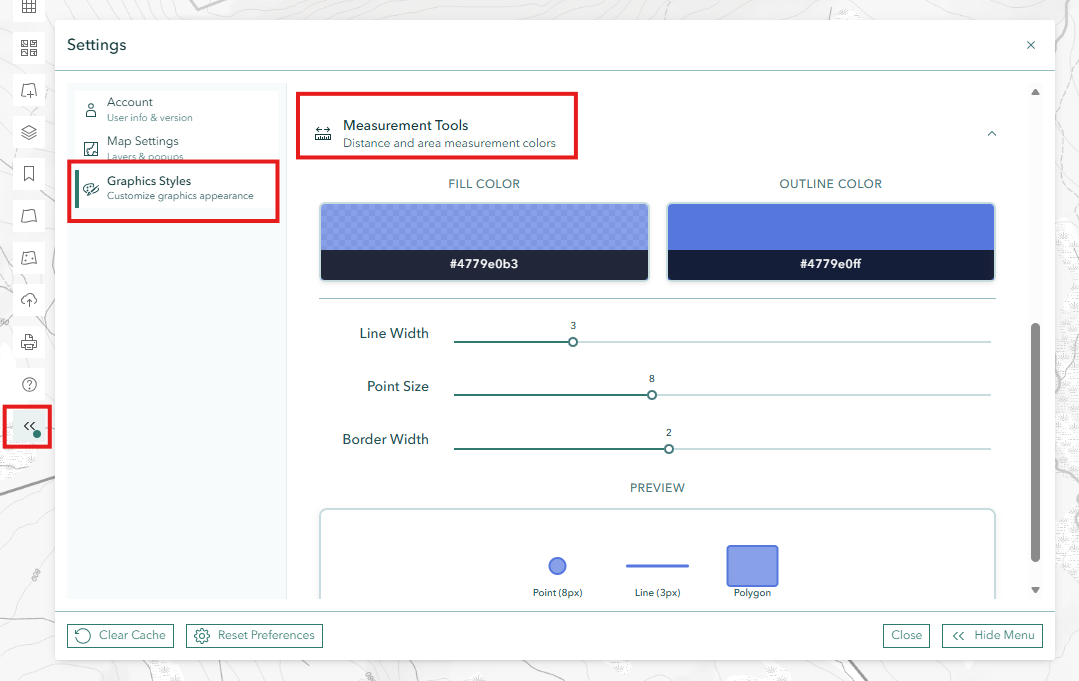
Measurement line and point colours can be customised via System Settings > Graphics Styles > Measurement Tools.
Troubleshooting
| Issue | Solution |
|---|---|
| Measurements not displaying | Complete geometry with double-click |
| Cannot start new measurement | Clear existing measurements or use the second line tool |
| Inaccurate results | Check map projection and units |
| Area button clears lines | This is expected — a confirmation dialog warns before clearing |
| No bearing displayed | Complete the distance line first (double-click to finish) |
| Units look wrong | Use the unit dropdown to select your preferred unit |
Video Tutorial
Watch this guide on using the Measure Tool: