Appearance
Layers Panel
Overview
The Layers Panel is your central hub for managing all map layers. Control visibility, transparency, styling, labels, and more through an intuitive interface.
Key Features:
- Layer visibility control
- Transparency adjustment
- Label and popup management
- Layer type switching
- Active filter indicators
- Advanced styling options
Accessing the Panel

- Click the layers icon in the main toolbar
- Panel opens on the left side of the screen
- Click again to close
Core Functions
Visibility Control
Toggle layer on/off using the eye icon
- ✅ Layer visible (eye open)
- ❌ Layer hidden (eye closed)
- Layer stays in project when hidden

Transparency Control
Adjust layer opacity
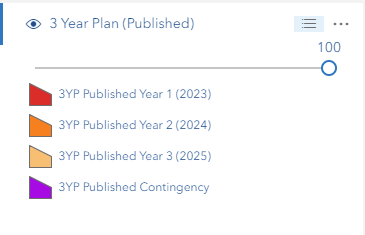
- Click the three-lines icon next to the layer name
- Use the opacity slider (0 = transparent, 1 = opaque)
- Changes apply immediately
- Slider has precise control (0.01 increments)
Special Note: The Slope Degree Range layer has dual sliders (degree range + opacity). The Canopy Height Model's height filter is no longer here — it has moved to the Imagery Tool (see Canopy Height Model Filter below).
Legend Display
View layer symbology
- Click three-lines icon
- Legend appears below the slider
- Shows colors, symbols, and what they represent

Layer Actions
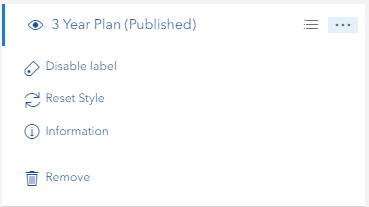
Access via the three-dots icon

Available Actions
| Action | Available For | What It Does |
|---|---|---|
| Enable/Disable Label | Feature Layer, Map Image Layer | Toggle layer labels on/off |
| Enable/Disable Popup | Feature Layer, Map Image Layer | Toggle popup information |
| Change Style | Vector layers (not raster) | Opens the Style Editor on that layer; on a treetop layer, its Tree Style section |
| Reset Style | Vector layers (not raster) | Restores the layer's published styling; a treetop layer goes back to its treetop style |
| Metadata | Layers with metadata | View layer metadata |
| Information | Layers read from a service (not WMS) | View layer properties and details. Not offered on layers whose data is in your browser: uploaded files, GeoParquet layers, Analysed treetops |
| Filter this layer | Feature Layer, Map Image Layer | Apply attribute filter to the layer |
| Reset Filter | Feature Layer, Map Image Layer | Remove active attribute filter |
| Export SHP | Route Layer | Export route geometry as Shapefile |
| Export KML | Route Layer | Export route geometry as KML file |
| Switch to Feature/Image Layer | Compatible MapServer layers | Convert layer type |
| Remove | All layers | Remove layer from map |
Layer Types
Feature Layers
Best for: Interactive data, editing, analysis
Features:
- Individual feature selection
- Detailed popup information
- Attribute access
- Label control
- Popup toggle
- Layer type conversion (if MapServer-based)
- Filter support
When to Use:
- Need to select individual features
- Require detailed attribute information
- Performing analysis or editing
- Working with manageable dataset size
Map Image Layers
Best for: Large datasets, display-only, performance
Features:
- Server-side rendering
- Fast performance for large data
- Sublayer management
- Advanced styling options
- Label control (per sublayer)
- Popup toggle
- Layer type conversion (if compatible)
- Custom style parameters
When to Use:
- Large datasets (thousands of features)
- Display-only purposes
- Need fast map rendering
- Print-quality symbology required
Important: Only Map Image Layers with feature sublayers (containing geometry data) can be converted to Feature Layers. Raster sublayers cannot be converted.
WMS/WMTS/Tile Layers
Limited options available
Features:
- Visibility control
- Transparency adjustment
- Basic information
- Remove option
Route Layers
Display and export solved routing results
Features:
- Visibility control
- Transparency adjustment
- Export direction lines to Shapefile (.shp)
- Export direction lines to KML (.kml)
- Basic information
When to Use:
- Reviewing solved cart routes or network routes
- Exporting route geometry for use in other GIS tools
Group Layers
Manage multiple layers together
Features:
- Sort/reorder layers (via three-dots menu)
- Bulk removal (via three-dots menu)
- Hierarchical structure
- Expand/collapse
Special Features
Active Filter Indicators
Visual feedback for filtered layers
What it shows:
- Red filter color next to filtered layers
- Indicates an active filter expression is applied
- Works for Feature Layers and Map Image Layers
- Updates in real-time
How it works:
- Automatically detects filters
- Shows for both regular and sublayer filters
- Tooltip shows "Layer has active filters"
- Updates when you add/remove filters
Canopy Height Model Filter
Moved to the Imagery Tool. The height-range slider that used to appear when you expanded Canopy Height Model (100m) is no longer in the layer list. The layer is now an image service, so expanding it shows the standard opacity slider and legend, and you filter it by height with the Value Range in the Imagery Tool.
For step-by-step instructions, see Canopy Height Model Filter.
Slope Degree Filter
Special controls for the Slope layer
Features:
- Dual-handle range slider with discrete degree values
- Degree values: 0°, 11°, 19°, 26°, 35°, 36°
- Range display shows current selection (e.g., "Range: 0° - 36°")
- Reset button returns to default (0° - 36°)
- Opacity slider for transparency control
- Real-time updates with loading indicator
How to use:
- Expand the Slope layer in the Layers Panel
- Click the three-lines icon to open the panel
- Drag left handle for minimum slope degree
- Drag right handle for maximum slope degree
- Map updates automatically (300ms debounce)
- Use Reset Range to restore defaults
Treetop Layers
Tree Height Filter and Tree Style, for layers of treetops
Treetop layers are:
- the Analysed treetops layer that the Treetops tool draws;
- a GeoParquet file of treetops added with Add External Service.
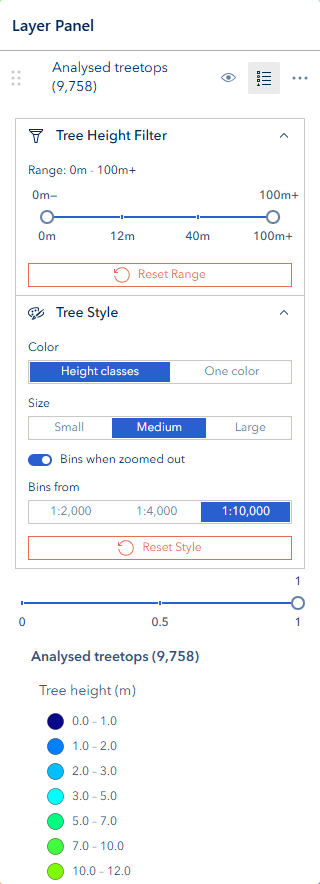
Their dots are coloured by height in the canopy height model's classes. Expanding one (the three-lines icon) shows two sections above its opacity slider and legend.
Tree Height Filter
- A dual-handle slider (Min Height / Max Height) in the canopy height model's steps, from 0m to 100m+. The range shows under it, for example Range: 10m - 30m
- Only the treetops in the range are drawn, gathered into bins, shown in pop-ups and printed. A GeoParquet treetop layer's row also shows the filter indicator
- Reset Range shows every height again
- On the Analysed treetops layer this is the same filter as a click on the Treetops tool's Height classes chart, and the chart follows it
Tree Style
- Color: Height classes (the default) or One color, chosen with a colour picker
- Size: Small, Medium or Large dots
- Bins when zoomed out: on or off. With it on, further out than Bins from (1:2,000, 1:4,000 or 1:10,000) the treetops are gathered into bins coloured by their mean height. The default is 1:4,000 for a GeoParquet layer and 1:10,000 for Analysed treetops
- Reset Style puts the default style back
From the three-dots menu:
- Change Style opens the Tree Style section;
- Reset Style restores the default style;
- Enable Label shows each treetop's height, at 1:1,000 and closer.
Layer Type Switching
Convert between Feature and Image layers
When to Switch:
To Feature Layer when you need:
- Individual feature selection
- Detailed popups
- Attribute access
- Analysis tools
To Image Layer when you need:
- Faster rendering
- Large dataset handling
- Better print symbology
- Server-side caching
How to Switch:
- Click three-dots on compatible layer
- Select "Switch to Feature/Image Layer"
- Conversion happens automatically
- Properties preserved (visibility, opacity, filters)
Requirements:
- Must be MapServer-based layer
- For Map Image Layers: Must have feature sublayers with geometry data
- Not available for: Raster layers, Editor layers (FPP, Sketch, etc.)
Best Practices
Organization
✅ Do:
- Arrange layers logically (base maps at bottom, data on top)
- Group related layers together
- Use consistent naming
- Collapse unused groups
❌ Don't:
- Keep too many layers active at once
- Mix different project layers randomly
Performance
✅ Optimize:
- Use Image Layers for large datasets
- Use Feature Layers for interactive data
- Turn off unused layers
- Remove layers you don't need
- Apply appropriate scale ranges
❌ Avoid:
- Having 20+ layers visible at once
- Using Feature Layers for millions of features
Visual Display
✅ Best Practices:
- Adjust opacity for layered viewing
- Enable labels only when needed
- Check legend before applying filters
- Use reset style to fix rendering issues
❌ Avoid:
- Setting all layers to 100% opacity
- Enabling labels on all layers
- Applying complex filters without checking results
Troubleshooting
Common Issues
| Problem | Solution |
|---|---|
| Layer not visible | Check: Eye icon status, map extent, scale range, active filters |
| Labels missing | Use "Enable Label" in layer menu |
| No popup on click | Use "Enable Popup" in layer menu |
| Slow performance | Reduce active layers, switch to Image Layer, check filter complexity |
| Can't switch layer type | Verify: MapServer-based, not editor layer, has feature geometry |
| Conversion fails | Check: URL structure, network connection, layer compatibility |
| Style issues | Use "Reset Style" to restore defaults |
| Transparency not working | Use opacity slider in layer panel (three-lines icon) |
| Filter indicator missing | Check if a filter expression is set, may need to refresh |
| Canopy filter not updating | Wait a moment for the filter to apply, check network connection |
| Slope filter not updating | Wait a moment for the filter to apply, check network connection |
| Raster layer shows switch option | Bug - raster layers should not show switch option (report if seen) |
| Route export fails | Ensure route has been solved and has direction lines; check network |
Layer Type Conversion
"Switch to Feature Layer" not available?
- Layer might be raster-based (no feature geometry)
- Could be WMS/WMTS (not convertible)
- Might be editor layer (excluded from conversion)
- Check if it's MapServer-based
Conversion fails with error?
- Verify layer URL is accessible
- Check network connectivity
- Ensure layer is not corrupted
- Try refreshing the page
Performance Issues
Map running slow?
- Count active layers (aim for <10)
- Switch large datasets to Image Layers
- Disable labels on dense layers
- Check for complex filters
- Remove unused layers
Layer loading slowly?
- Check internet connection
- Verify server availability
- Try switching layer type
- Contact administrator if persistent
Video Tutorial
Watch this guide on using the Layers Panel:
Quick Tips
💡 Did you know?
- You can drag layers to reorder them
- The filter indicator updates automatically
- Canopy height uses the ∞ symbol for 100+ meters
- Slope degree values are discrete: 0°, 11°, 19°, 26°, 35°, 36°
- Layer conversion preserves all your filters and styling
- Map Image Layers with only raster sublayers can't be converted to Feature Layers
- Route layers can be exported to Shapefile or KML directly from the layer menu
- "Filter this layer" and "Reset Filter" actions work on both Feature Layers and Map Image Layers
See Also
- Concepts: FeatureLayer vs MapImageLayer - Understanding when to use each layer type
- Add Layer - Import layers from the data catalog and external services
- Filter Tool - Apply attribute and spatial filters to layer data
- Style Editor - Customise layer symbology and styling