Appearance
Canopy Height Model Filter
The height filter has moved to the Imagery Tool
The height-range slider no longer appears in the layer list. Canopy Height Model (100m) is now published as an image service, and you filter it by height with the Value Range in the Imagery Tool (Report Tools › Imagery Tool). Expanding the layer in the layer list now shows only the standard opacity slider and legend.
Overview
Filtering the Canopy Height Model lets you show only a chosen band of canopy heights — for example, only canopy taller than 50 m — and hide everything else. Use it to focus on particular height classes and to read forest structure across the landscape.
What is the Canopy Height Model?
The Canopy Height Model shows the height of the forest canopy, in metres, across the landscape. Each pixel holds the canopy height at that location.
Data Information
- Source: Visual Tas
- Resolution: 50 cm × 50 cm per pixel (high-resolution detail)
- Coverage Area: PTPZ Land with a 100 m buffer zone
- Units: Metres above ground level
- Range: 0–100+ m
- Display: the layer arrives already coloured with the Canopy Height (0–100 m) colour scheme — the same colours as the previous version of the layer, running from dark blue at ground level through cyan, green, yellow and orange to dark red at 100 m. Anything taller than 100 m is drawn black
How the Filter Works
With the Value Range in the Imagery Tool you:
- Set a lower and an upper height with a two-handle slider
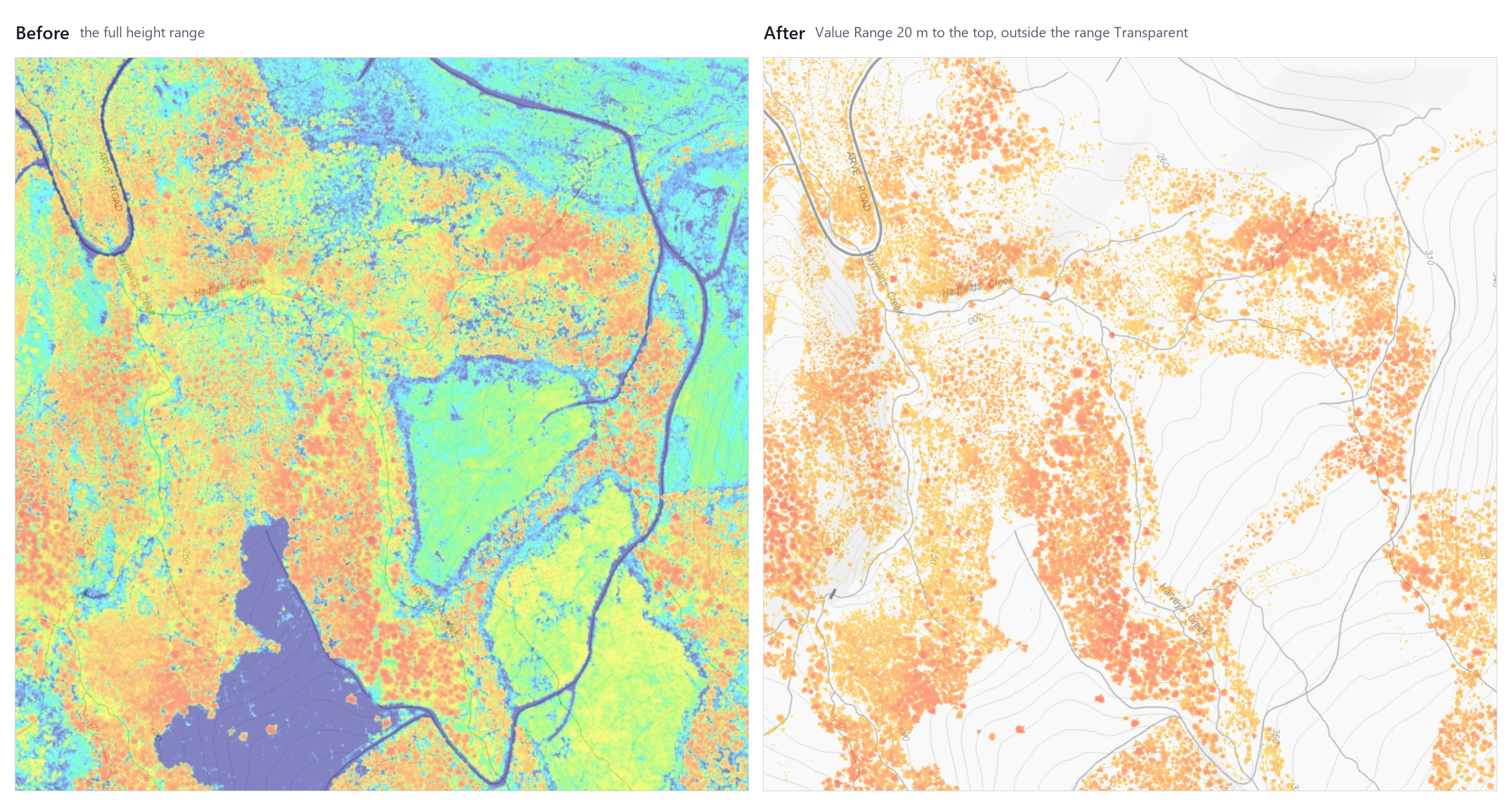
- Choose what happens to heights outside that range — hide them (Transparent, the default) or draw them in the scheme's first and last colours (Use end colors)
- Apply it to the map, where it stays until you change or reset it — including when you save a bookmark or print
The filter only changes how the layer is drawn. It never changes the data.
Filtering by Height
Step 1: Add the Canopy Height Model (100m) layer
- Open the Layer Catalog and add Canopy Height Model (100m) from the Canopy category
- Make sure the layer is switched on in the layer list
Only the (100m) layer can be filtered
The Canopy category also lists Canopy Height Model (5m), (10m), (25m), (40m), (60m) and (Cached). Those are ready-styled map services — the Imagery Tool does not list them, so they cannot be filtered. For a lower height ceiling on a layer you can filter, use (100m) with one of the Canopy 60m / 40m / 25m / 10m / 5m colour schemes (see Choosing a Colour Scheme).
Step 2: Open the Imagery Tool
- Open the Report Tools panel in the right sidebar
- Select Imagery Tool from the report tools dropdown
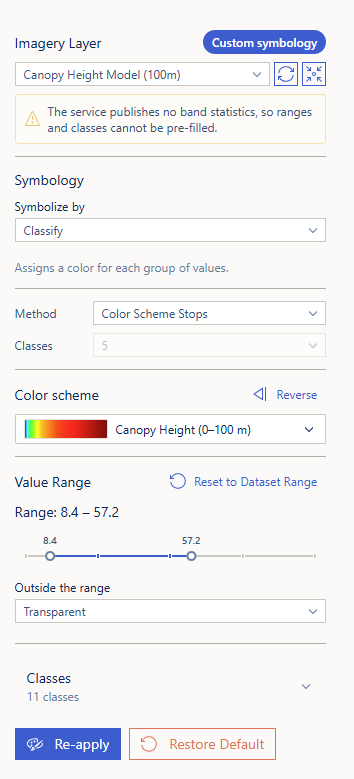
- Under Imagery Layer, choose Canopy Height Model (100m) — a layer marked (hidden) is switched off
The tool opens on the colour scheme the layer is already drawn with (Canopy Height (0–100 m)), so you do not need to change anything else to filter by height.
Step 3: Set Your Height Range
In the Value Range section:
- Drag the left handle to set the minimum height
- Drag the right handle to set the maximum height
- Read the exact range above the slider — for example Range: 20.0 – 100.0+. A trailing + means the right-hand handle is at the top of the data range, so nothing is cut off the top
- Leave Outside the range on Transparent to hide the other heights, or choose Use end colors to draw them in the scheme's first and last colours instead
On the default scheme the slider moves in half-metre steps.
Step 4: Apply It to the Map
- Click Apply Symbology (this also switches the layer on if it was off)
- The button now reads Re-apply. From here on, any change to the range redraws the map by itself a moment after you stop dragging
Nothing changes on the map until the first Apply
Until you click Apply Symbology once, moving the handles only changes the form. This is different from the old layer-list slider, which redrew the map as soon as you let go.
Resetting
- Reset to Dataset Range (beside the Value Range heading) opens both handles back out to the full range. If the filter has been applied, the map redraws with every height showing
- Restore Default puts the layer back exactly as it was before your first Apply — the standard canopy colours, with no height filter
What Changed from the Layer-List Filter
| Before — layer list | Now — Imagery Tool | |
|---|---|---|
| Where | Expand the layer in the layer list | Report Tools › Imagery Tool, Value Range section |
| Heights you can pick | Fixed values: 0, 1, 2, 3, 5, 7, 10 … 90, 100 m, 100+ | Any height, in half-metre steps |
| Updating the map | As soon as you let go of a handle | After you click Apply Symbology once; automatically after that |
| Heights outside the range | Always hidden | Hidden (Transparent) or drawn in the end colours (Use end colors) |
| Top of the range shown as | ∞ | A trailing + |
| Reset | Reset Range | Reset to Dataset Range, or Restore Default |
| Opacity | A slider under the filter | Still in the layer list — expand the layer |
Common Use Cases
In the ranges below, top means the right-hand handle is left at the end of the slider (the readout ends in +).
Forest Management
Identify Mature Forest Stands
- Range: 50 m – top
- Shows: All mature and tall forest areas
- Use for: Harvest planning, timber assessment
Locate Regeneration Areas
- Range: 0 – 15 m
- Shows: Young growth and saplings
- Use for: Replanting assessment, growth monitoring
Plan Selective Harvesting
- Range: 35 – 60 m
- Shows: Standard mature forest
- Use for: Selective logging operations
Environmental Analysis
Study Vertical Forest Structure
- Compare multiple ranges: 0–25 m, 25–50 m, 50 m – top
- Understand: Forest layering and complexity
- Apply to: Habitat assessment
Analyse Habitat Complexity
- Use overlapping ranges
- Identify: Multi-layered forest areas
- Support: Biodiversity studies
Monitor Forest Growth
- Set a specific range for the target age class
- Track: Canopy development over time
- Document: Succession patterns
Planning Applications
Visual Impact Assessment
- Range: 60 m – top
- Identify: Tall trees that may affect views
- Use for: Screening analysis
Buffer Zone Planning
- Set the range based on screening requirements
- Visualise: Effective visual barriers
- Plan: Vegetation buffers
Wildlife Corridor Analysis
- Range: 35 m – top
- Identify: Continuous canopy connectivity
- Design: Wildlife movement corridors
Filter Strategies
Start Broad, Then Narrow
Begin with major categories
- Understorey: 0–30 m
- Canopy: 30–60 m
- Tall forest: 60 m – top
Identify areas of interest
- Note patterns and concentrations
Refine with specific ranges
- Example: 45–65 m for detailed mature forest
Use precise ranges
- Fine-tune for specific analysis needs
Consider Your Map Scale
- Large areas: Use broad ranges (25 m increments)
- Local analysis: Use narrow ranges (5–10 m increments)
- Detailed studies: Use precise custom ranges
- Overview: Use major forest categories
Compare Multiple Ranges
- Apply a first range (e.g. 0–25 m)
- Note the pattern
- Drag to a second range (e.g. 25–50 m) — once applied, the map follows the handles
- Compare the distributions
- Identify forest structure differences
Tips for Best Results
Choosing the Right Range
For Timber Assessment:
- Use: 50 m – top for merchantable timber
- Use: 15–35 m for future harvest planning
- Use: 0–15 m for regeneration monitoring
For Ecological Studies:
- Use: Multiple ranges for habitat layers
- Use: Narrow ranges for specific species needs
- Use: Broad ranges for general structure
For Visual Analysis:
- Use: 40–70 m for dominant canopy
- Use: 60 m – top for view obstruction
- Use: Relevant sight-line heights for screening
Choosing a Colour Scheme
Narrowing the range changes only what is visible — it does not re-spread the colours across your range. To see more colour detail in low canopy, pick a lower-ceiling scheme from the Color scheme picker — Canopy 60m, 40m, 25m, 10m or 5m — rather than only narrowing the range. See Colour Schemes in the Imagery Tool guide.
Combine with Other Layers
- Aerial imagery: Provides visual context
- Property boundaries: Define analysis areas
- Roads: Identify access points
- Slope layers: Understand terrain relationships
Understand the Display
- Colours: Follow the chosen colour scheme
- Transparent areas: Heights outside your range, when Outside the range is set to Transparent
- Opacity: Set in the layer list (expand the layer) — the Imagery Tool does not change it
- Legend: Shows the applied height classes and their labels
Frequently Asked Questions
Q: Where has the height slider in the layer list gone? A: It moved to the Imagery Tool — see Filtering by Height.
Q: I still see a height slider when I expand the layer. A: You have the older version of the layer, most likely restored from a bookmark saved before the change. Its slider still works; to use the Imagery Tool instead, remove it and add Canopy Height Model (100m) from the Canopy category.
Q: I moved the handles but the map didn't change. A: Click Apply Symbology. Until the first Apply, the handles only change the form. If it still doesn't change, check the layer is switched on in the layer list.
Q: Most of the layer disappeared. A: The range is narrowed and Outside the range is Transparent. Click Reset to Dataset Range, or switch to Use end colors.
Q: How do I see all heights again? A: Click Reset to Dataset Range, or Restore Default to remove the filter altogether.
Q: What does the + at the end of the range mean? A: The right-hand handle is at the top of the data range, so no heights are cut off the top. It replaces the ∞ the old slider showed.
Q: Can I export filtered data? A: No — the filter only affects the display.
Q: Is the filter kept when I save a bookmark or print? A: Yes. The filtered, coloured view is saved with a bookmark and included in a print.
Q: The map takes a moment to update when I move the slider. A: This is normal — Horizon waits until you stop dragging before it asks the image service to redraw.
Q: What does clicking the map show? A: The canopy height at that point — the actual value, not the class it is drawn in. See Reading Pixel Values.
Q: How accurate are the height measurements? A: The height data comes from Visual Tas with 50 cm × 50 cm resolution per pixel, providing very detailed canopy measurements. The data covers PTPZ Land with a 100 m buffer zone around it.
Q: What area does this data cover? A: The canopy height data covers PTPZ Land and extends 100 metres beyond its boundaries to provide context for edge analysis.
See Also
- Imagery Tool — the full reference, including rendering types, colour schemes and the class table
- Canopy Analyze Tool — canopy height statistics and a height-distribution breakdown for an area
- Layer Panel — opacity and legend for the layer