Appearance
System Panel
Overview
The System Panel opens a Settings dialog that centralizes all user-facing application preferences and maintenance actions. The dialog uses a left sidebar menu to navigate between sections, and supports dragging and resizing to fit your screen layout.
Sections available:
- Account — Displays your username, the current application version, and whether an update is waiting
- Map Settings — Controls theme, scale bar, layer creation, popups, and bookmarks
- Graphics Styles — Customizes the visual appearance of drawn shapes and analysis graphics
- Developer — Cache diagnostics and debug tools (only visible in development mode)
Opening the Settings Dialog
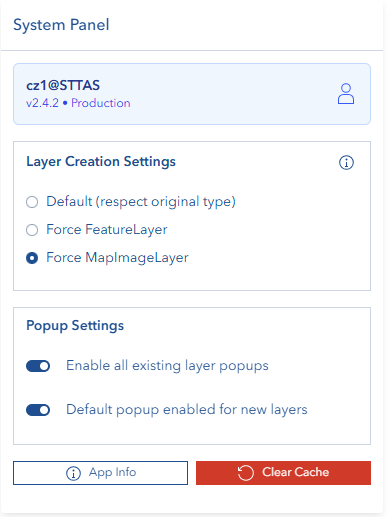
- In the right toolbar, click the gear icon (Settings)
- The Settings dialog opens as a resizable, draggable modal
- Use the left sidebar to switch between sections
- Click Hide Menu in the footer to collapse the sidebar and gain more content space
- Click Close in the footer to dismiss the dialog
Account Section
The Account section shows information about your current session:
- User — Your logged-in username
- Version — The current application version number (a DEV label is appended in development mode), followed by either an Up to date chip or a Reload now button — see Application Updates
Application Updates
Horizon checks whether a newer version has been deployed while your tab has been open, and offers to reload into it. Nothing is ever reloaded without your say-so.
How you are told, in increasing order of urgency:
- A notification — a short "Update available" message appears with a Reload now button, and sometimes a What's new link to the release notes. It closes itself after a few seconds; Later dismisses it.
- The Settings indicator — the Settings (gear) button shows a small dot, and the Version row above gains a Reload now button. This is how you get back to the reload action once the notification has gone. When there is no update, the row shows an Up to date chip instead.
- A required reload — if part of the app can no longer be loaded because this tab is running a version that has been replaced, a "Please reload Horizon" dialog appears and must be answered. It cannot be dismissed, because the session is already broken rather than merely out of date.
Unsaved work is lost on reload
Reloading discards anything drawn but not saved — shapes in an editor, unsaved analysis results. Save or export first where you can. That is why the reload is always your choice, and why a notification can be deferred with Later.
Quiet deployments
Not every deployment interrupts you: maintenance releases show only the Settings indicator, and some show nothing at all. A session that can no longer load part of the app, however, always gets the required-reload dialog whatever the release. If you dismiss an update with Later you are reminded again after a while, and the next, different update is never suppressed by that dismissal.
Map Settings Section
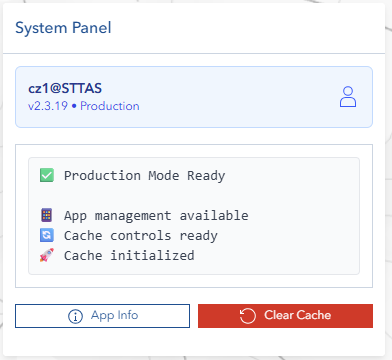
The Map Settings section is organized into collapsible blocks. Each block can be expanded or collapsed independently.
Appearance
Controls the application color theme:
- Light — Uses a light background theme for the UI and map
- Dark — Uses a dark background theme for the UI and map
Theme changes apply immediately across the entire application.
Scale Bar
Controls how the map scale bar is displayed:
Unit — Choose the unit system for the scale bar:
| Option | Description |
|---|---|
| Metric | Displays distance in metres and kilometres |
| Imperial | Displays distance in feet and miles |
| Dual | Displays both metric and imperial simultaneously |
Bar Style — Choose the visual style of the scale bar:
| Option | Description |
|---|---|
| Line | Simple line with end markers |
| Ruler | Segmented ruler-style scale bar |
INFO
When Dual unit is selected, Bar Style is automatically locked to Line and the style selector is disabled.
Layer Creation
Controls how layers are added from the catalog:
| Option | Description |
|---|---|
| MapImage | Prefer Map Image Layer when adding catalog layers |
| Feature | Prefer Feature Layer when adding catalog layers |
| Original | Preserve the source layer type as-is (default) |
INFO
This setting can only be changed in development mode. In production, the control is locked and a notice is displayed explaining the restriction. Click Learn about layer types to open the layer concepts documentation.
Popups
Two independent toggle switches control popup behavior:
Enable all layer popups
- Immediately enables or disables popups on all currently loaded layers in the map
- Applies to both Feature Layers and Map Image Layers (including their sublayers)
- Use this for a quick bulk enable or disable across all visible layers
Default for new layers
- Sets the default popup state for layers added to the map after this change
- Does not retroactively affect layers that are already loaded
Bookmarks
Compact layout (hide thumbnails)
- When enabled, the bookmark panel displays bookmarks as a compact list without thumbnail images
- When disabled, each bookmark shows its saved map thumbnail
Sort order
Controls the order in which bookmarks appear in the bookmark panel:
| Option | Description |
|---|---|
| A-Z | Alphabetical order, ascending |
| Z-A | Alphabetical order, descending |
| Newest | Most recently created bookmarks first |
| Oldest | Oldest bookmarks first |
Graphics Styles Section

The Graphics Styles section lets you customize the visual appearance of shapes used throughout the application. Changes apply immediately to any new graphics drawn or displayed.
Click Reset All Styles in the section header to restore every category to its default appearance at once. This button is only active when at least one category has been customized. A confirmation dialog appears — click Reset to Defaults to confirm or Cancel to abort.
Style Categories
Each category controls the appearance of graphics used in a specific context:
| Category | Used for |
|---|---|
| Target Layer | Primary shapes drawn for spatial analysis |
| Reference Layer | Comparison shapes and buffer geometry |
| Search Results | Highlighted features from search operations |
| MyLayer Graphics | Personal saved layer graphics |
| Uploaded Files | Shapes from imported Shapefile, KML, GPX, or CSV |
| Highlight/Analysis | Analysis result highlights and selected features |
| Measurement Tools | Distance and area measurement graphics |
| Line of Sight | Line of sight visible-area results |
Click any category heading to expand it and access its style controls.
Style Controls
Each category exposes the following controls:
Fill Color
- Click the color swatch to open the color picker
- The checkerboard background indicates transparency support
- Adjust both the color and the alpha (opacity) channel
Outline Color
- Click the color swatch to open the color picker
- Controls the border color of polygons and the color of lines and points
- Supports alpha transparency
Line Width — Slider from 1 to 10. Controls the thickness of line features.
Point Size — Slider from 1 to 20. Controls the radius of point features.
Border Width — Slider from 0 to 5. Controls the outline stroke width for polygon and point features.
Live Preview
Each expanded category shows a live preview panel displaying how a point, line, and polygon will appear with the current style settings.
Per-Category Reset
A reset icon (tooltip Reset to defaults) appears on a category heading once that category's settings differ from the defaults. Click it to restore only that category to its default values. The icon is hidden while the category is still at its defaults.
Developer Tools Section
The Developer section is only visible in development mode. It provides cache performance testing and diagnostic tools for the internal layer caching system. All results appear in a dismissible notice panel.
The four tools are presented as a segmented control:
| Segment | Description |
|---|---|
| Performance | Runs a side-by-side comparison of cached vs. traditional layer access timing |
| Validate | Checks whether the cache is consistent with the current map layer state |
| Stats | Shows total layer count, feature layer count, and cache hit/miss counts |
| Inspect | Displays detailed content of the cache, including feature and other layers |
Click a segment to run it. Results are shown immediately in the notice area below. Click the close button on the notice to dismiss it and run another test.
Footer Actions

The footer is always visible regardless of which section is active.
Clear Cache
Clears all browser-stored cache data and reloads the application. This includes:
- Browser Cache API entries
- Browser local storage
- Browser session storage
A confirmation dialog appears before the operation runs. Click Clear & Refresh to proceed or Cancel to abort.
Use this action when you experience stale data, visual glitches, or settings that seem frozen.
Reset Preferences
Resets all user preference settings to their factory defaults and reloads the application. The following preferences are reset:
- Layer creation preference
- Enable all layer popups
- Default popup for new layers
- Theme preference (Light/Dark)
- Bookmark compact layout
- Bookmark sort order
- Scale bar unit
- Scale bar style
- Filter "zoom to results" preference
A confirmation dialog appears before the operation runs. Click Reset to Defaults to proceed or Cancel to abort.
INFO
Reset Preferences only clears preference settings. Graphics style customizations are stored separately and are not reset by this action. Use Clear Cache to remove all stored data including graphics styles.
Close
Closes the Settings dialog and returns to the map.
Hide Menu / Show Menu
Toggles the left sidebar navigation. When hidden, the content area expands to use the full dialog width. Click Show Menu to restore the sidebar.
Troubleshooting
| Issue | Likely Cause | What to Do |
|---|---|---|
| Layer Creation option cannot be changed | Running in production mode | This setting is locked in production; use development mode to change it |
| Existing layer popups did not update | The wrong toggle was used | Use Enable all layer popups to bulk-update currently loaded layers |
| New layers ignore the popup setting | Default popup toggle was not set | Check and update the Default for new layers toggle |
| Graphics style changes look inconsistent | Some categories have different settings | Review each category individually; use per-category Reset if needed |
| Settings appear stuck or wrong after reload | Stale browser storage | Use Clear Cache to wipe all stored data and reload |
| A dot appeared on the Settings button | A newer version of Horizon has been deployed | Open Settings and click Reload now on the Version row when you are ready — save unsaved work first |
| "Please reload Horizon" dialog cannot be closed | This tab is running a version that has been replaced, so part of the app cannot load | Reload; the dialog is deliberately not dismissible because the session is already broken |
| The update notification disappeared before I could act | It closes itself after a few seconds | The Reload now button remains on the Version row in Settings |
| Version number looks out of date | The tab is still running the version it loaded | Reload — the number updates with the reload, not on its own |
| Preferences did not reset graphics styles | Reset Preferences only clears preference keys | Use Clear Cache for a full storage wipe including graphics styles |
| Developer section is not visible | Running in production mode | The Developer section is only shown in development mode |