Appearance
Map Composer
Overview
Map Composer lets you order print maps and reports, and upload inventory data, directly from Horizon. Instead of downloading a file in your browser, you submit a job to the Map Composer server, which produces it in the background and delivers the finished result to you by email.
Use Map Composer to:
- Order a map or report for a chosen product and location (New Job)
- Upload an inventory workbook — PHA, Survival Map, or FIRS — for processing (Upload Data)
- Track your jobs as they move from Waiting to Completed (My Jobs)
Results arrive by email
There is no "Save file" step. Once a job finishes, the server emails you the completed map, report, or processed inventory.
Beta feature
The New Job tab is currently limited to members of the Map Composer beta group. Everyone can use Upload Data and My Jobs. If the New Job tab shows a notice instead of the form, contact your administrator about beta access.
Getting Started
Opening Map Composer
- Click the Map Composer action in the toolbar (labelled Map Composer (Beta))
- The tool opens as a floating window you can drag and resize
- The window stays open while you use the map — you can pan, zoom, and click the map without closing it
Close it by clicking the toolbar action again, or the window's close button.
The Three Tabs
| Tab | What it does |
|---|---|
| New Job | Build and submit a map/report order (beta) |
| Upload Data | Upload an inventory workbook for processing |
| My Jobs | See the status of everything you've submitted |
New Job — Order a Map or Report
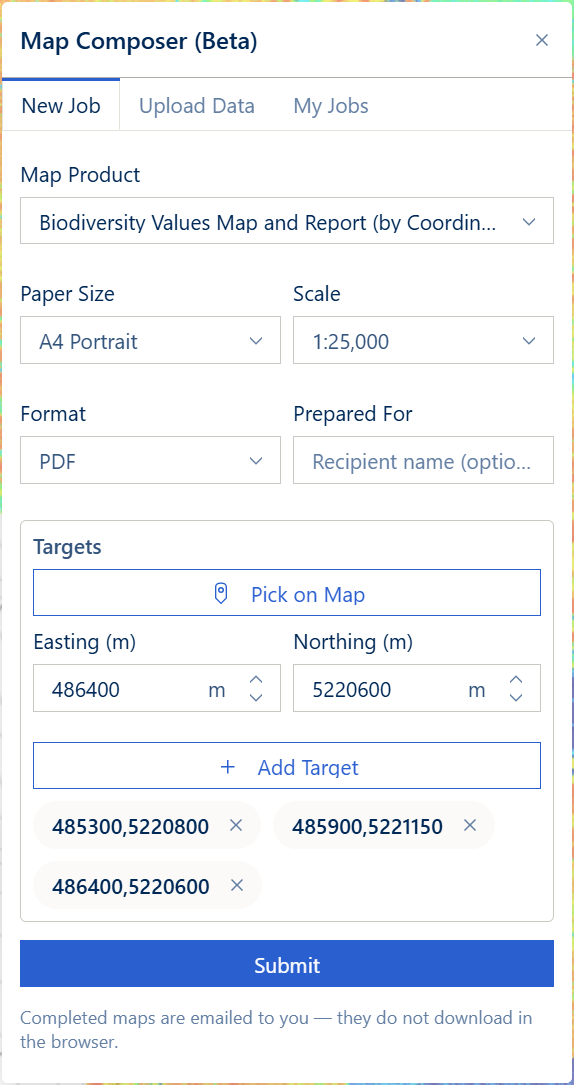
Step 1: Choose a Product
Pick a product from the Select a map product dropdown. Products are grouped by category, and each shows the kind of target it expects.
Step 2: Set the Target
The target input changes depending on the product you chose:
- Coordinate — click Pick on Map and click a location (the Easting/Northing fill in automatically, in metres), or type the Easting/Northing directly. The location must be within Tasmania.
- My Layer polygon — choose one of your saved polygon layers from the dropdown.
- Search ID — type the identifier (for example a coupe or plan number). It's automatically converted to capitals.
Step 3: Add the Target
Click Add Target. It appears as a chip. You can add several targets (up to 20) — each one becomes its own job.
INFO
Horizon checks your target before adding it. A search ID that doesn't exist is rejected with "Target Not Found", and number-only targets must contain only digits.
Step 4: Set the Output Options
- Paper Size — A4 Portrait or A3 Portrait (some products are A4-only and lock this)
- Scale — for example 1:25,000
- Format — PDF or PNG8
- Prepared For (optional) — a name to print on the map; defaults to your username
Step 5: Submit
Click Submit. One job is created for each target you added, and tracking starts automatically. Watch progress on the My Jobs tab — you'll get a notification when a job completes or fails, and the finished map/report is emailed to you.
TIP
Add all your targets first, then click Submit once — Map Composer creates a separate job for every target in a single step. If one target fails to submit, the others still go through and the failed one stays in the list so you can retry.
Upload Data — Inventory Workbooks
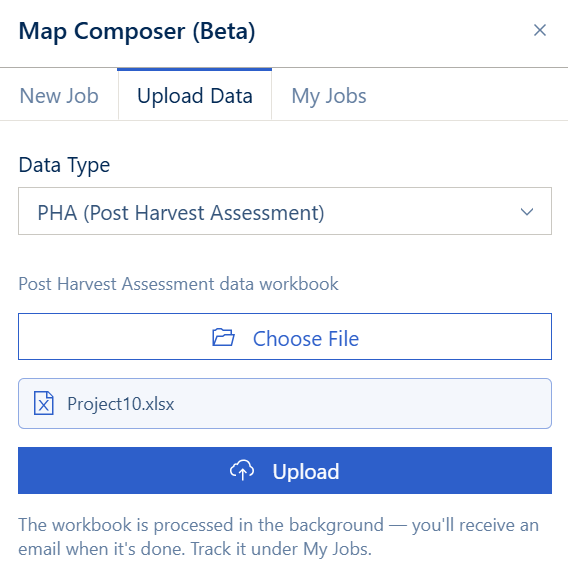
Use this tab to send an inventory spreadsheet for server-side processing.
- Choose the data type — PHA (Post Harvest Assessment), Survival Map, or FIRS Plots
- Choose a file — click Choose File and pick an Excel workbook (
.xlsor.xlsx, up to 50 MB) - Upload — click Upload
The server stores the file and queues it for processing in one step, then adds it to your My Jobs list so you can track it. The processed result is emailed to you — there is no browser download.
Duplicate files are rejected
If you upload the same workbook twice, you'll see a "duplicate" message. Rename or change the file if you intend a genuinely new submission.
My Jobs — Track Your Jobs
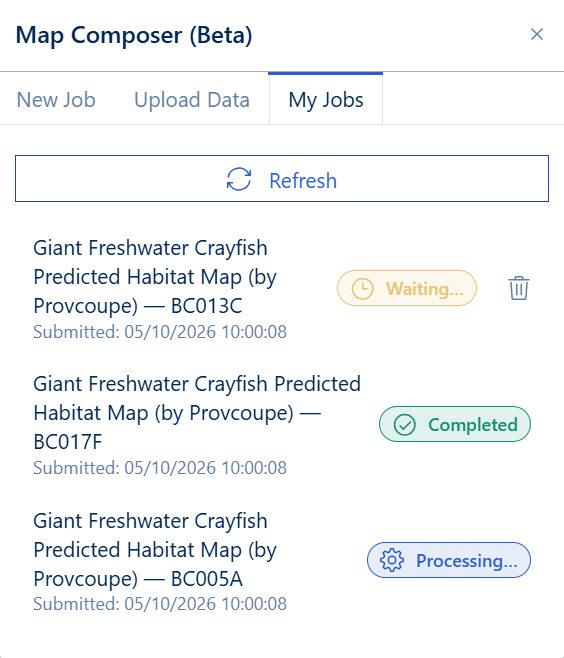
The My Jobs tab lists the jobs you've submitted, newest first, each with a status label:
| Status | Meaning |
|---|---|
| Waiting | Queued, not started yet |
| Processing | Being produced on the server |
| Completed | Done — check your email for the result |
| Failed | The server couldn't complete it |
- Refresh — click the refresh button to reload the list (it also refreshes when you open the tab). Jobs still in progress update on their own every few seconds.
- Delete a waiting job — jobs still in Waiting show a trash icon; click it and confirm to cancel a job you no longer need. (You can't delete jobs that are already processing or finished.)
Beta Access & Restricted Categories
- New Job is beta-gated. If you're not in the Map Composer beta group, the New Job tab shows a notice instead of the form. Upload Data and My Jobs stay fully available to everyone.
- Some product categories are hidden unless you belong to the matching group (for example the Aboriginal and Test categories). If you expect to see a category and don't, you may not have access to it.
- Access is granted by an administrator (your username is added to the relevant group). Contact your Horizon administrator if you believe you should have access.
Tips & Troubleshooting
| Problem | Solution |
|---|---|
| The New Job tab only shows a notice | You're not in the beta group; Upload Data and My Jobs still work. Ask your administrator for access. |
| "Target Not Found" when adding a target | The identifier doesn't match a real feature. Check the value, or pick the target on the map / from your layers. |
| Pick on Map won't accept my point | The location must be within Tasmania. Click inside the mapped area. |
| A job says Failed | The server couldn't complete it. Try resubmitting; if it keeps failing, note the product and target and contact your administrator. |
| The status list stopped updating | Live updates can stop if the server can't be reached repeatedly. Click Refresh, or close and reopen the panel. |
| A product category is missing | It may be restricted to a specific group, or the product may be turned off. Contact your administrator. |
| No products load at all | Map Composer depends on an external server. If it isn't set up for your environment yet, contact your administrator. |
Best Practices
- Batch your targets — add every location before submitting to create all the jobs at once
- Use Pick on Map for coordinate products to avoid typos in Easting/Northing
- Check My Jobs for status and history rather than waiting on the New Job tab
- Watch your email — completed maps and processed inventory results are delivered there, not downloaded
Video Tutorials
See Also
- Print Panel - Print the current map view directly from Horizon
- My Layers Tool - Manage the saved layers used as Map Composer targets
- Uploader - Upload spatial data layers into Horizon