Appearance
Horizon Analyst (retired)
Removed from Horizon in v2.24.0
Horizon Analyst is no longer part of Horizon. It is not listed in the Report Tools dropdown, and Horizon no longer hands geometry to the Analyst application or accepts zoom instructions back from it.
The Analyst application itself is still deployed and reachable by its own URL, but it has no integration with Horizon — so the workflows described below, which depend on the two applications talking to each other, no longer work. If you relied on the hand-off, raise it with the GIS team.
This page is kept for reference only. See the v2.24.0 release notes.
Overview
The following describes the integration as it worked before v2.24.0.
Horizon Analyst is a sophisticated companion application that extends Horizon's analytical capabilities through advanced data visualization and bi-directional communication. This powerful tool provides specialized features for in-depth spatial data examination, interactive reporting, and enhanced data analysis workflows that seamlessly integrate with your main mapping interface.
Core Features
Analysis Tools
- Bi-directional Data Exchange: Real-time communication between Horizon and Analyst through SignalR integration
- Advanced Visualization: Comprehensive charting capabilities including pie charts and bar graphs for attribute analysis
- Interactive Table Analysis: Enhanced table visualization with column configuration and data filtering
- Dynamic Data Selection: Flexible geometry-based data filtering with multiple input methods
- Report Generation: Customizable reports based on spatial queries and attribute analysis
- Multi-Window Support: Independent browser window operation for enhanced workflow flexibility
Interface Options
- Separate Window Mode: Opens in dedicated browser window for dual-monitor setups
- Integrated Communication: Maintains persistent connection with main Horizon application
- Responsive Layout: Adapts to various screen sizes and window configurations
- Synchronized Data Updates: Real-time updates when data changes in either application
- Context Preservation: Maintains analysis state across window interactions
Setup Process
Initial Access
- Navigate to the Report Tools panel in the right sidebar
- Select Horizon Analyst from the report type dropdown
- Click the Open Horizon Analyst button (launch icon) to open the companion app in a new browser window
- Position the window as needed (supports dual-monitor setups)
Panel Controls
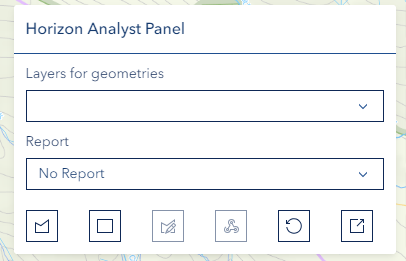
The Horizon Analyst panel contains two dropdowns and a toolbar for defining and sending geometry to the Analyst application.
Dropdowns
| Control | Purpose |
|---|---|
| Layers for Shapes | Select a visible map layer to use as the source for shape selection. Supports Feature Layers, CSV layers, and Map Image Layer sublayers. Click the dropdown to refresh the layer list. |
| Report | Select the report type to display in the Analyst application. |
Toolbar Buttons
| Button | Icon | Description |
|---|---|---|
| Select Shape | cursor / cursor-selection | Click a polygon feature on the map from the selected layer to use as the analysis geometry. Only visible when a layer is selected. |
| Draw Polygon | polygon | Draw a custom polygon boundary on the map by clicking vertices. Double-click to complete. |
| Draw Rectangle | rectangle | Draw a rectangular boundary with two clicks. |
| Edit Shape | edit-geometry | Modify an existing drawn or selected shape. Disabled until a shape is on the map. |
| Filter Features | webhook | Send the current geometry to Horizon Analyst to filter and update the report data. Disabled until a shape is on the map. |
| Reset | reset | Clear all graphics from the map and reset the panel. |
| Open Horizon Analyst | launch | Open the Horizon Analyst companion application in a new browser window. |
Data Analysis
Basic Operation
- Select desired report
- Configure column visibility
- Review data presentation
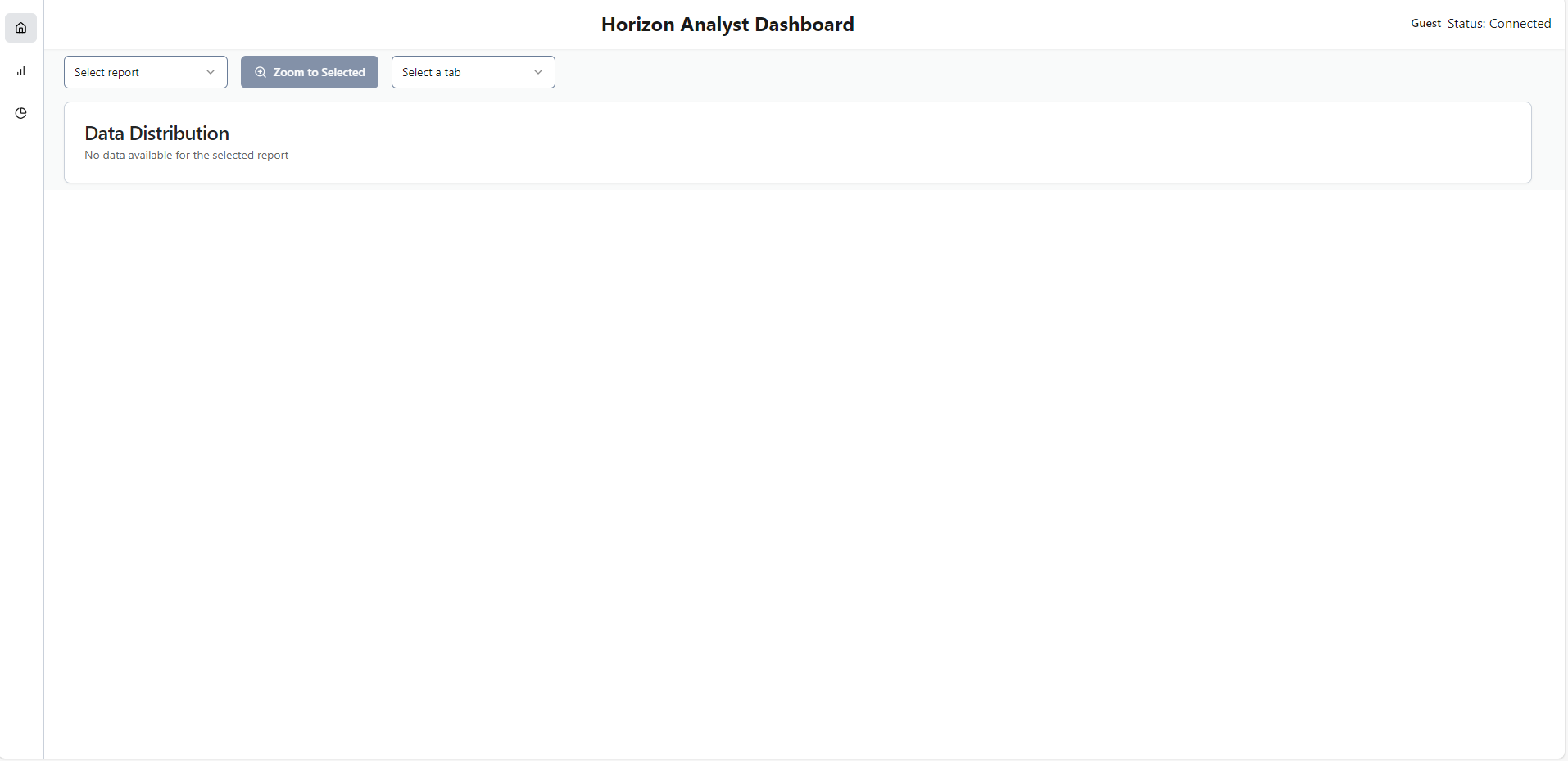
Chart Analysis
- Select analysis attribute
- Review generated charts
- Interact with visualizations
Communication Features
Horizon to Analyst
- Select/draw geometry in Horizon
- Click filter button
- View data in Analyst
Analyst to Horizon
- Select table data
- Use "Zoom to Selected"
- View in Horizon map
Troubleshooting
| Issue | Solution |
|---|---|
| Connection lost | Refresh both windows |
| Chart display issues | Verify attribute selection |
| Performance delays | Reduce selection size |
| Zoom issues | Check data selection |