Appearance
Bookmark Tool
Overview
The Bookmark Tool is a spatial view management system that enables users to save, organize, and share complete map configurations for consistent navigation and collaboration. Each bookmark captures a full snapshot of the map state including the current view extent, zoom scale, active basemap, basemap opacity, all visible layers with their visibility settings, and a thumbnail screenshot.
Key Features:
- Private and Shared tabs — manage your own bookmarks separately from bookmarks shared by other users
- Description field — add context notes to each bookmark for easier identification
- Auto-load (Favorites) — pin bookmarks to the top of the list with a filled star indicator
- Update bookmark — refresh a saved bookmark with your current map view, with a layer-change preview before confirming
- Edit bookmark — rename or update the description without changing the saved map view
- Share toggle — share any bookmark with all users, or make it private again at any time
- Bookmark link — open a direct URL to any bookmark in a new browser tab
- Search — filter bookmarks by name or description in real time
- Sort order — controlled from System Settings (A-Z, Z-A, Newest, Oldest)
- Compact layout — hide thumbnails for a denser list (controlled from System Settings)
Opening the Bookmark Panel
- Click the bookmark icon in the left panel toolbar
- The panel opens showing the Create New Bookmark section and your saved bookmark list

Creating a Bookmark
The Create New Bookmark accordion is always visible at the top of the panel. Expand it to access the creation form.
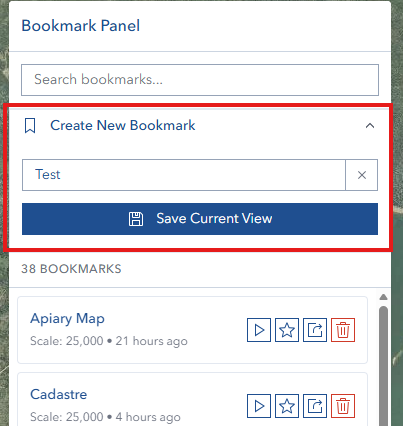
Step 1: Enter a Name (required)
- Type a descriptive name in the name field
- Maximum 100 characters
- The characters
<,>, and"are not permitted
Step 2: Add a Description (optional)
- Enter notes in the description field (up to 500 characters)
- The description is searchable and appears in the edit and view details dialog
Step 3: Choose Sharing (optional)
- Check Share with all users to make the bookmark visible to everyone on the Shared tab immediately after saving
- Leave unchecked to keep the bookmark private — you can share it later from the bookmark's action menu
Step 4: Save
- Click Save Bookmark to capture the current map state
- The tool automatically records:
- Current map extent and zoom scale
- Active basemap and its opacity
- All layers with their visibility and label states
- A thumbnail screenshot of the current map view
After saving, the form resets and the new bookmark appears in the Private tab list.
My Bookmarks (Private Tab)
The Private tab shows all bookmarks you have created. The count is shown in the tab label.
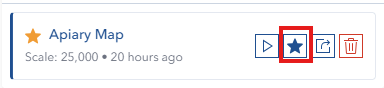
Bookmark Card
Each bookmark card displays:
- Thumbnail — a map screenshot taken when the bookmark was saved or last updated (hidden in compact layout)
- Favorite star — solid star icon shown when the bookmark is set as auto-load
- Shared icon — users icon shown when the bookmark is shared with all users
- Name — hover over the name to see the description if one was added
- Scale — the saved map scale at time of capture
- Timestamp — how long ago the bookmark was last saved or updated (e.g., "5 mins ago", "3 days ago", or a calendar date for older bookmarks)
Loading a Bookmark
Click the Load button (navigate/extent icon) on a bookmark card to restore that map state. The tool will:
- Load all saved layers back into the map
- Restore the basemap and its opacity
- Navigate to the saved map centre point and scale
If some layers cannot be loaded (e.g., the service is unavailable), a warning is shown and any remaining layers are loaded. If no layers can be loaded at all, an error is displayed and the current map is left unchanged.
Shared Bookmarks Tab
The Shared tab shows bookmarks that any user has chosen to share with everyone. The tab refreshes automatically each time you switch to it to show the latest additions.
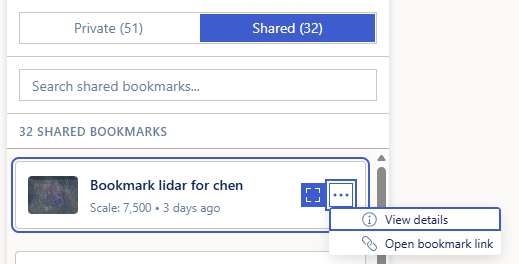
Shared bookmark cards show the same information as private bookmarks. The search box on the Shared tab also matches the owner's username, letting you find all bookmarks from a specific person.
Actions available on shared bookmarks:
- Load — restore the shared map view. This is a button directly on the card.
- View details — open a read-only dialog showing the bookmark name and description
- Open bookmark link — open a direct URL to the bookmark in a new tab
View details and Open bookmark link sit behind the More Actions menu (the … ellipsis icon on the card). Note this differs from the Private tab, where the same menu uses a gear icon and carries the full set of management options.
INFO
You can only edit, update, delete, or change the share status of bookmarks you own. Shared bookmarks from other users are read-only.
Bookmark Actions
Each card in the Private tab has a More Actions menu (gear icon) containing all management options:
Edit
Opens a dialog to rename the bookmark or update its description. The map view is not changed — only the metadata is updated.
- Name: up to 100 characters;
<,>,"are not allowed - Description: optional, up to 500 characters
Update
Replaces the bookmark's saved map state with your current view. Before confirming, a preview dialog shows:
- Layers added to the map since the bookmark was last saved
- Layers removed from the map since then
- Layers that remain unchanged
- Whether the basemap has changed
Click Confirm to update, or Cancel to keep the original bookmark unchanged. The thumbnail is also refreshed with a new screenshot of the current map view.
Set as Auto-Load / Remove Auto-Load
Toggles the auto-load (favorite) flag on the bookmark. Auto-load bookmarks are pinned to the top of your list with a solid star icon. You can mark multiple bookmarks as auto-load.
Share with All Users / Make Private
Toggles the bookmark between shared and private:
- Share with all users — makes the bookmark appear on the Shared tab for all users
- Make private — removes it from the Shared tab
INFO
Sharing requires an authorized domain account. If sharing is not permitted for your account, an access denied error will be shown.
Open Bookmark Link
Opens the bookmark as a direct URL in a new browser tab. Copy the address from the browser's address bar and share it with colleagues for instant access to that exact map view.
Delete
Removes the bookmark permanently. A confirmation dialog is shown before deletion proceeds.
Searching and Sorting
Search
A search bar appears above the bookmark list whenever at least one bookmark exists. The list filters in real time as you type:
- Private tab: matches bookmark name or description
- Shared tab: matches bookmark name, description, or owner username
To show all bookmarks again, clear the text field or click Clear Search when no results are found.
Sort Order
The sort order is set in System Settings → Map Settings → Bookmarks → Sort order:
| Option | Description |
|---|---|
| A-Z | Alphabetical order, ascending |
| Z-A | Alphabetical order, descending |
| Newest | Most recently saved or updated first |
| Oldest | Oldest bookmarks first |
Auto-load (favorite) bookmarks are always pinned to the top regardless of the selected sort order.
Compact Layout
When Compact layout is enabled in System Settings, thumbnails are hidden and bookmarks display as a tighter list. This is useful when you have a large number of bookmarks and want to see more at once.
Tips & Troubleshooting
Common Issues
| Issue | Solution |
|---|---|
| Bookmark fails to load | The saved layer services may be unavailable; check your network connection and try again |
| Some layers missing after load | Those services may no longer be accessible; create a new bookmark with currently available layers |
| Share option returns an access denied error | Sharing requires an authorized domain account; contact your administrator |
| Cannot edit a shared bookmark from another user | Only the owner of a bookmark can edit, update, delete, or change its share status |
| Bookmark thumbnail appears very dark | Thumbnails are automatically brightened, but very dark basemaps may still appear dim |
| Bookmark link does not load the expected view | The URL must include the full hash parameter; open the bookmark from the panel and copy the address bar URL |
| Sort order not changing | Update the sort order in System Settings (gear icon → Map Settings → Bookmarks → Sort order) |
Best Practices
- Use descriptive names that include the project area and date for easy identification later
- Add a description to capture the purpose of each bookmark and which layers are active
- Use Update regularly to keep bookmarks current as your map configuration changes
- Use Share for bookmarks your team needs, and Make private for personal working views
- Enable compact layout when managing a large collection of bookmarks
- Use auto-load for your most frequently accessed map views
What Is Saved in a Bookmark
| Data | Details |
|---|---|
| Map extent | The geographic centre point and zoom scale at save time |
| Basemap | The active basemap selection and its opacity value |
| Layers | All data layers with their visibility, label, and definition expression states |
| Thumbnail | A 200×150 screenshot of the map taken at save time |
| Name and description | User-provided metadata for identification and search |
| Share status | Whether the bookmark is visible to all users or kept private |
| Timestamp | When the bookmark was last saved or updated |
INFO
Temporary graphics layers (sketch drawings, editor graphics) are never included in bookmarks. Only service-based data layers are saved.
Video Tutorial
Watch this comprehensive guide on using the Bookmark Tool: