Appearance
My Layers Tool
Overview
The My Layers Tool is a sophisticated personal data management system that enables users to create, store, and organize custom spatial datasets within Horizon. This powerful tool provides seamless integration with backend storage services, allowing users to build personalized collections of geographic features with full geometry support, automatic extent management, and intelligent layer categorization for enhanced spatial data organization and retrieval.
Layer Types
Comprehensive Geometry Support
- Point Geometries: Precise location marking with automatic coordinate capture and user-specific attribution
- Polyline Geometries: Route and linear feature mapping with multi-segment support and length calculations
- Polygon Geometries: Area definition and boundary mapping with automatic area calculation and spatial validation
- MultiPoint Geometries: Complex point collections for distributed feature representation and analysis
Advanced Features:
- Geometry Type Mapping: Intelligent routing to specialized layer services based on geometry type
- Automatic Projection: Seamless coordinate system handling and spatial reference management
- User Attribution: Automatic assignment of username and creation metadata for data ownership tracking
- Dynamic Layer URLs: Connects to appropriate backend services for each geometry type (Points, Lines, Polygons, MultiPoints)
Tool Operations
Creating Geometry
Geometry for a MyLayer is created using the Map Editor Tool. Open the Map Editor, draw your geometry, then use the Save MyLayer option to store it under a named layer.
- Open the Map Editor Tool from the toolbar
- Select the geometry type (Point, Polyline, or Polygon)
- Draw the geometry on the map
- Use the save options to select Save MyLayer
Saving to MyLayer
Click Save MyLayer in the Map Editor save options
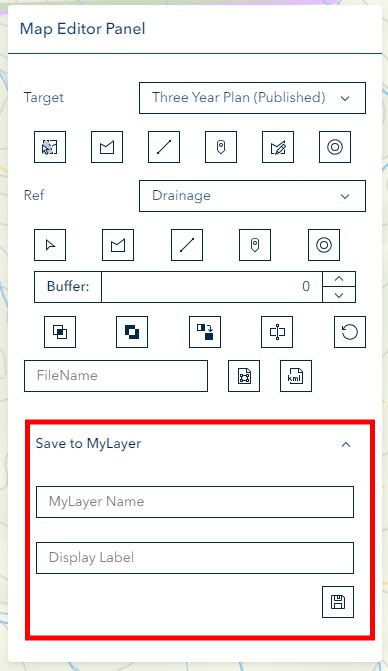
Enter Layer Details:
- LayerName for organization
- Optional label for identification
Accessing Layers
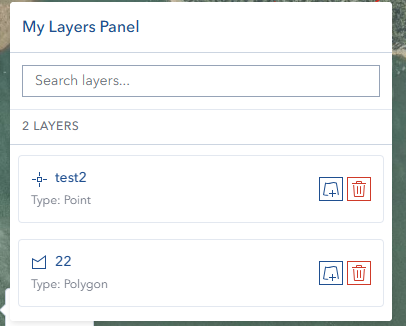
Click "MyLayer" button in left panel

View saved layers in MyLayer Panel
Managing Layers
- Select layers from panel
- Automatic zoom to layer extent
- Edit or update as needed
Delete Layer Dialog
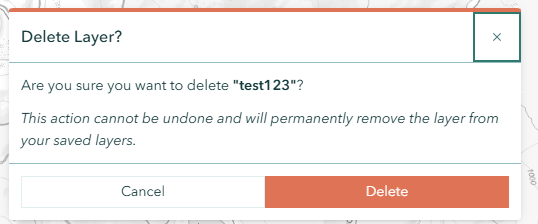
When you delete a saved layer, a confirmation dialog appears to prevent accidental deletion.
Dialog Details:
- Heading: "Delete Layer?"
- Kind: Danger (red indicator)
- Modal: Yes — you must respond before continuing
- Content: Displays the layer name and warns that the action cannot be undone and will permanently remove the layer from your saved layers
- Loading State: Shows a loading indicator while the deletion is in progress; buttons are disabled during this time
- Footer Buttons:
- Cancel (left) — closes the dialog without changes
- Delete (right, red) — permanently removes the layer
Exporting Layers
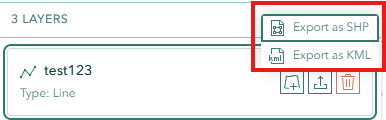
Each saved MyLayer can be exported to standard GIS file formats directly from the My Layers panel.
Export Process
- Open the My Layers panel from the left toolbar
- Locate the MyLayer you want to export
- Click the dropdown button on the layer item
- Choose Export as SHP (Shapefile) or Export as KML
- The file downloads automatically — a notification shows the number of features exported
Export Formats
- SHP — Standard Shapefile format compatible with ArcGIS, QGIS, and other GIS software. Preserves all attributes.
- KML — Google Earth format for visualization and sharing
Exported Attributes
| Field | Description |
|---|---|
| OBJECTID | Unique feature identifier |
| NAME | MyLayer name |
| USERNAME | Creator's username |
| LASTTIME | Last modified timestamp |
| SHAPE | Geometry type (Point, Line, Polygon) |
Geometry Type Support
All geometry types are supported for export:
- Point — Single point features
- Polyline — Line features
- Polygon — Polygon features
- MultiPoint — Multiple points in a single feature
WARNING
Only MyLayers created under your username are available for export. If you don't see a layer in the list, verify that it was saved correctly.
Important Notes
Technical Limitations
- Points created are single points, not multipoints
- Related to label display bug BUG-000131800
Troubleshooting
| Issue | Solution |
|---|---|
| Layer not visible | Click layer in MyLayer Panel |
| Save failure | Complete geometry before saving |
| Label display issues | Known limitation for points |
Video Tutorial
Watch this guide on using My Layers: