Appearance
Upload Tool
Overview
The Upload Tool is a versatile data import utility that seamlessly integrates external spatial data into your Horizon maps. Located in the right panel, this powerful tool supports multiple geospatial formats and automatically processes, validates, and integrates uploaded data into your current map view with intelligent coordinate system handling and automatic area calculations.
Upload Dialog
The Upload Tool opens in a draggable, resizable dialog. The dialog heading updates dynamically to show "Upload File to Map" during file selection and "Upload Complete - {filename}" after successful processing.
The dialog includes:
- Drag-and-Drop Zone: Drop files directly onto the dialog or click to browse
- File Preview: Shows the selected file name, type, and size with a remove button before uploading
- Projection Selection: For Shapefiles, a dropdown appears to select the coordinate system (auto-detected from .prj files in ZIP archives)
- Processing Status: Displays a loading indicator and progress feedback during upload and processing
- Success Notice: Shows calculated polygon area (in hectares) after successful upload
- Footer Buttons: Cancel / Close (left) and Upload to Map (right)
The dialog is non-modal, allowing you to continue interacting with the map while the upload dialog is open.
Supported Files
File Types
| Format | Extensions | Description |
|---|---|---|
| Shapefile (ZIP) | .zip | ZIP archive containing shapefile components (.shp, .dbf, .prj, .shx). Recommended — supports automatic projection detection from the .prj file. |
| Shapefile | .shp | Standalone Esri Shapefile. Requires manual projection selection since no .prj file is included. |
| GeoJSON | .geojson, .json | Standard GeoJSON. The coordinate system is worked out automatically — no dropdown appears. |
| KML | .kml | Keyhole Markup Language — Google Earth format for spatial data. |
| GPX | .gpx | GPS Exchange Format — standard format for GPS routes, tracks, and waypoints. |
| CSV | .csv | Comma-Separated Values with latitude/longitude coordinate columns in WGS 84. |
Format Requirements
- ZIP Shapefiles: Must contain at least a
.shpfile. The.dbf(attributes),.prj(projection), and.shx(index) files are optional but recommended. If a.prjfile is included, the coordinate system is auto-detected. - Standalone Shapefiles (
.shp): You must manually select the coordinate system from the projection dropdown. Defaults to GDA94 / MGA Zone 55 (EPSG:28355). - GeoJSON files: Must be a FeatureCollection, a single Feature, or a bare geometry object. No projection needs to be chosen — see GeoJSON Files.
- CSV files: Must include latitude and longitude columns in WGS 84 (EPSG:4326).
- KML / GPX files: Standard format — no additional requirements.
- Maximum file size: 100 MB per file.
Using the Tool
Accessing Upload Panel
- Locate upload icon in right panel
- Click to open Upload panel

File Selection
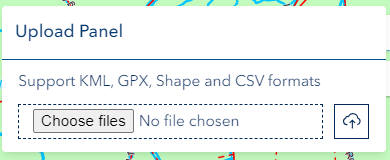
- Click to browse your local system, or drag and drop a file directly onto the dialog
- A file preview appears showing the file name, type, and size — use the remove button to clear and select a different file
Projection Selection (Shapefiles)
When uploading a ZIP shapefile that includes a .prj file, the coordinate system is automatically detected and displayed in the projection dropdown. A success notification confirms the detected projection.
When uploading a standalone .shp file or a ZIP without a .prj file, you must manually select the source coordinate system from the dropdown. The following projections are supported:
| Projection | EPSG | Description |
|---|---|---|
| GDA94 / MGA Zone 55 | 28355 | Tasmania, Victoria (Default) |
| GDA94 / MGA Zone 54 | 28354 | South Australia, Western Victoria |
| GDA94 / MGA Zone 56 | 28356 | NSW, ACT, Eastern Victoria |
| GDA2020 / MGA Zone 55 | 7855 | Tasmania, Victoria (Modern) |
| GDA2020 / MGA Zone 54 | 7854 | South Australia (Modern) |
| GDA2020 / MGA Zone 56 | 7856 | NSW, ACT (Modern) |
| WGS 84 | 4326 | Global Geographic (Lat/Long) |
| GDA94 | 4283 | Australia Geographic |
| GDA2020 | 7844 | Australia Geographic (Modern) |
| Web Mercator | 3857 | Google/Bing Maps compatible |
All uploaded geometries are reprojected to WGS 84 for display on the map.
Automatic detection for .shp-only uploads
A standalone .shp file contains no coordinate-system information — that data lives in the .prj file, which is only present in a ZIP bundle. Because of this, Horizon tries to auto-detect the projection: it reinterprets the file's raw coordinates under each candidate system and picks the one that places your data inside Tasmania. If your dropdown selection fits, it is kept; if it doesn't fit but a candidate does, Horizon auto-corrects to the best-fitting system and updates the dropdown.
After a .shp-only upload you'll see exactly one of these notices:
- Coordinate system auto-corrected (success) — the system you selected didn't fit, so Horizon detected a better one and used it instead. The notice names the system used versus the one you originally selected, and the dropdown updates to show the corrected system.
- Selected coordinate system looks wrong (warning) — the coordinate values in the file don't match the kind of system you selected (degrees vs metres) and no better one could be auto-detected. For example, the file holds latitude/longitude degrees but you chose a projected MGA zone, or easting/northing metres but you chose a geographic system. Pick the matching system, or re-upload as a ZIP.
- Shapes appear outside Tasmania (warning) — the shapes fell outside the expected Tasmania area and no fitting system was found (usually the wrong MGA zone). Try a different coordinate system, or re-upload as a ZIP.
- Coordinate system taken from your selection (info) — no problem was detected; a reminder that placement used the projection you chose. Verify the shapes landed in the right spot.
Limitation
These checks catch a system of the wrong kind (degrees vs metres) or the wrong MGA zone. They cannot tell apart two systems of the same zone that differ only by datum — for example GDA94 / MGA Zone 55 (EPSG:28355) vs GDA2020 / MGA Zone 55 (EPSG:7855), only ~1.8 m apart. Both land in Tasmania, so your selection is kept. The only reliable way to resolve the exact coordinate system is to upload a ZIP that includes the .prj file.
TIP
Auto-detection only applies to .shp-only uploads. A ZIP containing a .prj file is detected automatically and needs none of these checks.
GeoJSON Files
Horizon reads GeoJSON from either a .geojson or a .json file. It is the structure of the file that decides whether it is treated as GeoJSON, not the extension, so an export saved as .json is read exactly the same way.
What Horizon accepts
Any of the three standard GeoJSON top-level shapes:
- a FeatureCollection — the usual export from ArcGIS, QGIS and GeoServer
- a single Feature
- a bare geometry object on its own
The geometry types recognised are Point, MultiPoint, LineString, MultiLineString, Polygon, MultiPolygon and GeometryCollection. Type names are case-sensitive, as the GeoJSON standard requires — a hand-edited polygon in place of Polygon is not recognised.
As with shapefiles, features are separated by geometry type, so a single GeoJSON file may produce separate point, line and polygon layers. Each feature's properties are kept as layer attributes and shown in popups; a property that holds a nested list or object is stored as text.
If the file cannot be used at all, the upload stops before anything is added to the map:
| Message | Meaning |
|---|---|
| File isn't valid JSON | The file could not be read as JSON — it may be truncated or saved in another format. |
| File isn't GeoJSON | The file is valid JSON, but not GeoJSON. Horizon expects a FeatureCollection, a Feature, or a geometry object. |
| No shapes found | The file is GeoJSON but no feature in it carries usable geometry. |
Coordinate systems in GeoJSON
No projection dropdown appears for a GeoJSON upload — the coordinate system is worked out for you, so the manual selection and auto-correction described above apply only to shapefiles.
Standard GeoJSON is always WGS 84 longitude/latitude. Older files may name their own coordinate system, and exports in projected metres are still common, so Horizon resolves the file in this order:
- If the file names a coordinate system that Horizon can read, and the file's own coordinate values are the right kind for it (degrees versus metres), that system is used.
- Otherwise Horizon detects the system: it reinterprets a sample coordinate under each candidate system and uses the one that places the data inside Tasmania. Detection starts from WGS 84, so a standards-compliant file is left exactly as it is.
A plain, standards-compliant WGS 84 file uploads with no coordinate-system notice at all. A notice appears only when something was genuinely ambiguous:
| Notice | What it means | What to do |
|---|---|---|
| Coordinate system read from the file (info) | The file named its own coordinate system in the older GeoJSON format, and that is what was used. | Check the shapes landed in the right place. |
| Coordinate system detected (success) | The file named no coordinate system and its values are not longitude/latitude, so Horizon detected one that places the data within Tasmania. | Check the shapes; if they look wrong, re-export as standard WGS 84 GeoJSON. |
| Declared coordinate system doesn't match the data (warning) | The file names a system, but its own coordinates are the wrong kind for it — so the declaration cannot be right and was ignored. | Re-export the file as standard WGS 84 GeoJSON. |
| Declared coordinate system not supported (warning) | The file names a coordinate system Horizon cannot read. Another was used instead, so the shapes may be in the wrong location. | Re-export the file as standard WGS 84 GeoJSON. |
| Shapes may be in the wrong location (warning) | The coordinates are not longitude/latitude, and no coordinate system was found that places them within Tasmania. | Re-export the file as standard WGS 84 GeoJSON. |
TIP
The safest file to upload is a standard WGS 84 (longitude/latitude) GeoJSON export. It needs no detection and produces no notices at all.
When Features Are Skipped
A file can be read perfectly well and still contain records with nothing to draw — a feature whose geometry is empty, or a geometry of a kind Horizon has no equivalent for. Rather than failing the whole upload over one bad record, Horizon skips it and tells you what happened.
"Some features were skipped"
After a GeoJSON upload, a warning appears in the dialog naming the counts — for example:
Some features were skipped — 3 of 120 features had no geometry, or a geometry type Horizon doesn't recognise, and were skipped. The remaining 117 were added to the map.
The upload succeeded — the remaining features are on the map. The notice exists to tell you the new layer holds fewer features than the file does, which is easy to miss otherwise. It is common in exports where many records are attribute-only.
If the skipped count is higher than you expect, re-export from the source system and check for records with empty geometry — that is usually where the missing features went.
"Nothing to add to the map"
If no feature in the file could be drawn at all:
Nothing to add to the map — This file was read successfully but produced no shapes Horizon can draw — every geometry in it was empty or of a kind Horizon has no equivalent for. The map has been left where it was.
Nothing is added and the map view stays exactly where it was, so there is nothing to undo. Re-export the file from the source system, checking that the records you expect actually carry geometry. This message can appear for GeoJSON, KML and GPX uploads.
INFO
For GeoJSON, if every feature in the file lacks usable geometry the upload stops earlier with No shapes found instead.
Upload Process
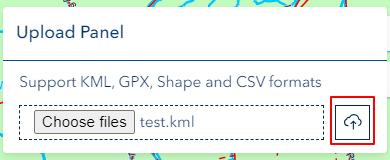
Click Upload to Map to begin processing. The tool progresses through the following stages:
- Reading — file content is read from disk
- Parsing — format-specific parsing (shapefile geometry, XML for KML/GPX, CSV columns)
- Creating — feature layer is created and added to the map
- Complete — the map automatically zooms to the uploaded features
A loading indicator and status message are displayed throughout each stage.
Area Calculation
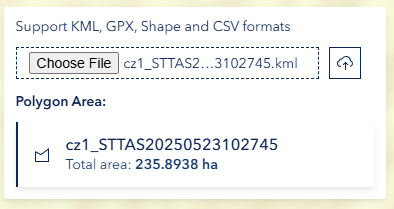
For polygon uploads, the total area is automatically calculated and displayed in hectares (ha) in the success notice after upload completes.
Technical Notes
File Limits
- Maximum file size: 100 MB per file
- Maximum decompressed ZIP size: 500 MB (to prevent processing issues with oversized archives)
- Allowed extensions:
.shp,.csv,.kml,.gpx,.zip,.geojson,.json
CSV Behaviour
- Must contain latitude and longitude columns in WGS 84
- Points are displayed with feature clustering — nearby points are grouped and show a count label
- Clicking a cluster zooms in to reveal individual points
Shapefile Specifications
- ZIP upload (recommended): Bundle
.shp,.dbf,.prj, and.shxfiles into a single ZIP archive. Only the.shpfile is required; other components are optional. - Projection detection: If a
.prjfile is included in the ZIP, the coordinate system is auto-detected. Otherwise, select the projection manually from the dropdown. - All standard attribute fields from the
.dbffile are preserved and available in popups. - Uploaded features are separated by geometry type — a single shapefile may produce separate point, polyline, and polygon layers.
GeoJSON Notes
- Both
.geojsonand.jsonfiles are accepted; the file's structure decides how it is read - A FeatureCollection, a single Feature, or a bare geometry object are all valid uploads
- The coordinate system is resolved automatically — no projection dropdown is shown
- Feature properties are preserved as layer attributes; nested lists and objects are stored as text
- Features with no geometry, or with an unrecognised geometry type, are skipped and reported — see When Features Are Skipped
KML / GPX Notes
- Parsed using standard XML processing
- Original feature properties are preserved as layer attributes
- Geometry collections are supported
Troubleshooting
| Issue | Solution |
|---|---|
| "Invalid file type" | Only .shp, .csv, .kml, .gpx, .zip, .geojson, and .json files are accepted. Ensure the file has a correct extension. |
| "File too large" | Files must be under 100 MB. Reduce the file size or split into smaller files. |
| ZIP upload fails | Ensure the ZIP contains at least a .shp file. The archive must not exceed 500 MB when decompressed. |
| Shapefile displays in wrong location | The wrong projection was selected. Re-upload with the correct coordinate system, or use a ZIP with a .prj file for auto-detection. |
| "Selected coordinate system looks wrong" | For a bare .shp, the coordinate values are degrees but a projected system was picked (or metres with a geographic system). Pick the matching system, or re-upload as a ZIP with a .prj file. |
| "Shapes appear outside Tasmania" | For a bare .shp, the shapes fell outside Tasmania and no fitting system was found (usually the wrong MGA zone). Pick the matching system, or re-upload as a ZIP with a .prj file. |
| "File isn't GeoJSON" | The file is valid JSON but is not GeoJSON. Re-export it as a FeatureCollection from your source system. |
| "Some features were skipped" | Some records had no geometry or an unrecognised geometry type; the rest were added. Re-export from the source system and check for records with empty geometry. |
| "Nothing to add to the map" | No feature in the file could be drawn, so nothing was added. Re-export the file and confirm the records you expect actually carry geometry. |
| GeoJSON lands in the wrong place | Read the coordinate-system notice shown after the upload. Re-exporting as standard WGS 84 (longitude/latitude) GeoJSON resolves nearly every case. |
| CSV points not displaying | Confirm the file has latitude and longitude columns with values in WGS 84 decimal degrees. |
| No area shown after upload | Area calculation only applies to polygon geometries. Point and line uploads do not show an area. |
| Layer not visible on map | Check the layer visibility toggle in the Layer Panel. The uploaded layer may be behind other layers. |
Video Tutorial
Watch this guide on using the Upload Tool: