Appearance
Road Network Tool
Overview
The Road Network Tool calculates route distances from forest coupes to destinations via the road network. It is located under the Network tab of the Analysis Tools panel, accessed from the toolbar using the find-path icon. The tool takes a provcoupe identifier, optional way points, and a destination, then computes the route and displays it on the map with the total distance.
The Analysis Tools panel contains three tabs: Network (this tool), Conservation (coming soon), and Find Nearest (see Find Nearest Neighbour).
Features
- Route Distance Calculation: Calculate road network distances from a provcoupe to a destination, with optional intermediate way points
- Route Visualization: Calculated routes are displayed as a purple polyline on the map, and the map auto-zooms to fit the route
- Distance Results: Total route distance is displayed in kilometres (or metres for short routes) with 2 decimal place precision
- Route Export: Export the calculated route geometry as SHP or KML files for use in external GIS applications
Using the Tool
Accessing the Panel
- Click the Road Analysis button (
find-pathicon) in the toolbar - The Analysis Tools panel opens with the Network tab selected
Input Fields
The panel has three input fields:
- Provcoupe — Text input for the provisional coupe identifier. Must follow the format: two letters + three digits + one letter (e.g.,
AA123B). Maximum 7 characters. - Way Points — Multi-select dropdown for choosing intermediate stops along the route. Multiple way points can be selected.
- Destinations — Single-select dropdown for choosing the route destination. Defaults to "No Destination".
At least one way point or one destination must be selected to calculate a route. Both fields are optional individually.
Calculating a Route
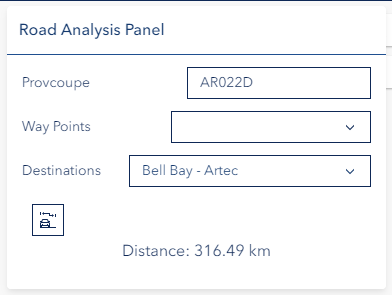
- Enter a valid provcoupe in the text input
- Select one or more way points and/or a destination
- Click the Calculate Route button
The tool validates the input, sends the request to the routing service, and displays the result:
- The calculated route appears on the map as a highlighted polyline
- The map automatically zooms to fit the entire route
- A success notice displays the Total Distance in kilometres (or metres if under 1 km)
- Any previously calculated route is automatically removed before displaying the new one
Exporting a Route

After a successful route calculation, an Export Route section appears below the results:
- Optionally enter a filename for the export (max 100 characters, special characters are removed)
- Click SHP to export the route as a Shapefile, or KML to export as a KML file
- The file downloads to your local system
Troubleshooting
| Issue | Solution |
|---|---|
| "Provcoupe cannot be empty" | Enter a provcoupe identifier in the text input. |
| "Invalid provcoupe format" | Provcoupe must be two letters + three digits + one letter (e.g., AA123B). |
| "At least one waypoint or destination is required" | Select at least one way point from the dropdown or choose a destination. |
| "Failed to calculate route" | The routing service could not find a route. Check the provcoupe exists and that the way points or destination are reachable on the road network. |
| "No route geometry to export" | Calculate a route first before attempting to export. |
| Route not visible on map | The route layer may be hidden. Check visibility in the Layer Panel. A new calculation removes any previous route. |
Video Tutorial
Watch this guide on using the Road Network Tool:
See Also
- Cart Route Editor - Plan and draw cart routes on the map
- Measure Tool - Manual distance and area measurement tools