Appearance
Cart Route Editor Tool
Overview
Note
This documentation is maintained for reference and for environments where the Cart Route Editor is enabled.
The Cart Route Editor Tool is a specialized transportation planning and route management system designed for comprehensive cart route creation, documentation, and analysis. This advanced tool integrates sophisticated geometric editing capabilities with detailed route information management, supporting both point and line geometries for complete route planning, hazard documentation, communication channel assignment, and comprehensive route analysis with integrated mapping and reporting capabilities for professional transportation planning workflows.
Quick Reference
For experienced users who need a quick reminder of the workflow:
- Open the Cart Route Editor from the toolbar.
- Create or select a cart route name in the information panel.
- Use point and line tools to draw route elements on the map.
- Save your route information and geometry.
- Generate maps and reports as needed.
Complete Workflow
Follow these steps to create and manage cart routes:
- Create new cart route information.
- Select a cart route name from the dropdown.
- Draw point or line geometries on the map.
- Select the existing cart route name in the panel for printing cart route maps and reports.
- Print cart route maps and reports.
Getting Started
- Click the Cart Route Editor icon in the toolbar.
- The tool will initialize and load existing cart route layers.
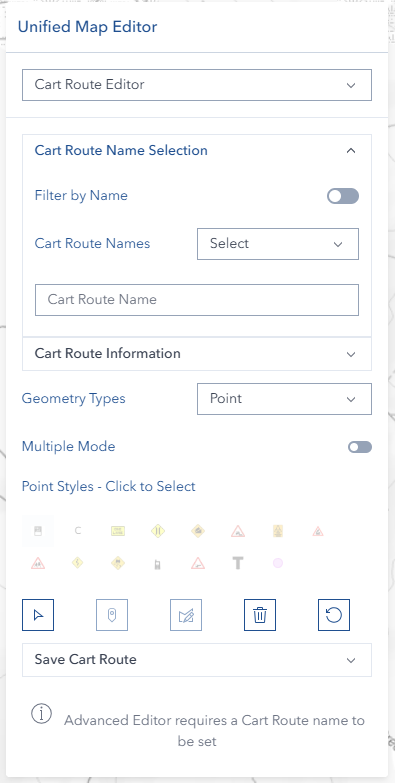
- The editor panel opens with three accordion sections:
- Cart Route Name Selection — set the active route name and use the Filter by Name toggle
- Cart Route Information — create or view cart route metadata (hazard, UHF, route description)
- Geometry editing tools and Save Cart Route — draw, edit, delete, and save geometry

Cart Route Name Selection
The Cart Route Name Selection accordion at the top is where you set the active name before drawing:
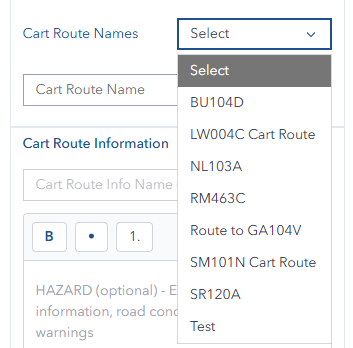
- Use Dropdown: Select an existing cart route name from the Cart Route Names dropdown (refreshes on click)
- Type New Name: Enter a new cart route name directly in the text field below the dropdown
- Wait for Activation: Drawing tools and style icons become enabled once a name is set
Filter by Name
The Filter by Name toggle restricts the map display to features belonging to the currently selected cart route:
- Select an existing name from the Cart Route Names dropdown
- Toggle Filter by Name on
- Both point and line layers immediately filter to show only features with that name
- Toggle off to show all cart route features
WARNING
The filter only responds to names selected from the Cart Route Names dropdown. Typing a name in the text field activates the editor for drawing, but does not apply the filter.
TIP
While the filter is on, changing the dropdown selection automatically re-applies the filter to the new name — no need to toggle off and back on.
INFO
The filter is automatically cleared after printing to prevent stale filter states.
Cart Route Information
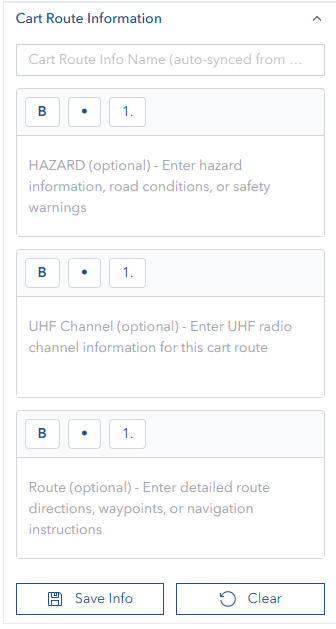
The Cart Route Information section allows you to create and manage detailed information about cart routes.
Managing Cart Route Information
- Select an existing cart route from the dropdown or create a new one.
- View the last update timestamp for existing routes.
- The Cart Route Info Name field is automatically synchronised from the selected Cart Route Name — it is read-only and cannot be typed into directly.
- Enter or edit the following optional information using the rich text editor:
- Hazard information
- UHF channel details
- Route description
- Use the rich text editor to format text with:
- Bold formatting
- Bullet lists
- Numbered lists
- Use the same name to update existing cart route information.
Saving Cart Route Information
- Enter all required information.
- Click the Save button.
- A success notification will appear when saved.
- Use the Clear button to reset all fields.
INFO
The Delete button in the Cart Route Information section permanently removes the complete cart route (all geometry and information). This button is only visible to users with the Cart Admin role.

INFO
Cart Route Information is stored separately from the geometry. You can create information records without drawing routes on the map.
Geometry Types and Styles
The Cart Route Editor supports two geometry types with various style options.
Geometry Types
- Point: Used for marking specific locations such as departure points, destinations, UHF channels, or labels
- Line: Used for drawing the actual route directions
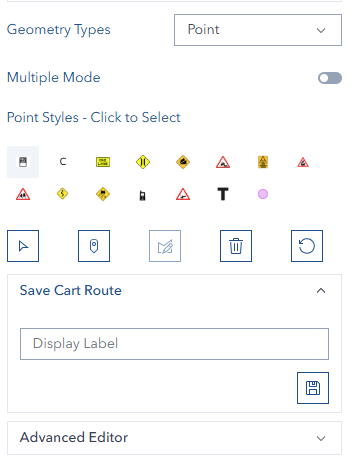
Point Styles
When working with Point geometry, you can choose from the following styles:
| # | Icon | Style Name | Description |
|---|---|---|---|
| 1 | 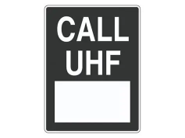 | UHF Channel | Mark UHF radio channel locations |
| 2 |  | Coupe | Mark coupe (harvest area) locations |
| 3 | 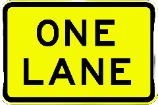 | One Lane | Indicate single-lane road sections |
| 4 |  | Narrow Bridge | Mark narrow bridge locations |
| 5 |  | Steep Road | Indicate steep road sections |
| 6 | 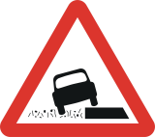 | Soft Shoulder | Mark soft shoulder areas |
| 7 | 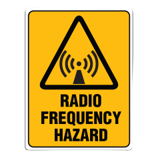 | No UHF | Indicate areas without UHF coverage |
| 8 | 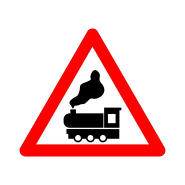 | Railway Crossing | Mark railway crossing locations |
| 9 | 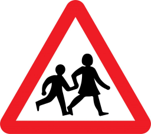 | School Zone | Indicate school zone areas |
| 10 |  | Winding Road | Mark winding road sections |
| 11 | 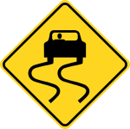 | Slippery When Wet | Indicate slippery road conditions |
| 12 | 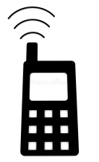 | Phone Coverage | Mark mobile phone coverage areas |
| 13 | 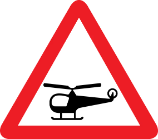 | EMP Location | Mark Emergency Management Point locations |
| 14 |  | Text Point | Add custom text label at a location (font size fixed at 10pt) |
| 99 | — | Unknown | Display-only fallback — drawing is disabled when selected |
TIP
Each point style is represented by a unique icon on the map, making it easy to visually distinguish between different types of route features and hazards.
Line Styles
When working with Line geometry, you can choose from the following styles:
- Planned Cart Route - Default route line style for planned routes
- Route to Coupe - Line style indicating a route leading to a coupe (harvest area)
- Unknown - Default/unclassified line style
Drawing and Editing Operations
Before You Start
- Set a cart route name (from the dropdown or by typing in the Cart Route Name Selection accordion)
- Choose a geometry type (Point or Polyline)
- Select a point or line style
INFO
Drawing tools and style icons are disabled until a cart route name is set.
Multiple Mode
The Multiple Mode toggle controls whether the drawing tool stays active after each feature is placed.
Multiple OFF (Default):
- Draw one feature, then the tool deactivates
- Click the draw button again to draw another feature
Multiple ON:
- The drawing tool stays active after each feature is completed
- Keep clicking on the map to rapidly place many features
- Click the draw button again to stop
INFO
Regardless of Multiple mode, every drawn shape is always saved as a separate feature in the layer.
INFO
Switching geometry type while Multiple mode is on will reset the toggle to off when you next click the draw button. Turn it off manually if you no longer want continuous drawing after switching types.
Line Style — Straight or Arc
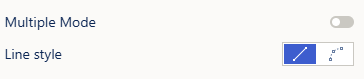
Below the Multiple Mode switch is a Line style row with two icon buttons that control how the line tool reads your clicks:
- Straight (default) — every click is a vertex, joined by straight segments.
- Arc — the first click starts the line, then each pair of clicks is a point to curve through followed by the curve's end point. Repeat for each further curve; a reminder line appears under the row while Arc is selected.
Useful for cart routes that sweep around a curve rather than turning at hard angles. The curve appears live as you click, and a finished arc is stored as closely-followed vertices, so length measurement, saving and the cart route report behave exactly as they do for a straight line. Points and polygons are unaffected. See Line Style for the full explanation, including when a curve deliberately stays straight.
Selecting Existing Cart Routes
- Click the "Select" button.
- Click on an existing cart route geometry (points, lines) on the map.
- The selected route will be highlighted and available for editing, and the editing button will be enabled.

Drawing Point Features
- Select "Point" from the Geometry Types dropdown.
- Choose a point style.
- Click the "Draw Point" button.
- Click on the map to place the point.


Drawing Line Features
- Select "Line" from the Geometry Types dropdown.
- Choose a line style.
- Click the "Draw Line" button.
- Click on the map to place vertices of the line.
- Double-click to complete the line.


Editing Features
- Select a feature using the selection tool.
- Click the "Edit" button.
- Click and move if point type or change vertices if line geometry.
- Click away from the geometry or click "Edit" again to finish.

Deleting Features
- Select a feature using the selection tool.
- Click the "Delete" button.
- The feature will be removed from the map and the database.

Resetting the Editor
- Click the "Reset" button.
- All current selections and unsaved edits will be cleared.

Delete Cart Route Dialog
When you delete a cart route, a confirmation dialog appears to prevent accidental deletion.
Dialog Details:
- Heading: "Delete Cart Route?"
- Kind: Danger (red indicator)
- Modal: Yes — you must respond before continuing
- Content: Displays the cart route name and lists everything that will be permanently deleted:
- All feature layers (points and lines)
- Cart route information (hazard, UHF, route details)
- Warning: "This action cannot be undone."
- Footer Buttons:
- Cancel (left) — closes the dialog without changes
- Delete (right, red) — permanently removes the cart route and all associated data
The dialog prevents closing via the Escape key or clicking outside, ensuring you make an explicit choice.
Saving and Managing Cart Routes
Saving Cart Routes Geometry
- Ensure a cart route name is set in the Cart Route Name Selection accordion at the top.
- Draw or edit geometry on the map.
- Open the Save Cart Route accordion panel.
- Optionally, enter a Display Label — this is a text label that can be attached to any feature type, not just Text Point.
- Click the Save button.

Print Cart Routes Map and Reports
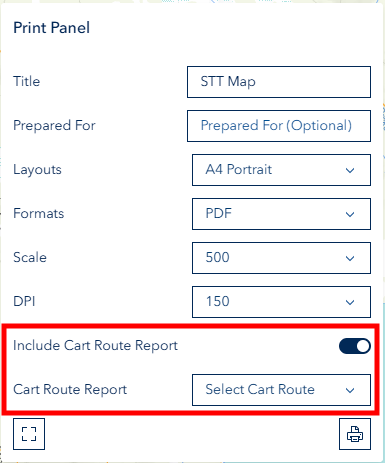
- Switch on the "Include Cart Route Report" toggle.
- Select the desired cart route name from the dropdown.
- Click the "Extent" button to set the print extent.
- Click the "Print" button.
WARNING
A cart route name must be set before geometry can be saved. Set the name in the Cart Route Name Selection accordion — either select from the dropdown or type a new name in the text field.
Troubleshooting
| Issue | Solution |
|---|---|
| Cannot save cart route | Set a cart route name in the Cart Route Name Selection accordion first |
| Drawing tools not working | Set a cart route name first; ensure no selection or edit mode is active |
| Cannot edit a feature | Select the feature first using the selection tool |
| Cannot see saved cart routes | Make sure you have cart route point and line layers on the map |
| Draw button disabled after style pick | You may have selected the Unknown style — it is display-only; pick a named style |
| Report not showing in print | Ensure you select a Cart Route Report |
| Filter by Name shows nothing | Select a cart route name from the dropdown before enabling the filter toggle |
| Delete button not visible | The Delete button in Cart Route Information is only available to Cart Admin users |
| Cart Route Info Name not editable | The Info Name field is automatically synced from the Cart Route Name — it is read-only |
| Filter not clearing after print | The filter is cleared automatically after printing; toggle it on again if needed |
Video Tutorials
The following video tutorials demonstrate key workflows for using the Cart Route Editor Tool. Each video provides step-by-step visual instructions to help you master different aspects of the tool.
Basic Workflows
| Tutorial | Description |
|---|---|
| Creating and Saving Information | Learn how to create and save cart route information records |
| Drawing Route Geometries | See how to draw points and lines on the map |
| Editing Route Geometries | Discover techniques for modifying existing routes |
Creating and Saving Cart Route Information
This video demonstrates how to create new cart route information records and save them to the database.
Editing Cart Routes Geometries
Learn how to add point and line features to create complete cart routes on the map.
Deleting Cart Routes Geometries
This tutorial shows how to select and modify existing cart route features.
Advanced Edit Cart Routes Geometries
Learn how to remove unwanted cart route features from the map.
Printing Cart Routes Maps and Reports
This video demonstrates how to generate printable maps and reports for your cart routes.
See Also
- Road Analysis - Road network analysis and route distance calculations
- Print Panel - Print cart route maps with custom layouts
- Unified Map Editors - Overview of all unified editors