Appearance
Advanced Editor Tool
Overview
The Advanced Editor Tool provides sophisticated spatial editing and geometric operations using a dual-layer architecture. It enables users to work with a target layer and a reference layer simultaneously, performing operations such as intersect, cut, merge, reshape, and hull between them. This tool is designed for creating precise modified geometries for forestry planning and spatial analysis.
Key Features
- Dual-Layer Architecture: Separate target and reference layers for comparative spatial operations
- Multiple Geometry Types: Draw and edit points, polylines, and polygons
- Straight or Arc lines: Draw polylines as straight segments or as a chain of true curves
- Interactive Selection: Click features on the map to add them to target or reference graphics layers
- Geometric Operations: Intersect, Cut Shape (difference), Merge Shape, XOR, reshape, and hull
- Shape Tools: Simplify, Explode, To Lines, To Polygons and Offset on the target layer alone
- Buffer Operations: Expand or contract shapes by a specified distance in metres
- Snapping and Measurement: Snap to chosen layers while drawing, and show length/area labels on finished shapes
- Undo / Redo: Step back and forward through operations before saving
- Coordinate Entry: Place a target point at an exact easting/northing
- Floating or Docked: Work in a draggable window over the map, or docked inside the host panel
- Map Image Layer Support: Select from server-based layers with result cycling for overlapping features
- Sketch Editing: Reshape drawn geometries with vertex-level precision using transform tools
- Save to Server: Persist created or modified geometries back to the backend layer
How to Use the Advanced Editor
Accessing the Tool
- Open the Advanced Editor from the host editor you are working in (the Map Editors each provide it) or from the right panel toolbar
- The editor shows target and reference layer dropdowns with associated drawing and selection tools
Floating or Docked
The editor opens as a floating window you can drag and resize over the map, so you can see the shapes you are working on. Two header actions switch layout:
- Dock in panel — moves the editor into the host panel
- Open in floating window — moves it back out
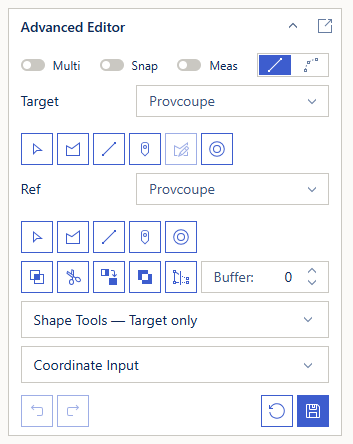
Switching layout keeps everything — your shapes, selections and settings all move with it.
Closing clears your shapes
Closing the floating window (the ✕, or switching its launcher button off) ends the session and clears the editor's shapes. Docking and undocking never does. In the docked layout, collapsing the section only hides it.
Drawing Options
Above the tool rows sit three switches and the Line style picker. The switch labels are abbreviated so all four controls fit on one line; hover any of them for the full description.

| Control | Meaning |
|---|---|
| Multi | Accumulate selected features instead of replacing the selection. (Drawing always accumulates in this editor.) |
| Snap | Snap to layer features while drawing. A Snapping Layers list appears so you can choose which layers to snap to |
| Meas | Show area / length labels on completed shapes |
| Line style | Draw polylines as Straight segments or as Arc curves — see below |
Line Style — Straight or Arc
- Straight (default) — every click is a vertex.
- Arc — the first click starts the line, then each pair of clicks is a point to curve through followed by the curve's end point. Repeat for each further curve; a reminder line appears under the row while Arc is selected.
It applies to both the target and the reference line tools, and to lines only — points and polygons are unaffected. A finished arc is stored as closely-followed vertices, so measurement, the operations below and Save all behave exactly as they do for a straight line. See Line Style for the full explanation.
Working with the Target Layer
The target layer holds the primary geometry you want to modify or use in operations.
Selecting Target Features
- Choose a layer from the Target Layer dropdown — the list shows all visible FeatureLayers and MapImageLayers
- Click the Select Target Shape button (cursor icon) to activate selection mode
- Click features on the map to add them to the target graphics
- Click a selected feature again to deselect it (toggle behaviour)
MapImageLayer cycling
For MapImageLayers, clicking the same location repeatedly cycles through overlapping features. A notification shows which result is selected (e.g., "Selected feature 2 of 3 from LayerName").
Drawing Target Geometry
Three drawing tools are available for the target layer:
- Draw Polygon: Click the polygon button, then click on the map to place vertices. Double-click to complete
- Draw Polyline: Click the line button, then draw a line on the map. Double-click to complete
- Draw Point: Click the point button, then click on the map to place a point marker
WARNING
If a polygon is completed with fewer than 3 vertices, it is stored as a polyline instead of a polygon.
Editing Target Geometry
- Click the Edit Target Shape button to enter reshape mode (button is disabled when no target graphics exist)
- Drag vertices to reposition them, click edges to add new vertices, or drag the whole shape to move it
- Click the Edit Target Shape button again, or click outside the graphic, to finish editing
Working with the Reference Layer
The reference layer holds geometry used for comparison operations against the target.
Selecting and Drawing Reference Features
The reference layer has the same selection and drawing tools as the target:
- Select Reference Shape: Click features on the map to add to reference graphics; MapImageLayer cycling also applies
- Draw Reference Polygon / Polyline / Point: Create geometry for the reference layer
Buffer Operations
Buffers expand or contract a shape by a specified distance:
- Enter a distance value in the Buffer input field (metres)
- Click the Buffer Target or Buffer Reference button to apply the buffer to that layer
- The buffer is calculated using geodesic (earth-surface) calculations
TIP
Use a negative buffer value to shrink a shape inward. The tool accepts any number — positive or negative.
Add Point from Coordinates
A target point can be placed at an exact location instead of by clicking: enter the easting and northing (GDA94 / MGA Zone 55, EPSG:28355) and click the add button. Coordinates outside Tasmania are rejected with a message rather than placed off-map.
Undo, Redo and Reset
- Undo steps back through your operations — draws, selections, buffers, the geometric operations and shape tools, and the clear that Reset performs. Redo steps forward again. Both are greyed out when there is nothing to step through.
- Reset clears all target and reference graphics and deactivates every drawing and selection mode. It is itself undoable, so an accidental Reset can be recovered with Undo.
Geometric Operations
After setting up target and reference geometries, use the operation buttons to create new shapes.
Two buttons were renamed in v2.29.0
The operation buttons are icon-only — hover one to see its name. Two of those names changed, and two icons changed with them, so the row may not look or read as you remember. What the buttons do is unchanged.
| Old name | New name |
|---|---|
| Subtract | Cut Shape |
| Union | Merge Shape |
Cut Shape now carries a scissors icon, and XOR has taken over the icon Subtract used to show.
Operation results
After each operation, the result replaces the existing target graphics. Reference graphics are cleared. You can then perform further operations on the result, or save it.
Intersect
Creates a new geometry from the overlapping area between target and reference shapes.
- Select or draw target geometry
- Select or draw reference geometry
- Click the Intersect button
- The result shows only the area common to both shapes
Use case: Finding where a management unit overlaps with a vegetation boundary.
Cut Shape (Difference)
Removes the reference geometry from the target, leaving only the non-overlapping portion of the target. Named Subtract before v2.29.0.
- Select or draw target geometry
- Select or draw reference geometry
- Click the Cut Shape button
- The result shows the target with the reference area removed
Use case: Excluding a protected zone from a harvest area.
Merge Shape
Merges all target geometries into a single combined shape. Named Union before v2.29.0.
- Select or draw multiple target geometries
- Click the Merge Shape button
- All target shapes are combined into one geometry
TIP
Reference geometry is not required for Merge Shape — it operates on the target layer alone.
Use case: Combining adjacent coupes into a single operational area.
Reshape
Redraws part of a target polygon or line so that its boundary follows a line you draw in the reference layer.
- Select or draw the target polygon(s) or line(s)
- Draw one continuous polyline in the reference layer that crosses the target shape
- Click the Reshape button
- The target boundary is re-routed along the reference line, and the reference layer is cleared
WARNING
Reshape needs exactly one reference line made of a single unbroken path. More than one line — or a line drawn in separate pieces — is rejected with "Reshape requires… exactly one continuous line". If the line does not actually cross a target shape, nothing is reshaped.
Use case: Pulling a coupe boundary back to follow a newly surveyed track.
Hull
Replaces all target shapes with the single convex hull enclosing them — the tightest boundary that wraps around every shape, with no concave indents.
- Select or draw one or more target shapes
- Click the Hull button
- The target shapes are replaced by the single enclosing hull polygon
TIP
Reference geometry is not required for Hull — like Merge Shape, it works on the target layer alone. Re-clicking Hull on an existing hull leaves it unchanged.
Use case: Deriving a simple operational envelope around a scattered set of points or patches.
XOR
Symmetric difference — keeps the parts covered by the target or the reference shapes, but not both.
- Select or draw the target shape(s)
- Select or draw the reference shape(s) — they must be the same geometry type as the target
- Click the XOR button
If the two sets cover exactly the same area nothing remains, and the tool reports this instead of clearing your work.
Use case: Showing where two survey boundaries disagree.
Shape Tools
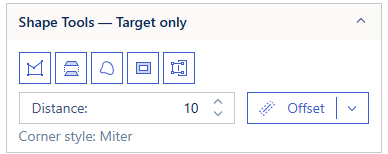
These act on the target layer alone — no reference geometry is involved — and each replaces the target shapes with its result, so they can be chained and stepped back with Undo.
| Tool | What it does |
|---|---|
| Offset | Shifts target lines and polygons sideways by the signed Distance value |
| Simplify | Removes surplus vertices, using the Distance value as the maximum allowed deviation |
| Explode | Splits multipart shapes into one separate shape per part |
| Hull | Replaces all target shapes with the single enclosing convex hull (see above) |
| To Lines | Converts target polygons into boundary lines |
| To Polygons | Converts target lines into polygons, filling the areas they enclose |
Simplify and Offset share the Distance input (metres):
- Simplify uses the absolute value — a larger number removes more vertices.
- Offset uses the signed value: for a line, + offsets to the right of the drawn direction and − to the left; for a polygon, + expands and − contracts.
Offset is a split button — the arrow on its right picks the corner style (Miter by default, or Round, Bevel, Square), and the active choice is shown beneath as Corner style: …. See Offset Corner Style.
Saving Results
Click the Save button to persist the created or modified geometries to the backend:
- Before saving, all target graphics are merged into a single geometry — if you have multiple separate shapes in the target layer, they become one feature on save
- Geometries are saved to the appropriate layer type based on context (e.g., Plan Burn, FPP, Spray, Sketch)
- The backend layer refreshes to reflect the changes
- Graphics are cleared after a successful save
WARNING
Save requires at least one graphic in the target layer. Clicking Save with no target graphics shows an error.
Troubleshooting
| Issue | Solution |
|---|---|
| No layers in dropdowns | Ensure FeatureLayers or MapImageLayers are visible on the map |
| Edit Target Shape button is greyed out | Draw or select at least one target graphic first |
| Intersect returns no result | Ensure target and reference shapes actually overlap |
| Reshape says it needs a single continuous line | The reference layer must hold exactly one polyline drawn in one unbroken run; press Reset and draw it again |
| Reshape reports "does not cross any target shape" | The reference line must cross the target boundary, not merely touch or sit inside it |
| Hull reports it could not build a hull | The target shapes are all in a straight line or at a single point; a hull needs shapes spread over an area |
| Buffer produces unexpected result | Check the buffer distance value; a value of 0 produces no change |
| Save shows "geometry is empty" error | Draw or select at least one target graphic before saving |
| Save merges shapes unexpectedly | By design, all target graphics are merged into one feature on save; use Reset and draw a single shape if you need separate saved features |
| I cannot find Subtract or Union | They were renamed in v2.29.0 — Subtract is now Cut Shape and Union is now Merge Shape. What they do has not changed |
| MapImageLayer features not selectable | Verify the layer's sublayers are visible and the layer has selectable polygon features |
| Drawn polygon saved as a polyline | Complete the polygon with at least 3 vertices |
| Shapes gone after closing the editor | Closing clears them by design — dock instead of closing, or save first |
| Arc line style draws straight segments | The middle (through) click was almost on the line between start and end, or past the end point |
| Nothing snaps while drawing | Turn on Snap and tick at least one layer in Snapping Layers |
| Undo or Redo is greyed out | There is nothing left to step through in that direction |
| To Polygons says the lines enclose no area | The lines must close a loop; a clearly open line is left alone |
| Offset corners are not the shape expected | Use the arrow on the Offset button to pick Round, Miter, Bevel or Square |
Frequently Asked Questions
Q: Can I use different layers for target and reference? A: Yes. The dual-layer architecture is designed for selecting features from different layers and performing spatial operations between them.
Q: Do operations modify the original layer data? A: No. Operations create new geometries on graphics layers. The original layer is only modified when you explicitly click Save.
Q: Can I perform multiple operations in sequence? A: Yes. After each operation, the result becomes part of the target graphics and can be used for further operations.
Q: What geometry types are supported? A: The tool supports points, polylines, and polygons. Different operations require specific geometry types (e.g., Reshape requires a polyline reference and a polygon or line target).
Q: There is a Cut Shape button — does it split a polygon along a line? A: No, and this is the one place the names can mislead. Cut Shape in the Advanced Editor is the operation that used to be called Subtract: it removes the reference shapes from the target. Splitting a polygon along a drawn line is a different operation, called Split Shape, and it exists only in the Map Editor — which also offers the wider set of shape tools (XOR, Reshape, Explode, Hull, Simplify, Offset).
Q: Can I undo an operation? A: Yes. Use Undo to step back through the operations one at a time (Redo steps forward again). Reset clears everything at once and is itself undoable.
Q: Why did my shapes disappear when I closed the editor? A: Closing ends the session and clears the editor's shapes. Save first, or dock the editor instead of closing it — docking and undocking preserve everything.
See Also
- Map Editor - Create and edit features on personal map layers
- Unified Map Editors - Specialised editors with integrated advanced editor access