Appearance
Unified Map Editor
The Unified Map Editor is a sophisticated spatial editing orchestration system that consolidates multiple specialized mapping editors into a single, intelligent interface. This advanced component provides seamless access to FPP, Plan Burn, Wildfire, and Sketch editing capabilities through intelligent permission-based controls, automatic editor selection, and unified workflow management, delivering a professional-grade editing experience optimized for diverse forestry and GIS operations.
Quick Start Guide
Opening the Unified Map Editor:
- Click the Unified Map Editors icon (pencil) in the right toolbar
- The panel opens with automatic editor selection based on your permissions
- Use the editor dropdown to switch between available editors
- Begin mapping immediately with your selected editor
Essential Actions:
- Editor Selection: Choose from available editors based on your access level
- Seamless Switching: Change editors without losing your current work
- Unified Interface: Access all editing tools through one consistent panel
- Permission Integration: Automatic access control based on user roles
Key Features
Single Unified Interface
Consolidate all mapping editing capabilities through one comprehensive panel:
- Integrated Access: All editors accessible through single interface
- Consistent Experience: Uniform layout and controls across all editors
- Centralized Management: Single point of access for all mapping operations
- Streamlined Workflow: Reduced interface complexity for users
Intelligent Editor Selection
Advanced permission-based editor prioritization with dynamic initialization and smart fallback mechanisms:
Priority System:
- FPP Editor (Highest Priority) - For users with FPP Admin or FPP User permissions
- Plan Burn Editor (Secondary Priority) - Available to all authenticated users for prescribed burn planning
- Wildfire Editor (Specialized Access) - For emergency response and wildfire management operations
- Sketch Editor (Universal Fallback) - Always available as default option for general mapping tasks
- NOI Editor - For Notice of Intent planning (road construction and harvest boundary mapping)
- Cart Route Editor - Transportation route planning and management
- Spray Editor - Spray operation planning with constraint and exclusion zone mapping
Smart Initialization:
- Automatic detection of user permissions when the panel opens
- Dynamic editor availability based on your authentication level
- Intelligent default selection based on your role and permissions
- Graceful fallback to the next available editor if your preferred editor is unavailable
Smart Defaults:
- Automatically selects most appropriate editor for user role
- Maintains user's last selected editor across sessions
- Provides clear indication of available editors
- Seamless fallback to available options
Permission-Based Access Control
Dynamic editor availability based on user roles and permissions:
FPP Access Levels:
- FPP Administrators: Full access including Revoke mode
- FPP Users: Edit, Auth, and Vary modes available
- GIS Administrators with FPP access: also get the Delete mode, which deletes a whole draft plan — see Deleting a Whole Draft Plan
- Basic Users: Read-only access to approved plans
- No FPP Permissions: FPP Editor not available in dropdown
Universal Access:
- Plan Burn Editor: Available to all authenticated users
- Sketch Editor: Always available as universal mapping tool
- Wildfire Editor: Available to emergency response personnel
Multiple Mode
Each editor has its own Multi toggle (Multiple Mode in the Cart Route Editor) that controls continuous drawing within that editor:
- Consistent Behavior: Same toggle behavior and workflow across all editors
- Independent State: Multiple Mode is reset when switching to a different editor
- Familiar Pattern: No relearning required — the toggle works the same way everywhere
The toggle labels are abbreviated (Multi, Meas) so they share one line with the Line style picker; each switch carries a tooltip with its full description.
Line Style — Straight or Arc

Every editor that draws lines offers a Line style picker beside its toggles, with Straight (default) and Arc. It appears only while Geometry Types is set to Line, because points and polygons are unaffected by it, and it keeps your choice when you switch to another type and back. In Arc style the first click starts the line and each pair of clicks afterwards is a point to curve through followed by the curve's end point. A finished arc is stored as ordinary vertices, so measurement, saving and export are unchanged. See Line Style for the full explanation.
Selecting and Saving Existing Features
Every editor has a Select button for picking features that are already saved. What happens next is the same in all of them, with the differences listed below.
Selecting a feature fills in the panel. Its name goes into the name text field, and its style and Display Label — plus its font size and point angle, in the editors that have those controls — load into the panel.
The names dropdown follows your selection in the FPP, Plan Burn, Wildfire, NOI, Spray and Cart Route editors: it moves to the selected feature's name, as the name text field does. The two do not always match, though:
- It follows only while Filter by Name is off. With the filter on, the dropdown stays where it is, so the map keeps showing the name you chose.
- It follows only to a name in its list. If the name is not in the list yet — you have just saved it under a new name, or someone else created it since you opened the editor — the list is refreshed first; a name that is still missing leaves the dropdown where it is. The Cart Route Names dropdown lists only routes with saved Cart Route Information, so it stays where it is for any other route.
- Typing a name in the name text field never moves the dropdown.
- Sketch is the exception — its dropdown does not follow. That dropdown also chooses which sketches Delete by Name removes, so a click on the map should never change it.

Clicking the same spot again selects the next feature underneath, so you can reach features that lie on top of each other; the notice counts them, for example (2 of 3), or (2/3) in NOI and Spray. With Multi on (Multiple Mode in Cart Route) the features add up, and one that is already selected is never added twice: the click moves on to the next feature there that is not selected yet. Once every feature at that spot is selected, Horizon says "All 3 features here are already selected.", adds nothing and leaves the panel as it is. With Multi off, each click replaces the selection with the next feature underneath.
Saving several selected features keeps each one's own details. With Multi on you can select several features and save them together. Each selected feature keeps its own style, Display Label, font size and point angle. Only a control you actually change after selecting — clicking a style, typing a label, picking a font size, entering an angle — is applied to all of them. Features you draw take their details from the panel, as before.
The name is shared
In every editor except Cart Route, all the features you save are saved under the name in the name text field — and that field shows the name of the last feature you clicked. To keep features under their own names, select and save features from one name at a time. (The Cart Route Editor keeps each feature's own cart route name unless you type or pick a new one — see Saving Cart Routes Geometry.)
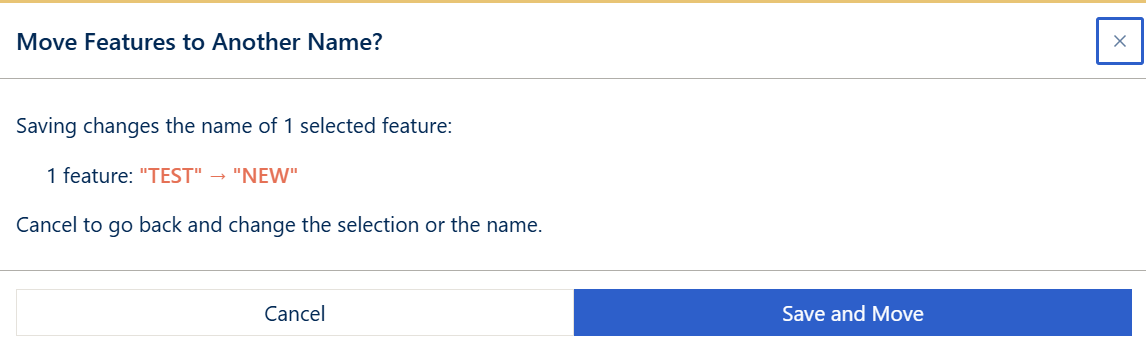
Horizon asks before a save moves features to another name. If saving would change the name of any selected feature — you selected features from two names, or typed a new name — the Move Features to Another Name? dialog lists what would move, for example 2 features: "JDT0140" → "ABC0001". Click Save and Move to save, or Cancel to go back and change the selection or the name; nothing is saved until you choose. Newly drawn features, and selected features that have no name yet, are not listed. The Cart Route Editor does not ask: it keeps each feature's own route name unless you type or pick a new one.
Other rules when saving:
- Selected and newly drawn features can be saved together — select a few, draw one more, then save.
- Features that lie exactly on top of each other are each saved — for example an FPP plan and its Vary copy, selected together.
- A text style needs a label. A style that draws only text would be invisible without one, so Horizon refuses to save it and names the features that need a label (existing features by their ID). This applies to Text Line in Plan Burn, Sketch and Wildfire, Label Line and Text Point in FPP, and Text Point in Cart Route.
- NOI and Spray select one geometry type at a time. Select picks up only features that match the Geometry Types dropdown; clicking another kind shows "Only Point features can be selected while Geometry Types is set to Point…" (or Line, or Polygon). Change Geometry Types to select the other kind.
Finding a Name
Every editor's names dropdown is searchable. Click it and type any part of a name to narrow the list — 0132 finds JDT0132, and case does not matter — then pick the name. Select is only the box's placeholder, not a name: it shows while no name is chosen, and while the list is open with nothing typed. Once you have chosen a name you can move to another one, but not back to none — to show every name on the map again, turn Filter by Name off. A few actions empty the box for you: switching FPP Mode (except from Edit to Auth, or between Vary and Revoke), deleting a whole draft plan in the FPP Editor's Delete mode, and the Sketch Editor's Delete by Name.
Zoom to a Name
Every editor has a Zoom to … button below its name field — Zoom to Sketch, Zoom to Burn, Zoom to Wildfire, Zoom to Plan, Zoom to NOI, Zoom to Route and Zoom to Spray. It zooms the map to every feature of the name chosen in the editor's names dropdown, even when the editor's layers are not on the map or are filtered to another name. In the Sketch Editor it only ever looks at your own sketches.
Editor Management
Editor Selection Interface
The unified dropdown provides clear access to available editors:
- Editor Names: Each editor is listed by name, for example FPP Editor or Sketch Editor
- Your Editors Only: Editors your account cannot use are not listed (the FPP Editor, for example, needs FPP access)
- Current Selection: Highlighted active editor with clear identification
- Smooth Transitions: Instant switching between available editors
Context Preservation
When switching editors, the panel closes and reinitializes the new editor:
- Layer Persistence: Data layers created by each editor remain visible on the map
- Editor Reset: Drawing state, selected styles, and Multiple Mode reset when switching editors
- Session Continuity: The last selected editor is remembered when reopening the panel
Dynamic Updates
Real-time updates based on user permissions and system state:
- Permission Changes: Editor availability updates immediately
- Role Updates: New editors become available when permissions change
- System Integration: Reflects current system capabilities and restrictions
- Error Prevention: Prevents access to unavailable functionality
Specialized Editor Integration
FPP Editor Integration
Forest Practices Plan editor with full regulatory compliance:
- Five Workflow Modes: Edit, Auth, Vary, Revoke, and Delete capabilities
- Regulatory Symbols: 30+ forestry-specific symbols and standards
- Compliance Tracking: Automatic validation and approval workflows
- Multi-Phase Planning: Complete plan lifecycle management
Wildfire Editor Integration
Emergency response editor for wildfire incident management:
- Incident Mapping: Specialized wildfire symbols and classifications
- Emergency Operations: Real-time incident documentation capabilities
- Safety Planning: Emergency response and evacuation planning tools
- Multi-Agency Coordination: Standardized symbols for team coordination
Plan Burn Editor Integration
Prescribed burn planning with EMSINA standard compliance:
- EMSINA Symbols: Emergency management standard symbols
- Safety Integration: Comprehensive safety zone and evacuation planning
- Operational Planning: Burn unit design and resource coordination
- Multi-Agency Support: Standardized planning for coordinated operations
Sketch Editor Integration
Versatile general-purpose mapping and spatial documentation:
- Universal Access: Available to all users as baseline functionality
- Flexible Symbols: 23+ drawing symbols for various applications
- Field Mapping: Optimized for data collection and spatial documentation
- Research Support: Suitable for studies and general mapping projects
NOI Editor Integration
Notice of Intent planning with road and harvest boundary mapping:
- Line Styles: Planned Road Construction, Planned Cart Route
- Polygon Styles: Planned Harvest Boundary
- Server-Side Rendering: Styles rendered from server-defined symbology
- No Point Geometry: Lines and polygons only
Cart Route Editor Integration
Transportation route planning and management:
- Point Styles: 18 hazard and route marker types (UHF Channel, Narrow Bridge, Steep Road, Bus Stop, Sharp Corner, etc.), with a choice of label font size for UHF Channel, Coupe and Text Point
- Line Styles: Planned Cart Route, Route to Coupe
- Cart Route Information: Rich-text records for hazard details, UHF channel, and route description
- Print Integration: Generate cart route maps and reports with a selectable cart route name
Spray Editor Integration
Spray operation planning with constraint and exclusion zone mapping:
- Point Styles: Water Point, Water Sample Point, Mixing Point, Special Point, Text Point (5 types)
- Line Styles: Constraint Line 1, Constraint Line 2
- Polygon Styles: Exclusion Zones, Constraint Polygon 1, Constraint Polygon 2
- Server-Side Rendering: Styles rendered from server-defined symbology
Advanced Functionality
Cross-Editor Operations
Leverage capabilities across different editors:
- Layer Sharing: Features created in one editor visible in others
- Style Consistency: Maintain visual consistency across editor types
- Data Integration: Seamless data flow between specialized editors
- Workflow Flexibility: Use most appropriate editor for each task
Advanced Geometric Operations
Unified access to spatial analysis tools across all editors:
- Buffer Analysis: Create analysis zones around features
- Union Operations: Combine multiple areas into unified zones
- Intersection Analysis: Analyze spatial relationships between features
- Difference Operations: Remove areas for refined spatial documentation
Performance Optimization
Optimized performance across all integrated editors:
- Lazy Loading: Editors load only when selected for improved performance
- Resource Management: Efficient memory usage across editor switches
- Caching Strategy: Smart caching for frequently used editors
- Response Time: Immediate editor switching without delays
Integration with Other Tools
Layer Panel Coordination
Seamless integration with Horizon's layer management system:
- Automatic Updates: New features appear in layer panel immediately
- Unified Controls: Layer visibility and styling work across all editors
- Consistent Organization: Logical layer grouping regardless of editor
- Cross-Editor Visibility: Features visible across editor switches
System Integration
Comprehensive integration with Horizon platform capabilities:
- User Management: Automatic permission synchronization
- Data Persistence: Reliable data storage across editor sessions
- Export Compatibility: Consistent export capabilities across editors
- Reporting Integration: Unified reporting across all editor types
Performance Optimization and Efficiency
Efficient Editor Management
- On-Demand Loading: Editors load only when selected
- Memory Optimization: Efficient resource usage across multiple editors
- Fast Switching: Instant transitions between available editors
- Cache Management: Smart caching for improved response times
Best Practices for Unified Editing
- Editor Selection: Choose most appropriate editor for specific tasks
- Permission Management: Coordinate with administrators for appropriate access
- Workflow Planning: Leverage multiple editors for complex projects
- Data Organization: Maintain consistent layer organization across editors
Troubleshooting
| Issue | Solution |
|---|---|
| Editor not appearing in dropdown | Verify user permissions for that specific editor |
| Cannot switch between editors | Check if current operation needs to be completed first |
| Features disappear when switching | Verify layer visibility settings in layer panel |
| Permission errors when accessing editor | Contact system administrator for role verification |
| Multiple Mode not working across editors | Check that Multiple Mode toggle is properly enabled |
| Performance issues with editor switching | Clear browser cache and reload application |
| Editor selection not saving | Verify session storage and authentication status |
| Missing specialized symbols | Confirm appropriate editor is selected for symbol type |
Best Practices
Editor Selection Strategy
- Task-Appropriate Selection: Choose editor based on specific mapping requirements
- Permission Optimization: Coordinate with administrators for necessary access levels
- Workflow Efficiency: Plan editor usage for optimal workflow organization
- Cross-Editor Coordination: Leverage multiple editors for comprehensive projects
Unified Workflow Management
- Consistent Standards: Maintain uniform quality across all editor types
- Data Organization: Structure layers logically regardless of editor used
- Permission Coordination: Understand access levels for team collaboration
- Documentation Consistency: Apply consistent labeling across all editors
Performance and Efficiency
- Strategic Editor Use: Select most efficient editor for each specific task
- Resource Management: Close unused editors to optimize system performance
- Data Management: Organize work to minimize unnecessary editor switching
- Session Planning: Plan editing sessions to maximize efficiency across editors
Collaboration and Coordination
- Team Coordination: Establish clear editor usage guidelines for teams
- Permission Management: Coordinate access levels appropriate for team roles
- Data Sharing: Use consistent standards across editors for team compatibility
- Quality Control: Implement verification procedures across all editor types
The Unified Map Editor provides comprehensive access to all Horizon editing capabilities through a single, intelligently managed interface, ensuring efficient workflows while maintaining the specialized functionality of each individual editor.