Appearance
LOGR GeoFence Editor Tool
Overview
The LOGR GeoFence Editor is a specialised tool for maintaining harvest area geofence boundaries and pushing them to the LOGR tracking system. You select a coupe from the LOGR GeoFence layer, reshape or recalculate its boundary using drawing tools, buffers and geometry operations against a second reference layer, then save the result back to the GeoFence layer and — when the coupe is ready — push it to the live LOGR system.
ADMIN ACCESS REQUIRED
Only LOGR admin users can access the LOGR Editor. If you cannot see this tool, please contact the GIS Section to request user access.
Getting Started
- Click the LOGR Editor button in the toolbar
- The tool initialises and adds the LOGR GeoFence layer to the map if it is not already there
- The editor panel opens with the layer dropdowns populated

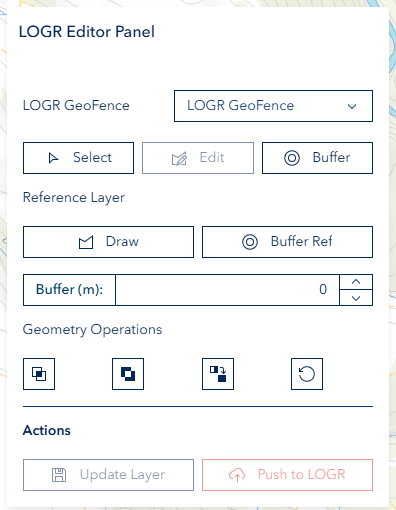
The panel reads top to bottom in the order you work:
| Section | What it is for |
|---|---|
| Status message | Tells you whether a coupe is currently selected |
| LOGR GeoFence | The coupe boundary you are editing — select it, reshape it, clear it |
| Reference Layer | A second shape used as input to buffers and geometry operations |
| Distance (m): | The buffer distance, shared by both buffer buttons |
| Operations | Geometry operations, plus Undo, Redo and Reset |
| Update Layer / Push to LOGR | The two save steps |
Most buttons in this panel are icons only. Hover any of them to see a tooltip naming what it does — the tooltip wording is used throughout this page.
Status Messages
A single message sits at the top of the panel and tells you where you are:
- Before you select anything — an information message reading "Select a target feature from the LOGR GeoFence layer to begin editing."
- Once a coupe is selected — a green confirmation reading "Selected: PROVCOUPE" followed by the coupe identifier.
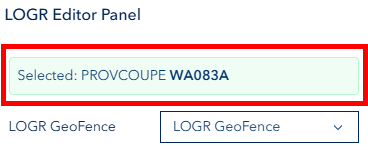
The confirmation is the check to make before saving: Update Layer and Push to LOGR both act on the coupe named there. Buffering, intersecting, cutting, merging or replacing the shape keeps that coupe identity, so the confirmation stays in place while you work.
Clearing the selection
The confirmation no longer has its own dismiss button. Use Reset both editor layers in the Operations row to clear the selection and start again.
LOGR GeoFence Layer Selection
The LOGR GeoFence dropdown at the top of the section names the layer you are editing. Below it sit three buttons.
| Button (hover for its tooltip) | What it does |
|---|---|
| Select target shape from map | Turns click-to-select on and off |
| Edit target shape vertices | Reshapes the selected boundary — greyed out until a shape is present |
| Clear target graphics | Removes the working boundary from the editor — greyed out until a shape is present |
Selecting a coupe
- Click Select target shape from map — the button changes appearance while selection is active
- Click the coupe on the map
- The green confirmation appears showing the PROVCOUPE identifier
- Click the same button again to turn selection off

Overlapping coupes
Where coupes overlap, clicking the same spot again cycles to the next polygon instead of re-selecting the same one, and Horizon reports which one you are on (for example "feature 2 of 3"). Clicking an already-selected coupe deselects it.
LOGR GeoFence Layer Operations
Editing the geometry
- Select a coupe — Edit target shape vertices becomes available
- Click Edit target shape vertices
- Click and drag vertices to reshape the boundary
- Right-click a vertex to remove it
- Click away from the shape, or click the button again, to finish

An edit is only added to the history once you have actually moved the boundary — opening the tool and closing it again without changing anything leaves Undo as it was.
Buffering the coupe boundary
- Select a coupe
- Enter a distance in the Distance (m): field — between 1 and 10,000 metres
- Click Target under the distance field
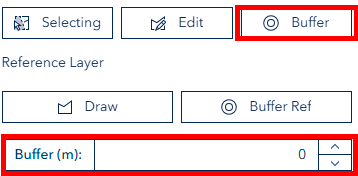
The boundary is replaced by the buffered shape, and the coupe identity is kept, so you can save the buffered result straight away. Buffering again buffers the shape you now have, so repeated clicks keep growing it.
Buffer distance
A distance that is not a positive number, or one over 10,000 metres, is refused with a message rather than applied.
Reference Layer Operations
The Reference Layer dropdown lists the visible layers you can pull a second shape from. The reference shape is never saved — it is only an input to the buffer and geometry operations.
| Button (hover for its tooltip) | What it does |
|---|---|
| Select reference shape from map | Turns click-to-select on and off for the chosen reference layer |
| Draw reference polygon on map | Draws a new reference polygon |
| Clear reference graphics | Removes the reference shape |
Drawing a reference polygon
- Click Draw reference polygon on map
- Click points on the map to define the polygon vertices
- Double-click to finish (or press ESC to cancel)
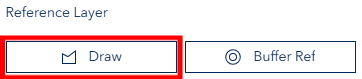
Drawing replaces whatever was on the reference layer, so you always work with one reference shape at a time. The clear is recorded, so Undo brings the previous reference shape back.
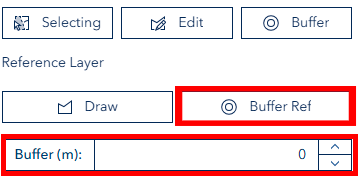
Buffering the reference shape
- Select or draw a reference shape
- Enter a distance in the Distance (m): field
- Click Reference under the distance field
Geometry Operations
The Operations row holds four geometry buttons. Each one reads the coupe boundary and the reference shape, and writes the result back as the new coupe boundary — the reference shape is cleared once the operation runs.
| Button (hover for its tooltip) | What it does |
|---|---|
| Intersect target and reference geometries | Keeps only the area the two shapes have in common |
| Subtract reference from target geometry | Removes the reference area from the coupe boundary |
| Union target and reference geometries | Merges the shapes into one |
| Replace target with reference geometry (polygon only) | Swaps in the reference shape as the new boundary |
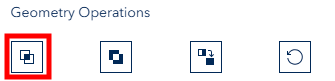
Intersect
- Make sure both a coupe boundary and a reference shape are present
- Click Intersect target and reference geometries
- Only the overlapping area remains
Subtract
- Make sure both a coupe boundary and a reference shape are present
- Click Subtract reference from target geometry
- The reference area is cut out of the coupe boundary

Union
- A coupe boundary is required; a reference shape is optional
- Click Union target and reference geometries
- The shapes are combined into one

Replace
- Make sure a reference shape is present — drawn or selected from a layer
- Click Replace target with reference geometry (polygon only)
- The coupe boundary is replaced by the reference shape, keeping the coupe identity
Use this when you want to swap in an entirely new boundary. The reference shape must be a polygon; a line or point reference is refused with a message.
Missing shapes
Intersect, Subtract and Replace all need a shape on both layers and tell you so if one is missing. Union needs only the coupe boundary.
Undo, Redo and Reset
The right-hand group of the Operations row holds Undo shape change, Redo shape change and Reset both editor layers (red). They act on the editor as a whole and stay available even if the layer dropdown empties.
- Undo shape change steps back through your work — selections and deselections, drawn reference polygons, buffers, the geometry operations, finished vertex edits, and the clears made by the Clear and Reset buttons. Up to 20 steps are kept. Each click on the map counts as one step, however much it changed.
- Redo shape change steps forward again. Both buttons are greyed out when there is nothing to step through.
- Reset both editor layers clears the coupe boundary, the reference shape and the selection — and is itself undoable, so an accidental Reset can be recovered with Undo.

Undo does not reach the server
Undo and Redo work on the shapes in the editor only. They cannot reverse an Update Layer save, and they cannot reverse a Push to LOGR. The history is also cleared when you close the panel.
"Nothing to Redo"
If you undo something and then make a new change, the redo history no longer applies and a short Nothing to Redo notice explains why the button stopped working. Finishing an in-progress vertex edit does the same — the completed edit starts a new step.
If an Undo lands on a step where the coupe identity can no longer be worked out, the green confirmation returns to the "select a target feature" message. Select the coupe again before saving.
LOGR Integration
Updating the LOGR GeoFence layer
- Select a coupe from the LOGR GeoFence layer
- Check that the green confirmation shows the PROVCOUPE identifier
- Make sure exactly one shape is present on the LOGR GeoFence working layer
- Click Update Layer
- The layer refreshes to show the change, and the editor clears ready for the next coupe
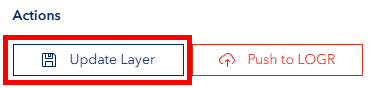
Update Layer is greyed out until there is a shape to save. If more than one shape is present, or no coupe is selected, the save is refused with a message explaining which of the two is missing.
Pushing to the LOGR system
CRITICAL PREREQUISITE
Ensure there is a DA (Delivery Arrangement) assigned to the Provcoupe before pushing to LOGR; otherwise the operation will fail.
- Select a coupe from the LOGR GeoFence layer (the PROVCOUPE must be linked to a DA)
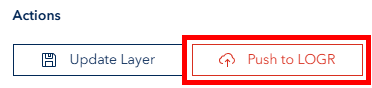
- Click Push to LOGR — the button reads Checking... while Horizon checks that the coupe has a DA
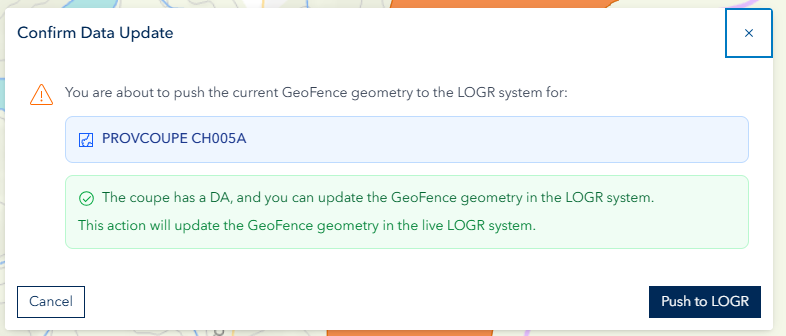
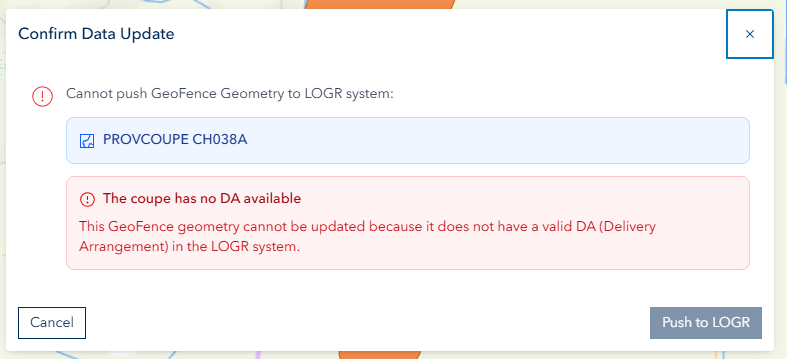
- A Confirm Data Update dialog opens showing the PROVCOUPE identifier and the result of that check:
- DA available — a green message confirms the coupe has a DA and that the push will update the live LOGR system
- DA not found — a red message explains the coupe has no valid DA, and the confirm button stays greyed out
- Click Push to LOGR in the dialog to confirm, or Cancel to abort
LIVE SYSTEM IMPACT
Pushing to LOGR affects the production LOGR system. Always double-check your changes before confirming. There is no undo function once changes are pushed.
Troubleshooting
| Problem | Solution |
|---|---|
| LOGR Editor not visible | Check that you have LOGR admin permissions; contact GIS Section |
| Cannot select LOGR features | Ensure the LOGR GeoFence layer is visible and loaded on the map |
| Wrong coupe selected | Click the same spot again to cycle to the next overlapping polygon |
| Buffer not applying | Enter a distance between 1 and 10,000 metres |
| Push to LOGR fails | Ensure a DA (Delivery Arrangement) is assigned to the Provcoupe |
| Geometry operations do nothing | Both a coupe boundary and a reference shape are needed (Union needs only the coupe) |
| Replace refused | The reference shape must be a polygon, not a line or point |
| Update Layer greyed out | Select or create a coupe boundary first |
| Update Layer refused | Ensure exactly one shape is present and a coupe is selected |
| Edit button greyed out | Select a coupe from the LOGR GeoFence layer first |
| Reference polygon not drawing | Click the draw button first, then click points on the map |
| Undo greyed out | There is nothing left to step back through, or the panel was reopened |
Tutorials
INFO
These recordings were made on an earlier version of the panel. The workflow is unchanged, but some buttons have since been renamed, regrouped, or joined by the Undo and Redo controls described above.
How to Use Geometry Operations to update LOGR GeoFence Features
How to Edit LOGR GeoFence Features
How to Push Changes to LOGR
See Also
- Advanced Editor - Standalone geometric operations for buffer, union, intersect, and difference
- Map Editor - General-purpose feature creation and editing tool