Appearance
Printing Tool
Overview
The Printing Tool is a comprehensive map production system that delivers professional-quality cartographic outputs with advanced layout customization, specialized Forest Practices Plan (FPP) integration, and intelligent print processing. This sophisticated tool combines ArcGIS print services with custom template management, automated geometry operations, real-time print area visualization, and specialized features including harvest masking, cart route integration, and dynamic label generation for professional forestry documentation.
Opening the Print Panel
- Click the Print icon in the left action bar
- The Print Panel opens as a floating window near the top-left of the map, positioned just clear of the action bar so the action icons stay visible and clickable
- The Print action icon changes to a chevron while the panel is open. Click it again to close the panel, or use the panel's own close button
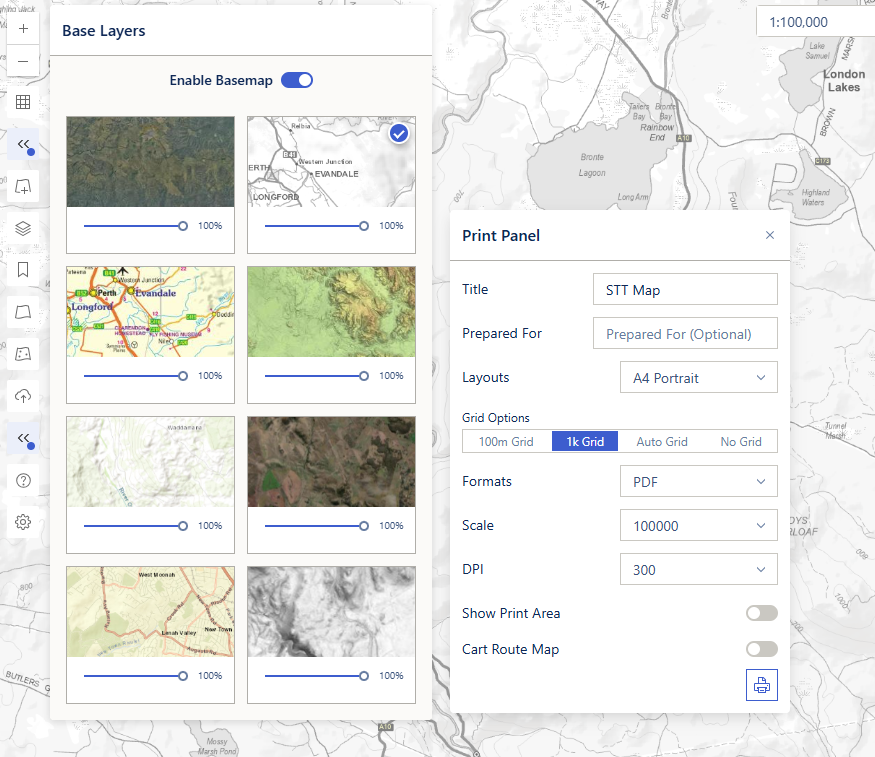
Unlike the docked panels, the Print Panel is a floating window rather than part of the side panel shell. This gives it three behaviours worth knowing — the screenshot above shows all three at once: the Print Panel floats over the map, the map stays visible behind it, and the docked Base Layers panel is open alongside it without displacing it.
| Behaviour | What it means for you |
|---|---|
| Non-modal | The map stays fully interactive. You can pan and zoom to position your content inside the print area without closing the panel |
| Stays open | The docked shell only shows one panel at a time, but the Print Panel is separate from that group — open the Layer Panel or an editor and your print settings remain on screen |
| Draggable and resizable | Drag the Print Panel title bar to move the window out of the way, and drag its edge or corner to resize it |
TIP
The non-modal behaviour is what makes step 9 of the workflow below possible — turn on Show Print Area, then pan and zoom the map to frame your content while watching the print extent update live, all without dismissing the panel.
Print Options
Layout Options
| Layout Name | Orientation | DPI Support | Special Features |
|---|---|---|---|
| A4 Portrait | Portrait | 150/300 | Grid options: 100m, 1k, Auto, None |
| A3 Portrait | Portrait | 150/300 | Grid options: Auto, None |
| A4 Landscape | Landscape | 150/300 | Grid options: Auto, None |
| A3 Landscape | Landscape | 150/300 | Grid options: Auto, None |
| A3L Only Map | Landscape | 150/300 | Map only, no legend; BMP export supported |
| A4L Only Map | Landscape | 150/300 | Map only, no legend; BMP export supported |
| A2 Portrait | Portrait | 150/300 | Large format |
| A4 Portrait FPP Draft | Portrait | 150/300 | FPP draft layout with metadata and harvest mask |
| A4 Portrait FPP Production | Portrait | 150/300 | FPP production layout with metadata and harvest mask |
| A3 Portrait FPP Draft | Portrait | 150/300 | FPP draft layout with metadata and harvest mask |
| A3 Portrait FPP Production | Portrait | 150/300 | FPP production layout with metadata and harvest mask |
Grid Options
For layouts that support grid lines (A4 Portrait, A3 Portrait, A4 Landscape, A3 Landscape), a segmented control lets you choose the grid overlay:
| Option | Description |
|---|---|
| 100m Grid | 100-metre grid (A4 Portrait only) |
| 1k Grid | 1-kilometre grid (default for A4 Portrait) |
| Auto Grid | Automatically selects grid spacing based on scale (default for A3/A4 Landscape, A3 Portrait) |
| No Grid | No grid lines |
Other layouts (map-only, A2, FPP) do not display grid options.
Format Options
| Format | Description | Best Use Case |
|---|---|---|
| Portable Document Format | Professional documents, sharing | |
| PNG8 | 8-bit PNG (smaller file size) | Web use, smaller files |
| PNG32 | 32-bit PNG (higher quality) | High-quality images |
| JPG | Joint Photographic Experts Group | Compressed images |
| BMP (Trimble GPS) | Bitmap with world file | Trimble GPS devices |
INFO
The BMP (Trimble GPS) format is only available for the A3L Only Map and A4L Only Map layouts. It generates a ZIP file containing both a BMP image and a BPW world file for georeferenced use on Trimble GPS devices.
Resolution Settings
- 150 DPI: Standard quality for most uses
- 300 DPI: High quality for professional printing
Scale Options
Available scales: 500, 1000, 2500, 5000, 7500, 10000, 15000, 20000, 25000, 30000, 40000, 50000, 75000, 100000, 150000, 200000, 250000, 500000, 1000000
The scale dropdown auto-syncs with the current map zoom level. You can manually override it at any time.
Standard Print Workflow
Step-by-Step
- Expand Title & Credits and set the map title if you want something other than the default (see Title & Credits)
- Select a layout from the Layouts dropdown (see Layout Options)
- Choose grid options if available for the selected layout (see Grid Options)
- Select an output format (PDF, PNG8, PNG32, JPG, or BMP for map-only layouts)
- Set the scale — the dropdown auto-syncs with the current map zoom, or select a specific scale manually
- Set the DPI — 300 (default, high quality) or 150 (standard quality)
- Toggle Show Print Area to preview the print extent on the map (optional but recommended)
- Pan and zoom the map to position the content within the print area
- Click the Print button — a loading indicator appears while the print service processes the request
- The output file downloads automatically when ready
Title & Credits
The map Title and the two credit fields sit together in a collapsible Title & Credits block at the top of the panel. It starts collapsed, because most prints keep the default title and leave the credits empty; its summary line shows the current title, so you can check it without expanding.
| Field | Notes |
|---|---|
| Title | Printed as the map heading, and also used as the name of the downloaded file. Defaults to STT Map |
| Prepared By | Free text, empty by default — an untouched field prints nothing |
| Prepared For | Free text recipient, optional |
Prepared By is no longer filled in for you
It previously took your username automatically, which printed "Guest" onto the layout when a session had not fully resolved, with no way to correct it. Type a name if you want a credit printed.
The title names your file too
Because the download name comes from the title, giving each print a distinct title saves renaming files afterwards. Characters a file name cannot contain are replaced automatically.
Print Area Preview
- Toggle Show Print Area to preview the print extent on the map
- An outlined rectangle shows the exact print boundaries
- The rectangle automatically updates in real time as you pan or zoom the map
- The extent size is calculated from the selected scale and layout dimensions
- Scale can be manually adjusted or synced to the map view
Forest Practices Plans (FPP)
FPP Workflow
- Select an FPP layout from the Layouts dropdown (A4 or A3, Draft or Production)
- Select the FPP name from the FPP Draft Name / FPP Number dropdown (fetched from the server)
- The system automatically fetches and populates:
- Harvest Area (in hectares)
- Map Sheet information based on the map centre
- Emergency Meeting Points (EMPs) based on the map centre
- Map Centre Coordinates (easting and northing)
- Set Prepared By in the Title & Credits block if the plan should carry a credit — it is free text and empty unless you fill it in
- Enter Optional VAR if needed (auto-converted to uppercase)
- Enter Coupe (Production layouts only; Draft layouts automatically set this to "Draft")
- Enable Show Print Area to preview the extent with the harvest mask overlay
- Click Print — the system filters FPP layers to the selected name, updates feature labels, generates the print, and downloads the output
- After printing, all layer filters and labels are automatically restored to their original state
FPP-Specific Fields
When using FPP layouts (Draft or Production), additional fields become available:
- FPP Name/Number: Select from dropdown
- Draft layout: Shows "FPP Draft Name" dropdown
- Production layout: Shows "FPP Number" dropdown
- Emergency Meeting Points (EMPs): Auto-populated based on map centre; click the Refresh button to reload based on the current map position
- Optional VAR: Additional identifier field (converted to uppercase)
- Coupe: Production layouts only (Draft automatically sets to "Draft")
Harvest Area Masking
FPP layouts automatically create harvest area masks:
- Semi-transparent grey overlay outside harvest boundaries
- Only harvest areas remain unmasked
- Mask positioned above the land tenure layer
- The mask layer is labelled "PTPZL outside Harvest Boundary" in the printed legend
- Updates when the FPP name, scale, or map position changes
FPP Gridlines
FPP print layouts pick the gridline overlay automatically from the selected print scale — there is no separate gridline control to set:
| Print scale | Gridline overlay |
|---|---|
| Below 1 : 10,000 | 500 m grid |
| 1 : 10,000 and above | 1,000 m grid |
Use a large-scale value (1 : 2,500, 1 : 5,000, 1 : 7,500) for close-up site plans where the finer 500 m grid is helpful; the standard 1 km grid is used for broader extents.
Dynamic Label Generation
When printing an FPP layout, the tool automatically:
- Queries FPP Point, Line, and Polygon layer features within the print extent
- Extracts TYPE_ID and LABEL values from each feature
- Clones the layer renderers and updates symbol labels to match feature-specific labels
- Applies the updated renderers to the print template
- Also processes Sketch layers (Points, Lines, Polygons) with the same label pipeline
- After printing (or on error), all original renderers and labels are restored to prevent any impact on the live map
Sketch Measurements
When a Sketch layer is on the map, a Sketch Measurements block appears in the Print Panel. It lets you choose what measurement — if any — is added to each sketch entry in the printed legend. The block only shows the controls that apply: the Line dropdown appears when a Sketch Line layer is present, the Polygon dropdown when a Sketch Polygon layer is present.
| Control | Options | Effect on the legend |
|---|---|---|
| Line | None (default), Length (m/km) | Adds the total length of the tracking-width line features to their legend entry, e.g. "Tracking width (5m) 2.5 km" |
| Polygon | None (default), Perimeter (m/km), Area (ha) | Adds the total perimeter or the total area to each sketch polygon legend entry, e.g. "Tracking width (5m) 1.23 km" or "Burn Area 14.7 ha" |
How the totals are worked out:
- Only features inside the print extent are counted, so the legend matches what is actually on the printed map.
- Features are also limited to your own sketches and to any sketch name filter already applied to the layer.
- Totals are summed per legend entry — every feature of the same sketch type contributes to that entry's total.
- The Line measurement applies to the tracking-width line types (Tracking width 5 m, Tracking width 10 m, and Single blade width); the Polygon measurement applies to all sketch polygon types.
- Measurements use geodetic (curved-earth) calculation for accuracy and are formatted automatically — metres below 1,000 m and kilometres above, with area always in hectares.
TIP
Leave both dropdowns on None for a plain legend. The selection only affects the printed output — the live map legend is untouched, and the original labels are restored after printing.
Advanced Features
Cart Route Reports
- Toggle the Cart Route Map switch to enable cart route reporting
- A Cart Route Name dropdown appears — select the desired route
- Cart route layers are automatically filtered to show only the selected route
- When you print, a cart route report PDF is generated alongside the map output
- Both files are downloaded automatically
- Layer filters are reset after printing
Dynamic Layer Filtering
For FPP layouts:
- Automatically filters layers by selected FPP name
- Shows only relevant features for chosen plan
- Resets filters after printing
Real-Time Updates
- Print area updates during map navigation
- Scale synchronizes with map zoom level
- EMP data refreshes based on map center
- Manual scale override available
Troubleshooting
| Issue | Solution |
|---|---|
| Print area not showing | Toggle "Show Print Area" switch |
| Missing FPP fields | Select FPP Draft or Production layout |
| Cart route warning | Select a cart route or disable cart route option |
| Print fails | Check layer compatibility and try different format |
| Low resolution output | Confirm 300 DPI selection |
| Empty harvest area | Verify FPP name exists in selected layer type |
| EMP data missing | Click refresh button or pan map to new area |
| Scale not updating | Manually adjust scale or disable/re-enable print area |
| Sketch Measurements block missing | The block only appears when a Sketch Line or Sketch Polygon layer is on the map — switch the layer on first |
| Legend shows no measurement | Set the Line or Polygon dropdown to something other than None, and check the features fall inside the print extent |
Error Messages
Common error scenarios:
- "Please select a cart route map or turn off the cart route map option": Choose cart route or disable feature
- Failed to fetch data: Network connectivity or service availability issues
- Layer filtering errors: FPP name may not exist in database
Usage Tips
- FPP Workflows: Select FPP layout first, then choose name to auto-populate fields
- Print Area: Enable preview before printing to verify extent
- Scale Management: Use manual scale override for precise sizing
- Layer Visibility: Ensure required layers are visible before printing. Turning off a layer group (e.g. Spray Layers, Wildfire Layers) in the layer panel will exclude all layers within that group from the print output.
- Cart Routes: Only enable if generating route analysis reports
- High Quality: Use 300 DPI and PDF format for professional outputs
Video Tutorial
Watch this guide on using the Printing Tool: