Appearance
Production Summary Tool
Overview
The Production Summary tool provides comprehensive logging production statistics and summaries for specified regions, forests, and logging units over selected time periods. This tool helps track operational performance, analyze production volumes, and generate reports for forest management decision-making.
Location: Report Tools panel → dropdown → Production Summary
Key Capabilities:
- Track logging production by region, forest, and logging unit
- View total area harvested (current and weekly)
- Filter production data by date range
- Analyze production files and detailed operation records
- Interactive data tables for detailed review
- Export capabilities for reporting
Example Use Cases:
- Daily production tracking and monitoring
- Weekly and monthly operational summaries
- Regional performance analysis
- Logging unit productivity comparison
- Historical production trend analysis
- Reporting for forest management planning
When to Use This Tool
Ideal Scenarios
Operational Monitoring:
- Daily production tracking
- Weekly performance reviews
- Real-time operation status checking
- Progress monitoring against targets
Production Analysis:
- Comparing logging unit productivity
- Analyzing regional performance trends
- Identifying high-performing operations
- Evaluating seasonal production patterns
Reporting Requirements:
- Generating production summaries for management
- Creating performance reports
- Documenting operational achievements
- Supporting budget and planning decisions
Strategic Planning:
- Historical production analysis
- Capacity planning for future operations
- Resource allocation decisions
- Performance benchmarking
Not Recommended For
- Individual tree-level inventory (use field survey tools)
- Financial cost analysis (use financial systems)
- Equipment tracking (use asset management systems)
- Detailed operator performance (use HR systems)
How to Use the Tool
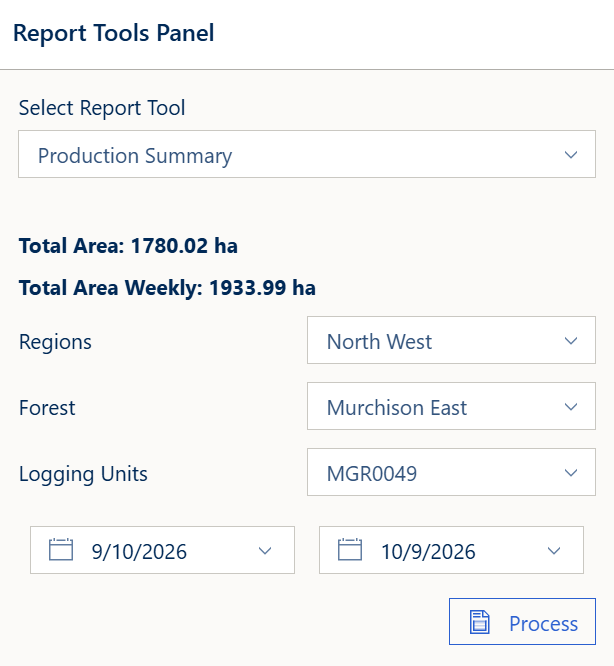
Step 1: View Production Summary Statistics
At the top of the panel, you'll see current production statistics (when available):
Total Area:
- Overall area harvested across all operations
- Displayed in hectares (ha)
- Running total for tracking period
Total Area Weekly:
- Area harvested in the current week
- Displayed in hectares (ha)
- Resets weekly for performance tracking
These statistics load automatically when the panel opens.
Step 2: Select Region
Click the Regions dropdown to choose your region of interest:
- List populates automatically from available regions
- First region selected by default
- Selecting a region automatically updates the Forest dropdown
- All production data filters based on this selection
Regional Selection Impact:
- Determines available forests
- Filters logging units to region
- Affects all subsequent dropdown options
Step 3: Select Forest
Click the Forest dropdown to choose the forest area:
- Lists forests within the selected region
- Updates automatically when region changes
- First forest selected by default
- Determines available logging units
Forest Selection Impact:
- Filters logging units to this forest
- Narrows production data scope
- Combined with region for precise targeting
Step 4: Select Logging Unit
Click the Logging Units dropdown to choose the specific logging unit:
- Lists units within selected forest
- Updates automatically when forest changes
- First unit selected by default
- Required before running analysis
Logging Unit Significance:
- Specific operational area
- Primary filter for production data
- Most granular geographic selection
Step 5: Set Date Range
Use the date pickers to define your analysis period:
Start Date Picker (left):
- Click to open calendar
- Select the beginning date for analysis
- Defaults to today's date
End Date Picker (right):
- Click to open calendar
- Select the ending date for analysis
- Defaults to today's date
Date Range Tips:
- Same start and end date = single day analysis
- Wider ranges = more comprehensive trends
- Consider operational reporting periods
- Common ranges: daily, weekly, monthly, quarterly
Step 6: Run the Analysis
Click the Process button to generate the production summary:
- Button only appears when logging unit is selected
- Shows loading indicator during processing
- Results appear in a Production Summary dialog (see Understanding the Results below)
- The dialog opens automatically when results are ready
Processing Behavior:
- Queries production database for specified parameters
- Retrieves production files and detailed records
- Generates summary tables
- May take longer for wider date ranges or busy units
Understanding the Results
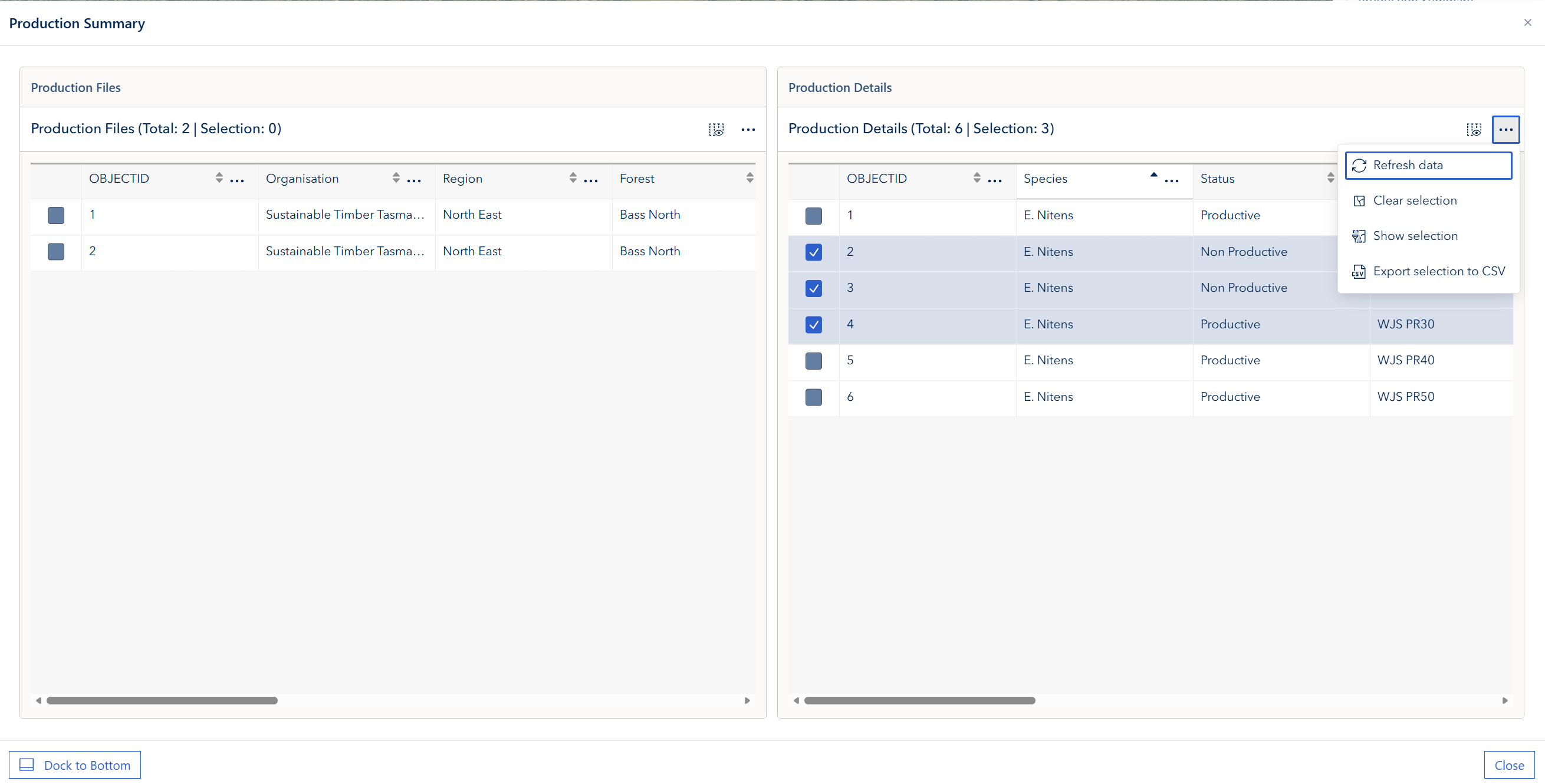
Results Dialog
Production data displays in a draggable, resizable Production Summary dialog with a two-column layout. The dialog can be repositioned and resized to suit your workspace.
- Click Dock to Bottom to move the tables to the bottom panel for a wider view; drag the panel's top edge to make it taller or shorter (up to 60% of the window's height)
- Click Close to dismiss the dialog
The dialog contains two tables:
Production Files Table
Shows summary-level production file information:
Typical Columns:
- Organisation, Region, Forest and Logging Unit
- Operation, Harvest Method, Treatment Type and Felling Method
- Contractor and Machine
- GPS %
Table Features:
- Sortable columns (click headers)
- Pagination once docked to the bottom panel
- Row selection for detailed inspection
- Menu options for export
Production Details Table
Shows detailed production records:
Typical Columns:
- Species, Status and Assortment
- Vol OB (m³) and Vol UB (m³), with Vol OB % and Vol UB %
- Log Count and Log %
- Avg Length (m) and Avg SED UB (mm)
Table Features:
- Sortable by any column
- Multi-column sorting (Shift + click)
- Detailed attribute information
- Export capabilities
No Results: If nothing matches, a warning reads No Results for [region] [forest] [logging unit] between [start date] and [end date]. and no new tables appear.
Possible Reasons:
- No operations in the selected time period
- Logging unit has no recorded production
- Data not yet entered into system
- Selected date range before operation start
Solutions:
- Expand date range to include more time
- Verify logging unit selection
- Choose different forest or region
- Check that production data has been recorded
- Contact operations team to confirm activity
Working with Results
Table Interaction
Sorting Data:
- Click any column header to sort ascending
- Click again to sort descending
- Hold Shift and click multiple columns for complex sorting
- Useful for finding highest/lowest production
Navigating Records:
- Scroll to browse records (pagination controls appear once the tables are docked to the bottom panel)
- Adjust rows per page if available
- Scroll horizontally to see all columns
- Click rows to highlight and inspect
Table Menu:
- Access menu via button (three dots)
- Export selection to CSV exports the selected rows for external analysis
- Additional actions as available
Data Analysis
Daily Tracking:
- Set start and end date to same day
- Review production files for that day
- Track against daily targets
- Monitor real-time progress
Weekly Summaries:
- Set Monday to Sunday date range
- Compare weekly area totals
- Track weekly performance trends
- Support weekly reporting
Monthly Reports:
- Set first to last day of month
- Analyze monthly production volumes
- Compare month-over-month performance
- Generate monthly summaries
Comparative Analysis:
- Run analysis for multiple logging units
- Compare production across forests
- Evaluate regional performance
- Identify best practices
Exporting Results
Export Options:
- Select rows, then choose Export selection to CSV from that table's menu (three dots) — each table exports separately; there is no separate export button
- Export to CSV for spreadsheet analysis
- Create reports for management review
- Archive historical records
Export Uses:
- Integrate with external reporting systems
- Perform additional statistical analysis
- Create custom charts and graphs
- Document operational achievements
Best Practices
Effective Date Range Selection
Daily Monitoring:
- Use same start and end date
- Check production each day
- Track against daily goals
- Quick status updates
Weekly Reporting:
- Monday to Sunday ranges
- Consistent week definitions
- Compare week-over-week trends
- Support weekly meetings
Monthly Analysis:
- Full calendar month ranges
- Month-end reporting
- Trend analysis
- Performance reviews
Quarterly/Annual Reviews:
- Wider date ranges for trends
- Seasonal pattern identification
- Long-term performance tracking
- Strategic planning support
Organizational Hierarchy
Top-Down Approach:
- Start with Region selection
- Choose relevant Forest
- Select specific Logging Unit
- This ensures proper filtering at each level
Comparing Performance:
- Run analysis for each logging unit separately
- Document results for comparison
- Identify high and low performers
- Share best practices across units
Data Quality
Verify Selections:
- Double-check region, forest, and logging unit
- Confirm date range matches intended period
- Review results for reasonableness
- Cross-reference with field records if discrepancies found
Regular Monitoring:
- Check production data daily
- Identify data entry issues quickly
- Maintain consistent reporting schedules
- Build reliable historical database
Workflow Integration
Regular Reporting:
- Schedule weekly production reviews
- Generate monthly summary reports
- Document quarterly trends
- Annual performance summaries
Team Communication:
- Share results with operations teams
- Discuss performance trends
- Identify improvement opportunities
- Celebrate achievements
Troubleshooting
Common Error Messages
"Please select a logging unit and date first"
- Cause: Attempting to process without complete selections
- Solution: Ensure Region, Forest, Logging Unit, and both dates are selected
"Fetching Production Sum Ha Failed"
- Cause: Unable to load total area statistics
- Solution:
- Check network connection
- Refresh the page
- Try again in a few moments
- Contact support if issue persists
"Fetching Region Failed"
- Cause: Unable to load region list
- Solution:
- Check network connection
- Verify system access permissions
- Refresh page and try again
"Fetching Forests Data Failed"
- Cause: Unable to load forest list for selected region
- Solution:
- Try selecting a different region
- Refresh the page
- Check network connectivity
"Fetching Logging Units Failed"
- Cause: Unable to load logging units for selected forest
- Solution:
- Verify forest selection is correct
- Try different forest
- Refresh page
"Fetching Data Failed"
- Cause: Error retrieving production data
- Solution:
- Verify all selections are valid
- Check date range is reasonable
- Ensure network connection is stable
- Contact support with error details
Performance Issues
Slow Loading:
- Large date ranges take longer to process
- Many production records increase load time
- Solution: Use narrower date ranges for initial queries, expand as needed
Tables Not Appearing:
- Check that results were found (look for warning message)
- Results open in the Production Summary dialog (or the bottom panel, if docked) — click Process again to reopen a closed dialog
- Solution: Try different selections or date range
Dropdowns Not Populating:
- May indicate data loading issue
- Solution: Refresh page, check network connection
Data Issues
Missing Logging Units:
- Unit may be in different forest or region
- New units may not be in system yet
- Solution: Verify unit location, check with administrator
Inconsistent Results:
- Data entry timing may affect totals
- Solution: Re-run analysis to get latest data
Unexpected Zero Results:
- Verify correct logging unit selected
- Check date range includes operational period
- Solution: Expand date range, verify selections
Getting Help
When contacting support, please provide:
Selection Parameters:
- Region, Forest, and Logging Unit selected
- Start and end dates
- Screenshot of selections
Error Details:
- Exact error message
- When error occurred
- Steps taken before error
Expected vs. Actual:
- What results you expected
- What actually appeared
- Any discrepancies noticed
System Information:
- Browser type and version
- Horizon version
- Date and time of analysis