Appearance
Map Edit (AI)
Overview
Map Edit (AI) is a mode of the AI Chat Tool. You describe a plan in your own words, or attach a photo or scan of a paper plan. The AI asks about anything it cannot work out, then draws the plan on the map as drafts. You check the drafts, then save them to the Plan Burn editor or discard them.
Nothing is saved until you say so
The drafts are only on your map. Nothing is written to a layer until you click Save to Plan Burn (or Apply changes) on the drafts card.
In this version the AI drafts Plan Burn features only.
Key Features
- Two ways to start: a written description that uses the layers on your map, or a photo or scan of a paper plan
- Questions instead of guesses: the AI asks about anything it cannot tell, such as the plan's name or which coupe you mean
- Reads paper plans: it checks the legend with you, places the plan on the map from its grid, and traces its lines
- Works with your map: it finds features in the layers on your map and builds shapes from them, such as a boundary shrunk by 10 m or a buffer around the roads
- Drafts in the editor's own styles: the drafts look as the saved features will
- You decide: zoom to the drafts, ask for changes in the chat, then save or discard them
- Changes to saved plans: the AI can also change or delete features already saved in a plan. The drafts card lists each change and warns you before anything is deleted
Before You Start
- The mode must be available to you. Map Edit (AI) appears in the chat's AI Mode list only while the AI map editing service is on and open to your account.
- Add the layers the AI needs. The AI works with the layers on your map, such as the coupes and the roads, so add them before you start.
- For a paper plan, have a photo or scan ready, as a PNG, JPEG or WebP image:
- It must show the map grid with its coordinate labels (MGA zone 55). The AI places the plan from at least 3 grid intersections, and 4 or more let it catch a misread label. A Horizon print with a grid works well.
- Crop it to the plan area, but keep the legend and the grid labels.
- If the grid is GDA2020, make sure the plan says so, or tell the AI in your message. A grid with no datum written on it is taken as GDA94, Horizon's own.
Opening Map Edit (AI)
- Open the AI Chat (see AI Chat Tool).
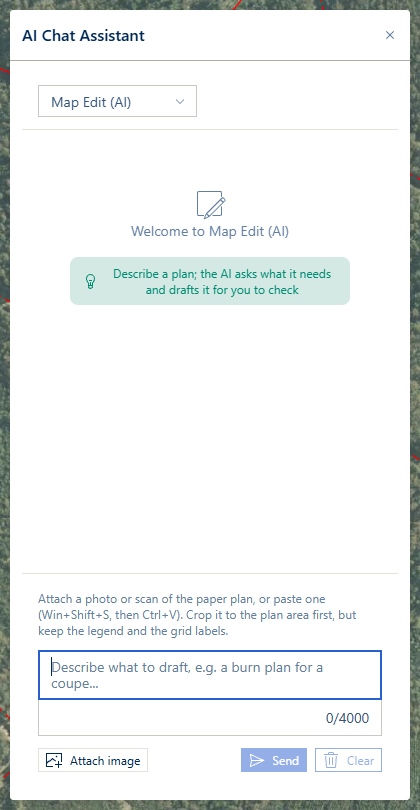
- In the AI Mode list at the top of the chat, choose Map Edit (AI).
The chat shows Welcome to Map Edit (AI) with the hint Describe a plan; the AI asks what it needs and drafts it for you to check.
Drafting From a Description
Describe the plan in the message box. Name the plan and the features it is built from, and say how each shape relates to them. For example:
Make a Plan Burn plan named Docs Demo. The Burn Boundary is the boundary of coupe AA123B. The Burn Plan Area is the boundary buffered 10 m inward, minus a 50 m buffer either side of the roads.
Send it: press Enter or click Send (Shift+Enter starts a new line). A message can be up to 4,000 characters.
Follow the AI's progress. While it works, the chat shows Working on your plan... with a line for each step, for example Found 1 feature in Provcoupe or Buffer of 1 shape: 1 result. When it is done, these lines fold into a Reasoning section you can open.
Answer its questions, if it asks any (see The Cards).
Check the drafts on the map, then save or discard them (see Saving the Drafts).
Drafting From a Paper Plan
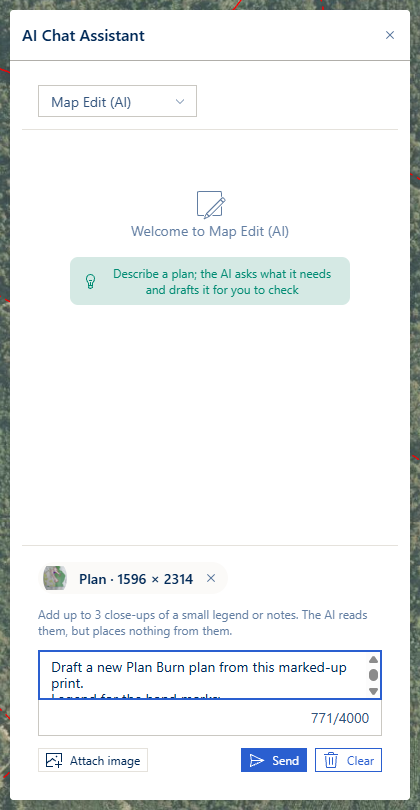
Attach the plan. Click Attach image and choose the photo or scan. You can also drop the image on the chat, or paste a screenshot (Win+Shift+S, then Ctrl+V). The first image is the Plan, shown above the message box with its size.
Add close-ups if you need them. Up to 3 more images can go with the plan: close-ups of a small legend or of notes. The AI reads them, but places nothing from them.
Say what to do, and what each hand mark means, then send it. For example:
Draft a new Plan Burn plan from this marked-up print. Legend for the hand marks:
- Thick red marker outline: Burn Boundary.
- Thin red pen lines with arrowheads: Strip Light, lit from the tail to the arrowhead.
- Purple filled patches: Constraint.
- …
Draw only these marks. Ignore the printed map and its legend.
A large photo can take a minute or two to upload on a slow connection.
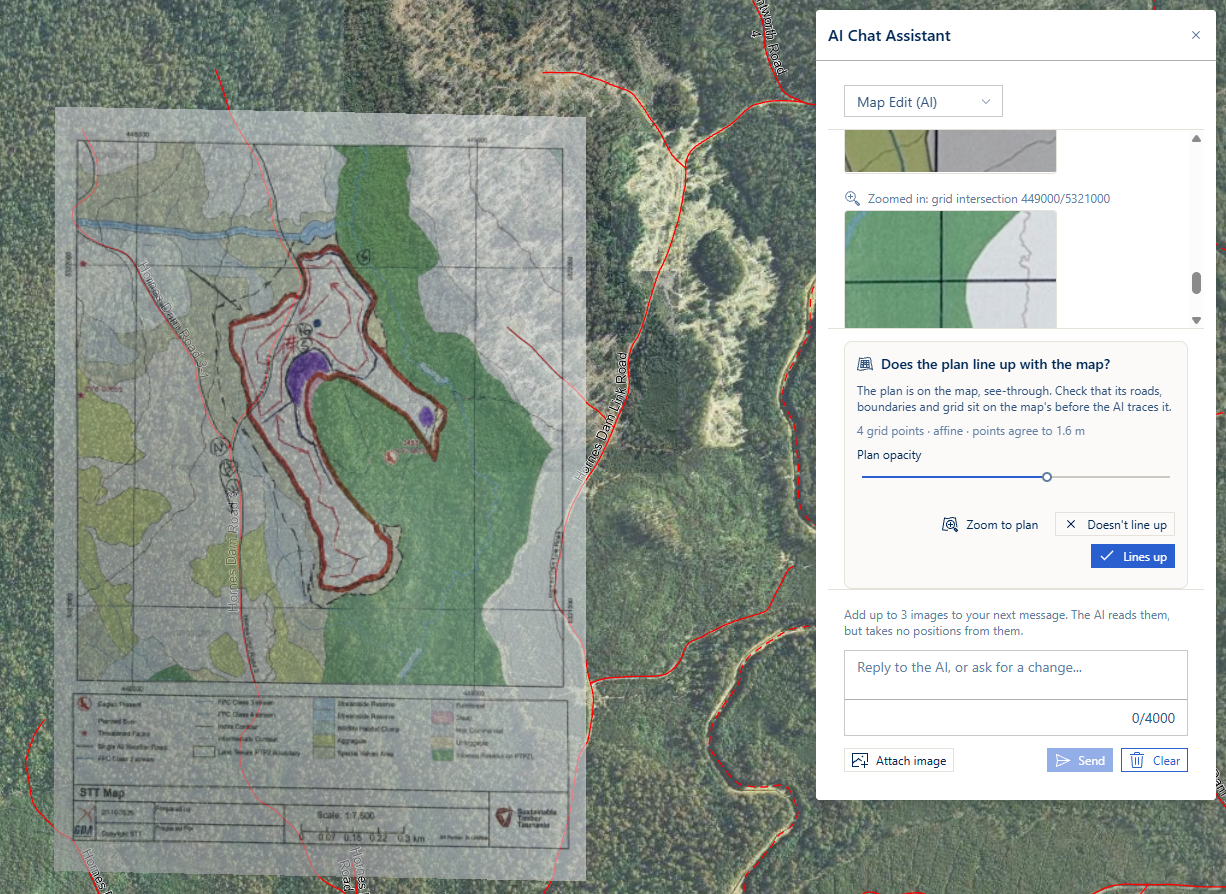
Check the plan's position. The AI reads the grid and lays the plan over the map, see-through. Check that its roads, boundaries and grid sit on the map's, then click Lines up or Doesn't line up (see Does the Plan Line Up With the Map?).
Confirm the legend. The AI lists the kinds of mark it found, with the Plan Burn style it chose for each. Check them, change any that are wrong or pick Don't draw this, then click Confirm (see Confirm the Legend). These two checks can come in either order.
The AI traces the plan. It traces each line and area, and Horizon moves every traced line onto the pen line in your picture, keeping its bends but not the hand's wobble. A traced boundary that matches a feature on the map, such as a coupe, can take that feature's exact shape.
Answer its questions, such as the plan's name, or how to read a mark it is unsure of (see Questions).
Check the drafts on the map, then save or discard them (see Saving the Drafts). The AI's reply lists what it drew and anything it wants you to check.
The Cards
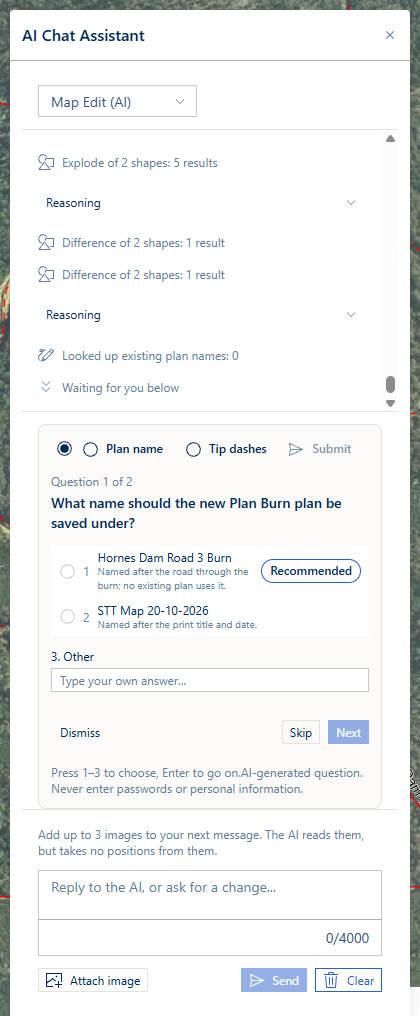
When the AI needs you, a card appears in the panel above the message box. The conversation shows Waiting for you below where the card came in. Once you answer, the card becomes one line in the conversation.
Questions
- Pick an answer; the AI may mark one Recommended. Some questions take more than one answer.
- Other lets you type your own answer.
- When the AI has several questions, the card shows them one at a time (Question 1 of 2), with a tab for each. Skip, Back and Next move between them.
- At the end, check your answers and click Submit. Dismiss closes the card without answering.
- With the keyboard, press 1, 2, … to choose and Enter to go on.
- The questions are written by the AI: never enter passwords or personal information.
Confirm the Legend
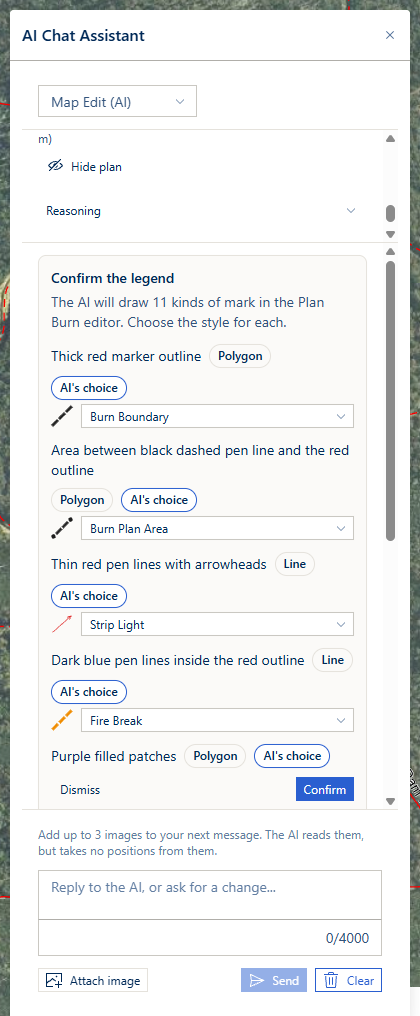
- The card reads The AI will draw N kinds of mark in the Plan Burn editor. Choose the style for each.
- For each mark, choose a style from the list, or Don't draw this.
- A style marked AI's choice was chosen by the AI: check it. Where the AI is unsure, the card says The AI suggests …, but is not sure.
- Confirm works once every mark has a choice. Until then, the card shows how many are still to choose.
Does the Plan Line Up With the Map?
- The plan lies over the map, see-through. The card shows how the AI fitted it, for example 4 grid points · affine · points agree to 1.6 m.
- Use Plan opacity to fade the plan in or out, and Zoom to plan to see all of it.
- Click Lines up when its roads, boundaries and grid sit on the map's. The AI then traces the plan.
- Click Doesn't line up when they do not. The plan comes off the map and the AI reads the grid again. A grid read one line out still fits neatly, so only your check can catch it.
- Afterwards the conversation shows Plan placed on the map from N grid points, with Hide plan and Show plan to compare the drafts with it.
If the AI says the plan lands far from the map you are looking at, move the map to the plan's area, then answer it.
Pick a Feature
The AI may ask you to click a feature on the map, from a named layer (From Provcoupe). While the card waits, a click on the map picks a feature instead of opening a popup. Cancel declines.
The Drafts Card
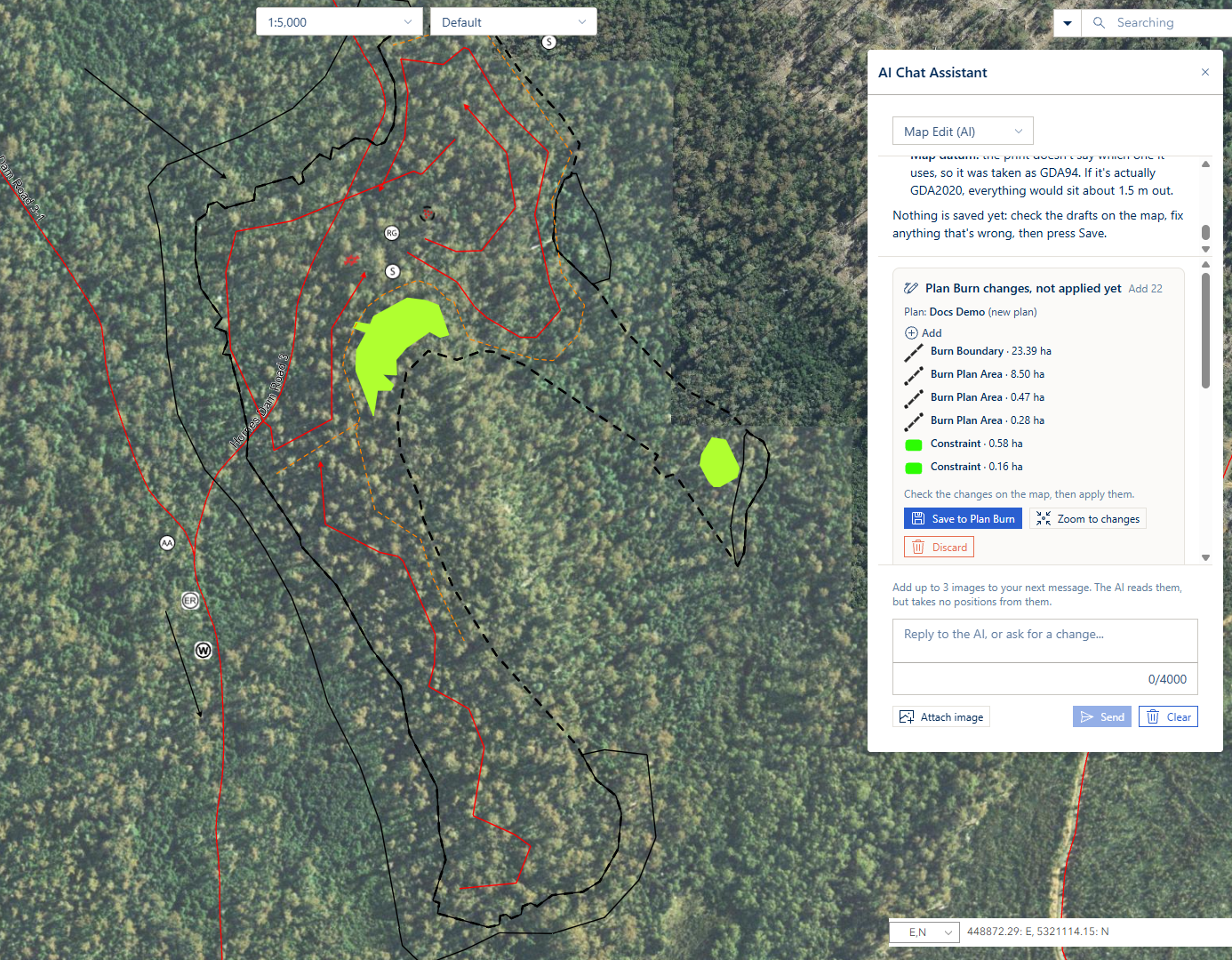
The drafts card shows what the AI drew:
- Its title, Plan Burn changes, not applied yet, and the counts, for example Add 5 · Change 1.
- Plan: the plan the changes go to, marked new plan or existing plan.
- Each change by style, with its area (ha) or length (m or km) and its label. A change to a saved feature shows its OBJECTID and what changes, for example 1.20 ha → 1.35 ha.
- AI notes: what the AI wants you to know about particular drafts.
- Warnings when the drafts add to an existing plan, when a plan name differs from an existing one only in capitals, and, in red, when applying deletes saved features for good.
Saving the Drafts
- Click Zoom to changes to see all the drafts. They are drawn in the Plan Burn styles, on a temporary layer named AI drafts.
- Want something different? Ask in the chat, for example The long Fire Break is one continuous line on the plan: join its two pieces into one line with no gap. The AI drafts again, and the new card replaces the old one (Replaced by newer changes).
- Click Save to Plan Burn to save new features, or Apply changes when the drafts also change or delete saved features. The chat then shows Applied to plan "Docs Demo", and the features are in the Plan Burn Editor under that plan name.
- Or click Discard to drop the drafts. Nothing is saved.
If only some changes save, the card says Saved N of M changes; the rest were not applied (…). Click the button again to send only the rest.
After a save, the AI knows those features are saved. Ask for more changes and it changes the saved features, rather than drafting them again.
Stop, Retry and Clear
- Stop, while the AI works, ends the session: Stopped. Nothing was saved.
- Retry appears when the AI service did not answer, for example The AI service is busy right now. It sends the last step again.
- Clear ends the session, takes the drafts off the map and empties the chat.
- Switching the chat to another mode also ends the session, and removes unsaved drafts and the plan from the map.
- Closing the chat window keeps the session: open the chat again to carry on.
Drafts and the Plan on the Map
- The drafts are on a temporary layer, AI drafts, and a placed paper plan is on AI plan image.
- Neither layer is printed or saved in a bookmark. Save the drafts first if you need to print them.
- Both go when you Clear the chat or switch to another mode.
Limits
These are the service's current settings.
| Item | Limit |
|---|---|
| Editors the AI drafts for | Plan Burn |
| Image types | PNG, JPEG or WebP |
| Plan image | Up to 7 MB. Larger photos are made smaller where possible |
| Images with a message | The plan and up to 3 close-ups; up to 3 images with a later message |
| One message | 4,000 characters |
| One session | 20 AI steps and 12 zoom-ins. It ends after 30 minutes unused, or 3 hours after it started |
| Sessions per person | 2 open at a time, and 20 a day |
When a session reaches its limit, the chat says This session has reached its limit. Start a new one.
Troubleshooting
| Issue | Solution |
|---|---|
| Map Edit (AI) is not in the mode list | The AI map editing service is off or not open to your account. The chat checks when you first open it, so reload Horizon after the service is switched on. |
| The session has ended (the server restarted or it timed out) | The session was unused for 30 minutes, or the service restarted. Nothing was saved: click Clear and start again. |
| This session has reached its limit | Click Clear and start a new session. Split a large plan into smaller requests. |
| The AI service is busy right now (or unavailable, or took too long) | Click Retry, or Clear to start again. |
| The AI declined this request | Click Clear and ask differently. |
| Use a PNG, JPEG or WebP image | Save the plan in one of those formats. |
| The image is too large even as a JPEG | Crop the picture to the plan area, keeping the legend and grid labels. |
| The plan's grid did not fit: … | The AI was told why and tries again. If it keeps failing, attach a sharper picture in which the grid labels can be read. |
| The plan does not sit on the map | Click Doesn't line up: the AI reads the grid again. |
| Not applied: … | Read the reason, then click Save to Plan Burn (or Apply changes) again. |
| Could not reach the AI map editing service | Check your connection. If it persists, the service is down. |
FAQ
Does the AI save anything by itself?
No. The drafts stay on your map until you click Save to Plan Burn or Apply changes.
Which editors can it draft for?
Plan Burn only, in this version.
What does a paper plan need?
A grid with coordinate labels, so that the plan can be placed on the map, and a legend, so that the AI knows what each mark means. Crop the picture to the plan, keeping both.
Are the drafts printed?
No. The AI drafts and AI plan image layers are never printed or saved in bookmarks. Save the drafts first to print them.
What happens to a GDA2020 grid?
Its values are converted to GDA94, Horizon's datum, before the plan is placed. A grid with no datum written on it is taken as GDA94.