Appearance
Treetops Tool
Overview
The Treetops tool counts and measures the individual treetops inside an area you choose. A treetop is the highest point of one tree crown, found in the LiDAR canopy height model, with its height. About 434 million of them have been found across the state, and the tool reads the ones inside your area. No detection runs: the tool only downloads and counts, so most areas take seconds. An area can be up to 2,000 hectares, and a large area's first analysis waits for its data to download.
For the area it reports:
- how many treetops there are, and how many per hectare;
- their mean and median height, and the 95th percentile;
- the top height: the mean height of the tallest treetops per hectare;
- how many per hectare are at least 30 m tall.
Three charts show how the heights are spread. The treetops it counted are drawn on the map, coloured by height in the canopy height model's own classes.
The tool is a panel of its own, opened from the Treetops button (tree icon) in the right toolbar. It is not part of the Report Tools panel.
Key Features
- Two ways to choose the area: draw a polygon, or click a polygon in a map layer (for example a coupe)
- Large areas: up to 2,000 ha per analysis
- Headline figures: treetops, treetops per hectare, mean, median and 95th-percentile height, top height, treetops at least 30 m tall, and suspect heights above 100 m
- Top height of your choice: the tallest 40, 50, 75 or 100 treetops per hectare (40 by default, the figure STT uses for Tasmania)
- Three charts: height classes, a height histogram in 1 m steps, and tall treetops. Each one can be shown as a table, or saved as a PNG or a CSV
- Filter the map from the chart: click a height class to show only those treetops; Shift+click to show a range of classes
- A floating charts window that stays open while you work on the map
- Treetops on the map, which the Layer List can filter by height and restyle
- A progress line that follows the download, then the counting
- Downloaded data kept for the session, so analysing nearby again downloads nothing; Clear frees it
- Export CSV of the results
How to Use the Treetops Tool
Opening the Tool
- Click the Treetops button (tree icon) in the right toolbar
- The Treetops panel opens with the Area, Treetop heights and Top height settings and the Analyse button
Choosing the Area
The Area section has two rows, Draw and Select.
Option 1: Draw an Area
- Click the Draw button (polygon icon)
- Click on the map to add corners, and double-click to finish ("Click to add corners, double-click to finish." shows under the buttons while you draw)
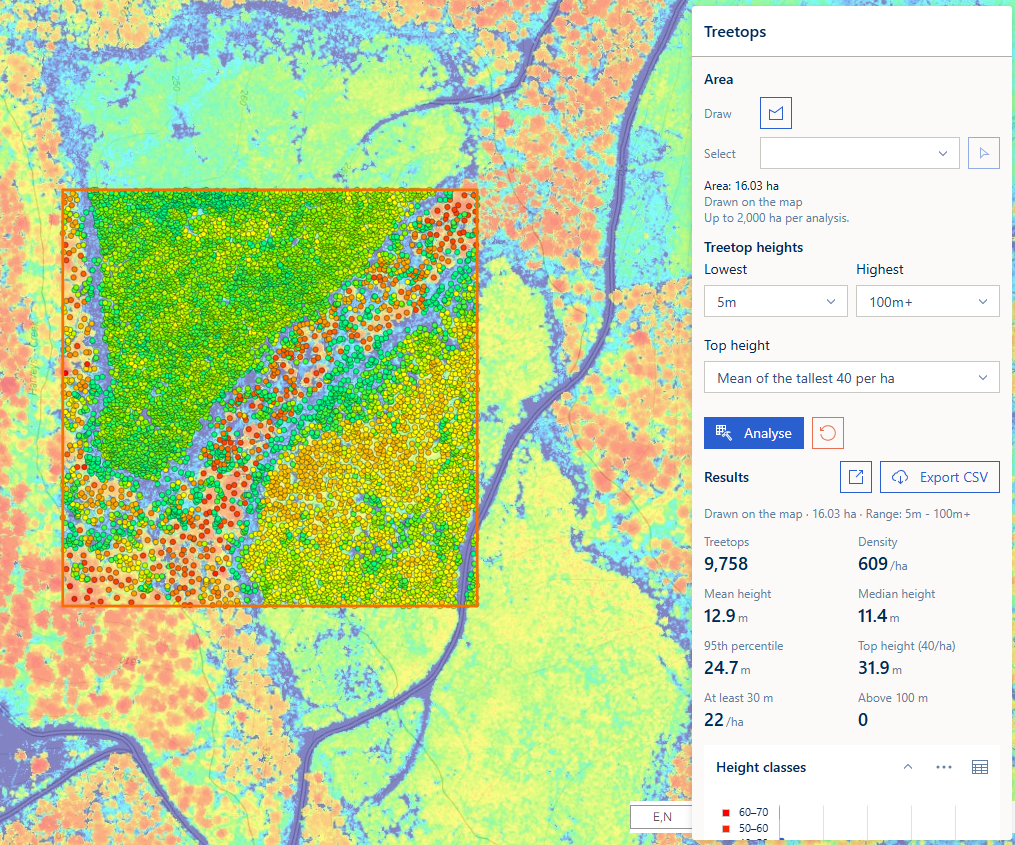
- The panel shows the area's size, for example Area: 16.03 ha, and Drawn on the map
Option 2: Select a Polygon From a Layer
- In the Select row, choose a polygon layer from the dropdown. It lists the polygon layers that are visible on the map, and reads Choose a polygon layer until you pick one, or No visible polygon layers when there are none
- Click the select button beside the dropdown, then click a polygon of that layer on the map ("Click a polygon of the chosen layer on the map.")
- The panel shows the area's size and where it came from: the layer's title and the polygon's name, for example Provcoupe Base: TN062A
Choosing a polygon reads exactly what the layer shows you: on your Sketch layer, for example, only your own sketches can be selected.
Area limit: up to 2,000 ha per analysis. A larger area shows "This area is … ha, more than the 2,000 ha one analysis can take. Draw a smaller area.", and Analyse stays disabled.
Drawing or selecting a new area clears the previous results and their treetops on the map.
Setting the Treetop Heights
| Setting | What it does | Default |
|---|---|---|
| Lowest | Leaves out treetops at or below this height | 5m |
| Highest | Leaves out treetops above this height | 100m+ (no upper limit) |
The choices are the canopy height model's own steps (5m, 7m, 10m, 12m, 15m and so on), so a range always takes whole height classes, the same classes as the map's legend.
The 5 m default matters: treetops are found down to 2 m, and without it the counts are dominated by shrubs and regrowth.
Choosing the Top Height
Top height is the mean height of the tallest treetops per hectare of the area. The dropdown sets how many:
- Mean of the tallest 40 per ha (the default; STT uses 40 per ha in Tasmania, as do NSW, the ACT and Victoria)
- 50 per ha (Queensland), 75 per ha (South Australia), or 100 per ha (common elsewhere)
A change shows at once, without analysing again. Top height is not the same as the mean dominant height that inventory measures in plots: see the FAQ.
Running the Analysis
- Click Analyse
- When the area needs a lot of treetop data (over 60 MB that is not downloaded yet), a notice asks first: "This area needs … MB of treetop data (… files). The first analysis here can take a while; later ones reuse the download." Click Download and analyse to go ahead
- A progress bar and line follow the analysis through three steps:
- Downloading 3 files: 14.4 of 35.4 MB: the treetop data for the area is downloaded
- Counting the treetops: 2 of 3 files: the treetops inside the area are counted
- Drawing 9,758 treetops on the map…
- The results appear under Results
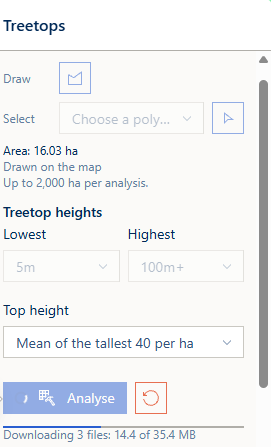
The treetop data is stored in whole files, each covering part of a forest block, so an area that touches several files downloads all of them. The panel keeps the downloaded files for your session, so analysing the same area again, or one nearby, goes straight to the counting.
Click Reset (the red button beside Analyse) at any time to stop an analysis, clear the area and the results, and put the heights back to their defaults.
Understanding Your Results
The first line under Results says what was analysed, for example Drawn on the map · 16.03 ha · Range: 5m - 100m+.
| Figure | What it means |
|---|---|
| Treetops | The number of treetops inside the area, within the height range |
| Density | Treetops per hectare |
| Mean height | The mean height of those treetops |
| Median height | Half the treetops are shorter than this, half taller |
| 95th percentile | 95% of the treetops are shorter than this |
| Top height (40/ha) | The mean height of the tallest 40 treetops per hectare (the count chosen under Top height) |
| At least 30 m | Treetops per hectare that are at least 30 m tall |
| Above 100 m | Treetops taller than 100 m. These are almost certainly spikes in the canopy height model: they are counted, but left out of the height figures |
Per-hectare values are whole numbers from 10 up, with one decimal below 10. <0.1 means a few treetops in a large area, and only 0 means none.
Below the charts, the panel says:
- how the treetops are shown on the map (Shown on the map as "Analysed treetops (9,758)"; …);
- how many treetop files were read;
- a reminder that treetops exist only where the canopy height model has data, roughly PTPZL and 100 m around it. Outside it, a count of 0 means no data, not no trees.
The Charts
| Chart | What it shows |
|---|---|
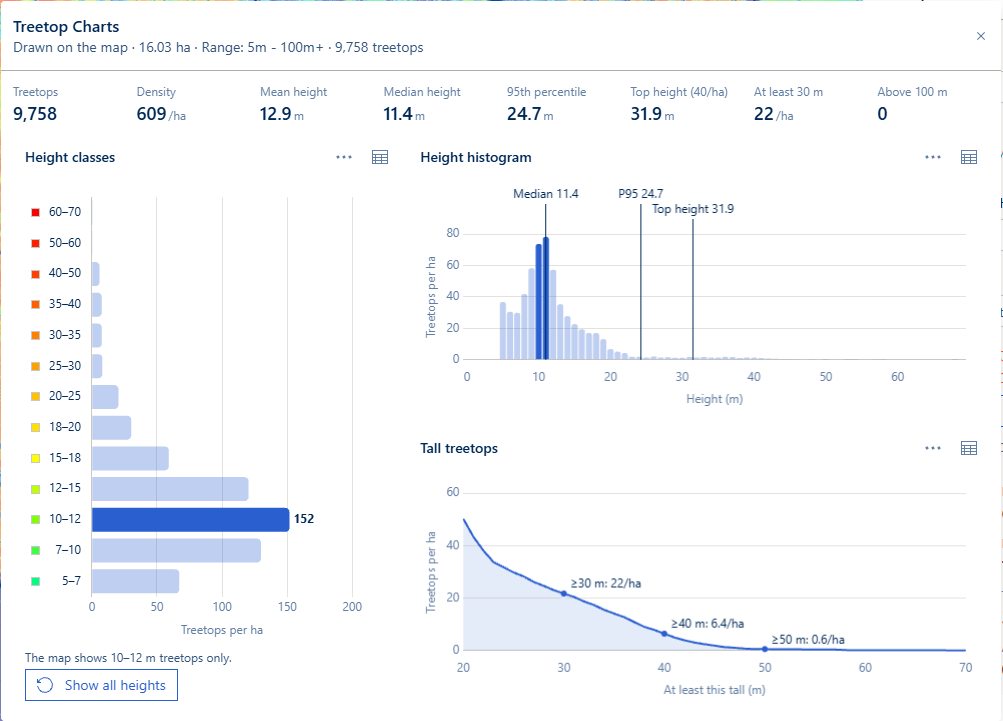
| Height classes | Treetops per hectare in each of the canopy height model's height classes (5–7 m, 7–10 m, …), with the class's map colour beside its name. The busiest class carries its value |
| Height histogram | Treetops per hectare in 1 m steps, with the Median, P95 and Top height marked |
| Tall treetops | Treetops per hectare at least each height from 20 m up, with 30, 40 and 50 m marked (for example ≥30 m: 22/ha) |
Each chart has two controls:
- The table button switches between Show as table and Show as chart, the same values either way.
- The ⋯ menu offers Save as PNG (a picture of the chart for a report) and Save as CSV (every class or metre, not only those the chart shows).
In the panel each chart can be collapsed by its heading.
Showing One Height Class on the Map
- Click a bar in Height classes. The map shows only that class, and the chart says so, for example "The map shows 10–12 m treetops only.", with a Show all heights button
- Shift+click another class to add it and every class between. Shift+click a class that is shown to take it off, together with the classes beyond it
- Click the only class shown, or Show all heights, to show every class again
The histogram dims its bars outside the classes shown. This is the same filter as the treetop layer's Tree Height Filter in the Layer List: either one can set it, and the chart follows whichever you use.
The Charts Window
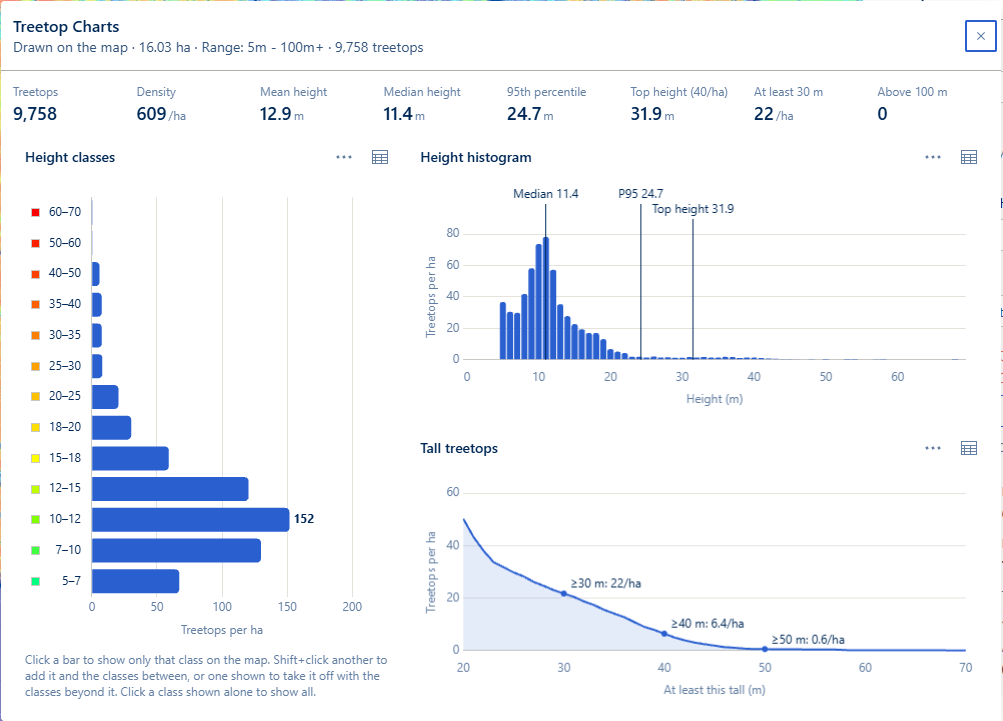
The window button (launch icon, beside Export CSV in the Results heading) opens the charts in a floating Treetop Charts window. The charts are larger there, with all eight figures across the top.
- Move the window by its title bar and resize it from its edges; the map stays usable underneath
- When the window is wide, the height classes run down the left, with the histogram above the tall treetops. When it is narrow, the three charts are stacked
- It stays open when you close the Treetops panel, and follows the panel's next analysis
- A click on a class in the window filters the map, as in the panel
- Close it with its × button, with Esc, or with the window button again
The Treetops on the Map
How the layer is drawn:
- The treetops counted go on the map as a layer named Analysed treetops with their number, for example Analysed treetops (9,758), just below the area's outline.
- Each treetop is a dot coloured by its height, in the canopy height model's classes. The dots get smaller as you zoom out, and further out than 1:10,000 they turn into bins coloured by mean height.
- Up to 200,000 treetops are drawn. A larger count is still analysed in full but not drawn, and the panel says "These … treetops are more than the 200,000 the map draws at once, so they are not on the map. The results cover them all; a smaller area shows its treetops."
What you can do with it:
- Filter and restyle it: in the Layer List, the layer's panel has a Tree Height Filter and Tree Style (see Layer Panel: Treetop Layers).
- In the layer menu, Change Style opens Tree Style, and Reset Style puts the default style back.
- Enable label shows each treetop's height at 1:1,000 and closer.
- Print it: the layer prints as it is drawn, at the print's scale.
- It is not saved in bookmarks: it is a result of your session. A new analysis replaces it, and Reset removes it.
Exporting the Results
Click Export CSV to save the results as a spreadsheet, treetops-analysis-<date and time>.csv. It holds the summary figures, the treetops by height class, the treetops at least 30, 40 and 50 m tall, and the treetops by height group. It opens directly in Excel.
Downloaded Data and Clear
The last line of the panel says how much treetop data the page holds, for example Downloaded treetop data: 3 files, 35.4 MB, with a Clear button.
- The page keeps up to 300 MB of treetop files for your session, so another analysis nearby downloads nothing
- Clear frees them. The area and the results stay, and the next analysis downloads its files again. Refreshing the page frees them too
- Clear cannot be used while an analysis is running
Closing the Panel and Starting Over
- Closing the panel keeps the area, the results and the treetops on the map: reopen it to carry on. An analysis that is still running stops
- Reset clears the area, the results and the treetop layer, and stops a running analysis. The downloaded data stays
- A new area, drawn or selected, clears the previous results
Worked Example
A 400 m × 400 m square (16.03 ha) drawn over a stand near the Arve, with the default heights (5m to 100m+) and top height (40 per ha):
| Figure | Result |
|---|---|
| Treetops | 9,758 |
| Density | 609/ha |
| Mean height | 12.9 m |
| Median height | 11.4 m |
| 95th percentile | 24.7 m |
| Top height (40/ha) | 31.9 m |
| At least 30 m | 22/ha |
| Above 100 m | 0 |
The busiest height class is 10–12 m, with 152 treetops per hectare. The tall-treetops chart reads ≥30 m: 22/ha, ≥40 m: 6.4/ha and ≥50 m: 0.6/ha.
The analysis read 3 files (35.4 MB): a few seconds the first time, and under a second for the same area again. Clicking the 10–12 bar then showed only those treetops on the map.
Video Tutorial
The worked example from start to finish: opening the tool, drawing the area, analysing it, reading the results, showing the 10–12 m class on the map, the charts window, Export CSV and Reset.
Troubleshooting
| Issue | Solution |
|---|---|
| Analyse is greyed out | Draw or select an area first. An area over 2,000 ha cannot be analysed |
| "This area is … ha, more than the 2,000 ha one analysis can take." | Draw a smaller area, or split it into parts |
| "No treetop data covers this area." | Treetops exist only where the canopy height model has data (roughly PTPZL and 100 m around it) |
| "No treetops were found inside this area." | No treetop in the area is within the height range: lower Lowest or raise Highest |
| The Select dropdown says No visible polygon layers | Turn on a polygon layer (for example Provcoupe Base) in the Layer List, then choose it |
| The treetops are not drawn on the map | There are more than 200,000. The results still cover all of them; analyse a smaller area to see them |
| The first analysis in a new area is slow | Its treetop files are downloaded first: the progress line shows how many MB. Later analyses nearby reuse them |
| "The download stopped: the file server sent nothing for 60 seconds. Try again later." | The connection to the treetop data stalled. Try again |
| Treetops Unavailable, or "The Horizon server did not give access to the treetop data. Try again later." | The treetop data could not be reached. Try again later, or tell the GIS team |
| "Treetop data is switched off on the Horizon server." | The GIS team has switched treetop data off. Ask them |
| A count of 0 outside managed forest | The canopy height model covers managed forest. Outside it, 0 means no data, not no trees |
Frequently Asked Questions
Q: What exactly is a treetop? A: The highest point of one tree crown in the LiDAR canopy height model (0.5 m pixels), with its height. The treetops were found once for the whole state, and the tool reads the ones inside your area.
Q: How is this different from Canopy Analyze? A: Canopy Analyze works differently:
- its Analyse reads the canopy height model's pixels, for statistics such as maximum and mean height;
- its Tree Tops Detection finds trees on request, for up to 500 ha.
The Treetops tool reads treetops that have already been found, so it is faster, takes up to 2,000 ha, and adds per-hectare counts, top height and charts. See Canopy Analyze.
Q: Is top height the same as mean dominant height (MDH)? A: No. Inventory measures MDH from the tallest trees in each plot. The Treetops tool ranks the treetops of the whole area at once, so where tall trees are scattered (a young stand with a few old trees, for example) it can read several metres above a plot-based MDH. Use it to compare areas measured the same way.
Q: Why does the count start at 5 m? A: Treetops are found down to 2 m. Below 5 m they are mostly shrubs and regrowth, which would dominate the counts. Choose a lower Lowest if you need them.
Q: Why are some treetops taller than 100 m? A: They are almost certainly spikes in the canopy height model, since the tallest known Tasmanian trees are about 100 m. They are counted (in the 100 m+ class) and reported under Above 100 m, but left out of the height figures.
Q: Does the tool download all the treetop data? A: No, only the files your area touches. Each file covers part of a forest block, typically up to about 20 MB. They stay in the page for your session, up to 300 MB, until you press Clear or refresh the page.
Q: Why does the progress bar start again partway through? A: The analysis has two steps, the download and then the counting, and the bar fills once for each. The line under it says which step is running.
Q: Are my results saved? A: Not with the map or in bookmarks. Use Export CSV, or save a chart as a PNG or CSV, to keep them.
Q: Can I print the treetops? A: Yes. The layer prints as it is drawn, at the print's scale. If the print area holds too many treetops, the print leaves the layer out and says so: print at a larger scale, or narrow the Tree Height Filter.
See Also
- Layer Panel: Treetop Layers: the Tree Height Filter and Tree Style
- Canopy Analyze: canopy height statistics and on-request tree detection
- Canopy Height Model Filter: show only a band of canopy heights on the map