Appearance
Layers Panel
Table of Contents
- Overview
- Accessing the Panel
- Core Functions
- Layer Actions
- Layer Types
- Special Features
- Best Practices
- Troubleshooting
Overview
The Layers Panel is your central hub for managing all map layers. Control visibility, transparency, styling, labels, and more through an intuitive interface.
Key Features:
- Layer visibility control
- Transparency adjustment
- Label and popup management
- Layer type switching
- Active filter indicators
- Advanced styling options
Accessing the Panel
- Click the layers icon in the main toolbar
- Panel opens on the left side of the screen
- Click again to close
Core Functions
Visibility Control
Toggle layer on/off using the eye icon
- ✅ Layer visible (eye open)
- ❌ Layer hidden (eye closed)
- Layer stays in project when hidden

Transparency Control
Adjust layer opacity
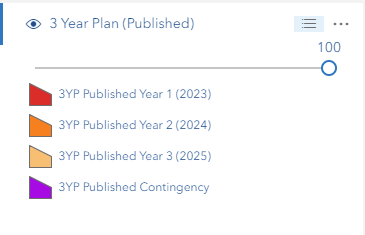
- Click the three-lines icon next to the layer name
- Use the opacity slider (0 = transparent, 1 = opaque)
- Changes apply immediately
- Slider has precise control (0.01 increments)
Special Note: Canopy Height Model layers have dual sliders (height range + opacity)
Legend Display
View layer symbology
- Click three-lines icon
- Legend appears below the slider
- Shows colors, symbols, and what they represent

Layer Actions
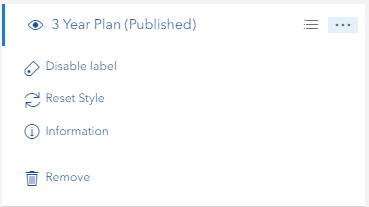
Access via the three-dots icon

Available Actions
| Action | Available For | What It Does |
|---|---|---|
| Enable/Disable Label | FeatureLayer, MapImageLayer | Toggle layer labels on/off |
| Enable/Disable Popup | FeatureLayer, MapImageLayer | Toggle popup information |
| Change Style | MapImageLayer | Access advanced styling options |
| Reset Style | MapImageLayer | Restore default styling |
| Metadata | Layers with metadata | View layer metadata |
| Information | Most layers | View layer properties and details |
| Switch to Feature/Image Layer | Compatible MapServer layers | Convert layer type |
| Remove | All layers | Remove layer from map |
Layer Types
Feature Layers
Best for: Interactive data, editing, analysis
Features:
- Individual feature selection
- Detailed popup information
- Attribute access
- Label control
- Popup toggle
- Layer type conversion (if MapServer-based)
- Filter support
When to Use:
- Need to select individual features
- Require detailed attribute information
- Performing analysis or editing
- Working with manageable dataset size
Map Image Layers
Best for: Large datasets, display-only, performance
Features:
- Server-side rendering
- Fast performance for large data
- Sublayer management
- Advanced styling options
- Label control (per sublayer)
- Popup toggle
- Layer type conversion (if compatible)
- Custom style parameters
When to Use:
- Large datasets (thousands of features)
- Display-only purposes
- Need fast map rendering
- Print-quality symbology required
Important: Only MapImageLayers with feature sublayers (having geometryType) can be converted to FeatureLayers. Raster sublayers cannot be converted.
WMS/WMTS/Tile Layers
Limited options available
Features:
- Visibility control
- Transparency adjustment
- Basic information
- Remove option
Group Layers
Manage multiple layers together
Features:
- Sort/reorder layers
- Bulk removal
- Hierarchical structure
- Expand/collapse
Special Features
Active Filter Indicators
Visual feedback for filtered layers
What it shows:
- Red filter color next to filtered layers
- Indicates active
definitionExpression - Works for FeatureLayers and MapImageLayers
- Updates in real-time
How it works:
- Automatically detects filters
- Shows for both regular and sublayer filters
- Tooltip shows "Layer has active filters"
- Updates when you add/remove filters
Canopy Height Model Filter
Special controls for Canopy Height Model (100m) layer
Features:
- Dual-handle range slider with discrete values
- Height values: 0m, 1m, 2m, 3m, 5m, 7m, 10m, 12m, 15m, 18m, 20m, 25m, 30m, 35m, 40m, 50m, 60m, 70m, 80m, 90m, 100m, ∞ (100+)
- Range display shows current selection (e.g., "Range: 20m - ∞")
- Reset button returns to default (0m - ∞)
- Opacity slider for transparency control
- Real-time updates with loading indicator
Data Information:
- Source: Visual Tas
- Resolution: 50cm × 50cm per pixel
- Coverage: PTPZ Land with 100m buffer
How to use:
- Expand the Canopy Height Model (100m) layer
- Drag left handle for minimum height
- Drag right handle for maximum height
- Map updates automatically
- Use Reset Range to restore defaults
Layer Type Switching
Convert between Feature and Image layers
When to Switch:
To Feature Layer when you need:
- Individual feature selection
- Detailed popups
- Attribute access
- Analysis tools
To Image Layer when you need:
- Faster rendering
- Large dataset handling
- Better print symbology
- Server-side caching
How to Switch:
- Click three-dots on compatible layer
- Select "Switch to Feature/Image Layer"
- Conversion happens automatically
- Properties preserved (visibility, opacity, filters)
Requirements:
- Must be MapServer-based layer
- For MapImageLayers: Must have feature sublayers with
geometryType - Not available for: Raster layers, Editor layers (FPP, Sketch, etc.)
Best Practices
Organization
✅ Do:
- Arrange layers logically (base maps at bottom, data on top)
- Group related layers together
- Use consistent naming
- Collapse unused groups
❌ Don't:
- Keep too many layers active at once
- Mix different project layers randomly
Performance
✅ Optimize:
- Use Image Layers for large datasets
- Use Feature Layers for interactive data
- Turn off unused layers
- Remove layers you don't need
- Apply appropriate scale ranges
❌ Avoid:
- Having 20+ layers visible at once
- Using Feature Layers for millions of features
Visual Display
✅ Best Practices:
- Adjust opacity for layered viewing
- Enable labels only when needed
- Check legend before applying filters
- Use reset style to fix rendering issues
❌ Avoid:
- Setting all layers to 100% opacity
- Enabling labels on all layers
- Applying complex filters without checking results
Troubleshooting
Common Issues
| Problem | Solution |
|---|---|
| Layer not visible | Check: Eye icon status, map extent, scale range, active filters |
| Labels missing | Use "Enable Label" in layer menu |
| No popup on click | Use "Enable Popup" in layer menu |
| Slow performance | Reduce active layers, switch to Image Layer, check filter complexity |
| Can't switch layer type | Verify: MapServer-based, not editor layer, has feature geometry |
| Conversion fails | Check: URL structure, network connection, layer compatibility |
| Style issues | Use "Reset Style" to restore defaults |
| Transparency not working | Use opacity slider in layer panel (three-lines icon) |
| Filter indicator missing | Check if definitionExpression is set, may need to refresh |
| Canopy filter not updating | Wait for debounce (300ms), check network connection |
| Raster layer shows switch option | Bug - raster layers should not show switch option (report if seen) |
Layer Type Conversion
"Switch to Feature Layer" not available?
- Layer might be raster-based (no geometryType)
- Could be WMS/WMTS (not convertible)
- Might be editor layer (excluded from conversion)
- Check if it's MapServer-based
Conversion fails with error?
- Verify layer URL is accessible
- Check network connectivity
- Ensure layer is not corrupted
- Try refreshing the page
Performance Issues
Map running slow?
- Count active layers (aim for <10)
- Switch large datasets to Image Layers
- Disable labels on dense layers
- Check for complex filters
- Remove unused layers
Layer loading slowly?
- Check internet connection
- Verify server availability
- Try switching layer type
- Contact administrator if persistent
Video Tutorial
Watch this guide on using the Layers Panel:
Quick Tips
💡 Did you know?
- You can drag layers to reorder them
- The filter indicator updates automatically
- Canopy height uses the ∞ symbol for 100+ meters
- Layer conversion preserves all your filters and styling
- MapImageLayers with only raster sublayers can't be converted to FeatureLayers