Appearance
Map Editor Tool
Table of Contents
- Overview
- Core Features
- Geometry Creation
- Spatial Operations
- Export Functions
- MyLayer Export
- Troubleshooting
- Video Tutorials
Overview
The Map Editor Tool is a comprehensive spatial editing system that provides professional-grade geometric creation, modification, and spatial analysis capabilities. This sophisticated tool integrates ArcGIS SketchViewModel technology with advanced spatial operations, offering multiple geometry types, intelligent snapping systems, complex spatial analysis functions, and export capabilities optimized for professional GIS workflows and spatial data management applications.
Core Features
Interface Access
- Locate Map Editor Icon
- Click to open editor panel

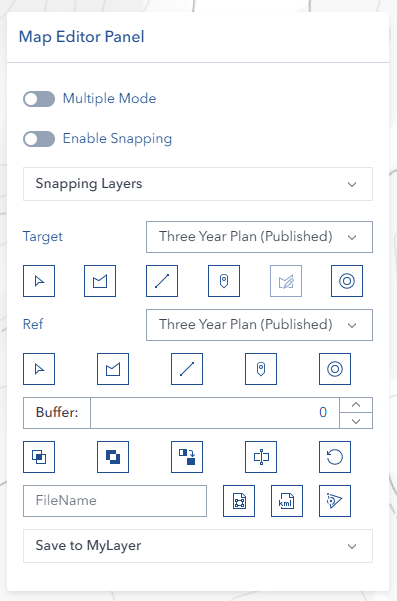
Multiple Mode Drawing
Enable continuous drawing to create multiple features without repeatedly clicking draw buttons. This mode allows rapid digitization of complex geometries and multiple feature creation.
Advanced Snapping System
The editor includes a sophisticated snapping system that:
- Enables precise feature alignment
- Supports multiple layer snapping sources
- Provides real-time snapping feedback
- Maintains accuracy during digitization
Geometry Creation
Selection Tool

- Choose layer from dropdown
- Click 'Select' button
- Click layer on map
- Click 'Select' again to deactivate
Drawing Tools
Available geometry types:
- Polygon:

- Line:

- Point:

Drawing steps:
- Select geometry type
- Click map to draw
- Double-click to complete
Spatial Operations
Available Operations
- Intersect

- Subtract

- Merge

- Cut

Buffer Creation
- Enter buffer distance
- Click buffer button


Export Functions
Format Options
- Shape format

- KML format

Export Settings
Optional: Enter filename

Click export button
Reset Function

Clear current selections and drawings
MyLayer Export
The Map Editor Tool includes the ability to export previously saved MyLayers to standard GIS file formats.
Overview
MyLayer Export allows you to:
- Export your saved MyLayers to Shape (.shp) or KML (.kml) format
- Download layers for use in other GIS applications or sharing with colleagues
- Preserve all attributes and geometry from the original MyLayer
- Export any geometry type (Point, Line, Polygon, or MultiPoint)
Export Process
Step 1: Select MyLayer
- Open the Map Editor panel
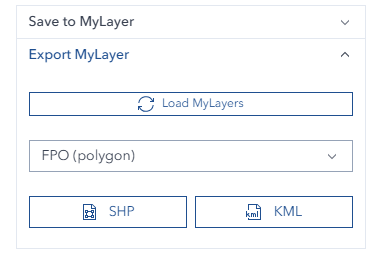
- Navigate to the "Export MyLayer" section
- Click the dropdown to view all available MyLayers
- Select the MyLayer you want to export
ℹ️ NOTE
Only MyLayers that you have previously created and saved are available in the dropdown list. The list automatically loads when you open the Map Editor.
Step 2: Choose Export Format
- Click Export Shape for Shapefile format (.shp)
- Standard GIS format compatible with most GIS software
- Includes all attribute data
- Best for professional GIS workflows
- Click Export KML for KML format (.kml)
- Compatible with Google Earth and web mapping applications
- Preserves geometry and basic attributes
- Best for visualization and sharing
Step 3: Download
- The file will be processed and automatically download to your computer
- File name will match your MyLayer name
- A success notification will show the number of features exported
Export Features
Automatic Field Mapping:
- OBJECTID - Unique feature identifier
- NAME - MyLayer name
- USERNAME - Creator's username
- LASTTIME - Last modified timestamp
- SHAPE - Geometry type (Point, Line, Polygon)
Geometry Type Support:
- Point - Single point features
- Polyline - Line features
- Polygon - Polygon features
- MultiPoint - Multiple points in single feature
Data Integrity:
- All features are exported in the map's current spatial reference
- Geometry is validated before export
- Empty or invalid geometries are excluded automatically
Export Examples
⚠️ IMPORTANT
Only MyLayers created under your username are available for export. If you don't see a layer in the list, verify that it was saved correctly in the MyLayers panel.
Troubleshooting
| Issue | Solution |
|---|---|
| Layer selection fails | Check layer visibility |
| Operation errors | Verify geometry validity |
| Export issues | Check geometry complexity |
| MyLayer not in export list | Verify MyLayer was saved under your username |
| Export fails | Ensure MyLayer has valid geometry data |
| No features exported | Check that MyLayer contains features in the database |