Appearance
Area Summary Tool
Table of Contents
- Introduction
- Key Features
- How to Use the Area Summary Tool
- Advanced Features
- Performance Optimizations
- Practical Tips
- Troubleshooting
- Video Tutorial
Introduction
The Area Summary Tool is an advanced analytical feature in Horizon designed for precise spatial calculations and area analysis. This sophisticated tool enables users to compute areas based on selected attributes within custom-drawn polygons, providing detailed summaries for spatial analysis and planning purposes.
Key Features
- Dual Layer Selection System:
- Geometry Layers: Select polygon layers containing boundary features for analysis areas
- Analysis Layers: Choose target feature layers (including FeatureLayers and MapImageLayers) containing data to analyze
- Flexible Geometry Input Methods:
- Select Tool: Choose existing polygon features from visible geometry layers
- Draw Tool: Create custom polygon boundaries using interactive drawing tools
- Advanced Spatial Calculation Modes:
- Summary Mode: Individual feature area calculations with detailed attribute breakdowns
- Summary and Union Mode: Combined area analysis with geometry union operations grouped by attributes
- Comprehensive Field Analysis: Calculate areas based on any non-geometry field from the selected analysis layer
- High-Performance Processing: Utilizes advanced layer caching system and ArcGIS geometry operators for optimal performance
- Interactive Results Display: View detailed results in ArcGIS FeatureTable widget with sorting and filtering capabilities
- Smart Layer Management: Automatic layer loading, caching, and cleanup for seamless user experience
How to Use the Area Summary Tool
Accessing the Tool
- Navigate to the right panel in Horizon
- Locate and click the summary area icon

Setting Up Your Analysis
Geometry Layer Selection:
- Choose from "Layers for geometries" dropdown
- Select the layer containing polygon features you want to use as analysis boundaries
- Only visible feature layers with polygon geometries are available
- Click the dropdown to refresh the layer list
Analysis Layer Selection:
- Choose from "Layers for analysis" dropdown
- Select the target layer containing the data you want to analyze
- Only visible feature layers are available for analysis
- The selected layer must have field attributes for meaningful analysis
Field Selection:
- After selecting an analysis layer, choose a field from the "Fields" dropdown
- Fields are automatically populated based on the selected analysis layer
- All non-geometry field types are available for analysis
- The field alias is displayed for user-friendly identification
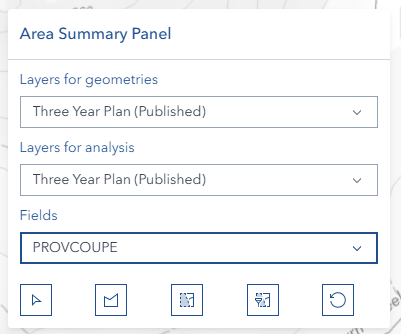
Drawing and Selecting Geometries
Select Existing Polygon (Select Button):
- Click the select polygon button (cursor/select icon) to activate selection mode
- Click on any polygon feature from the selected geometry layer
- Only polygon geometries are accepted for area analysis
- The selected polygon will be highlighted and used as the analysis boundary
- Selection mode automatically deactivates after selecting a polygon
Draw Custom Polygon (Draw Button):
- Click the draw shape button (polygon icon) to activate drawing mode
- Click points on the map to define your custom polygon boundary
- Continue clicking to add vertices to your polygon
- The polygon outline appears in real-time as you draw
- Drawing mode automatically deactivates when completed

Calculation Methods
Summary Calculation (Summary Button):
- Click the 'Summary' button (selection icon) for individual area analysis
- Performs intersection analysis between the boundary polygon and analysis layer features
- Each intersecting feature is calculated separately
- Results show individual features with their calculated areas in hectares
- Creates a temporary feature layer with detailed results
- Displays results in an interactive Feature Table

Summary and Union Calculation (Union Button):
- Click the 'Summary and union' button (selection-filter icon) for combined area analysis
- Groups intersecting features by the selected field attribute
- Performs geometry union operations on features with identical attribute values
- Results show combined areas for each unique attribute value
- Useful for aggregating areas by categories (e.g., land use types)
- Final calculations are displayed in hectares with proper styling

Reset Function (Reset Button):
- Click the reset button (reset icon) to clear the current analysis
- Removes all graphics from the map
- Clears the analysis boundary polygon
- Removes any temporary result layers
- Hides the Feature Table if visible
- Deactivates any active drawing or selection modes

Advanced Features
Spatial Intersection Analysis:
- Uses ArcGIS geometry operators for precise geometric calculations
- Performs true spatial intersection between boundary and analysis features
- Handles complex polygon geometries with multiple rings and vertices
- Calculates areas using geodetic measurements for accuracy
Dynamic Layer Management:
- Automatically updates layer lists when map layers change
- Maintains layer selections when possible during updates
- Creates temporary result layers with proper symbology
- Integrates seamlessly with the map's layer management system
Interactive Feature Table:
- Displays results in ArcGIS FeatureTable widget
- Supports column sorting and filtering
- Includes Object ID, selected attribute, and calculated area columns
- Provides close functionality that properly cleans up resources
Geometry Union Operations:
- Groups features by selected attribute values
- Performs geometric union on features with identical attributes
- Reduces visual complexity by combining overlapping areas
- Maintains attribute information through the union process
Performance Optimizations
Advanced Layer Caching System:
- Implements high-performance caching for both FeatureLayers and MapImageLayers with sublayers
- Automatically caches visible layers with complete field information for instant access
- Tracks component usage analytics for performance monitoring and optimization
- Provides intelligent fallback to traditional layer enumeration if cache fails
- Significantly reduces load times for repeated operations on large datasets
Smart Geometry Operator Management:
- Lazy loads ArcGIS geometry operators (union, intersection, geodetic area) only when required
- Pre-validates operator availability before performing calculations to prevent errors
- Ensures geodetic area operators are loaded for accurate area measurements
- Optimizes memory usage by loading operators on-demand
Efficient Memory Management:
- Implements comprehensive cleanup of graphics, layers, and event handlers
- Automatically removes temporary result layers and graphics when resetting or closing
- Properly manages FeatureTable widget lifecycle to prevent memory leaks
- Maintains clean map state between analysis sessions
- Removes click handlers and drawing event listeners when switching modes
Practical Tips
Efficient Analysis:
- Start with smaller areas for quick validation
- Use simple polygons for initial calculations
- Gradually increase complexity as needed
Data Quality:
- Verify layer attributes before analysis
- Check for data completeness
- Validate results against known values
Performance Optimization:
- Close unnecessary layers
- Clear previous analyses when starting new ones
- Monitor system resources during large calculations
Troubleshooting
| Issue | Solution |
|---|---|
| Calculation fails | Verify polygon completion and ensure analysis layer is selected |
| No layers appear in dropdowns | Ensure layers are visible and are feature layers |
| Cannot select polygon geometry | Verify the geometry layer contains polygon features |
| Results seem incorrect | Check layer projection and spatial reference systems |
| Tool not responding | Refresh browser, clear cache, and check console for errors |
| Layer not selectable | Ensure layer is visible and properly loaded |
| Feature Table not showing | Check if center shell panel is properly initialized |
| Performance issues | Reduce polygon complexity or use smaller analysis areas |
Video Tutorial
Watch this comprehensive guide on using the Area Summary Tool: