Appearance
System Panel
The System Panel is an advanced application management and diagnostic center that provides comprehensive control over Horizon's performance, caching systems, and operational settings. This sophisticated tool offers intelligent monitoring capabilities, layer creation configuration, popup management controls, and specialized development tools for performance optimization, making it essential for both system administration and application troubleshooting across development and production environments.
Quick Start Guide
Opening the System Panel:
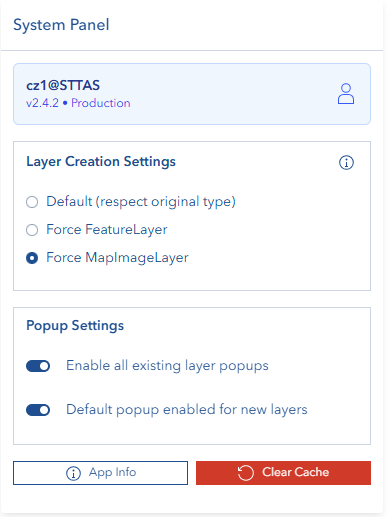
- Click the System icon in the right toolbar
- Panel opens with user information and current mode display
- Available tools vary based on development vs production mode
- Use controls to monitor performance and manage application state
Essential Actions:
- App Information: View version details and application status
- Cache Management: Clear application caches and refresh
- Performance Testing: Run cache performance comparisons (development mode)
- System Validation: Verify cache consistency and system health
Key Features
Mode-Specific Interface
The System Panel adapts based on the application environment:
Development Mode Features
- Performance comparison testing
- Cache validation tools
- Statistical analysis functions
- Cache content inspection
- Detailed debugging information
Production Mode Features
- Layer Creation Settings
- Popup Settings
- Application information display
- Cache management controls
- System status monitoring
- User-friendly maintenance tools
Layer Creation Settings
There are three options for creating layers in Horizon. This setting allows you to choose the default method for creating new layers:
- Default Layer: Uses the original type for layer creation (respects source layer type)
- Force FeatureLayer: Convert all layers to Feature Layer type for enhanced functionality
- Force MapImageLayer: Convert all layers to Map Image Layer type for better performance with large datasets
This setting includes a documentation link that explains the differences between Feature Layers and Map Image Layers to help users make informed decisions.
Popup Settings
There are two independent options for controlling popup behavior in Horizon:
Enable all existing layer popups
- Immediately applies to all currently loaded layers on the map
- Toggles popup functionality on or off for every existing layer
- Useful for quickly enabling or disabling all popup interactions
Default popup enabled for new layers
- Controls the default popup setting for newly created layers
- Does not affect existing layers already on the map
- Sets the initial popup state when new layers are added
These settings work together to provide comprehensive popup control - one for immediate changes to current layers, and one for future layer creation behavior.
User Information Display
Comprehensive user and application context:
User Details
- Current username from user store
- Application version information
- Environment mode indicator (Development/Production)
- Session status and authentication info
Application Status
- Build mode identification
- Version number display
- Cache initialization status
- System readiness indicators