Appearance
Find Nearest Properties Tool
Table of Contents
- Overview
- How to Use the Tool
- Search Types
- Understanding the Results
- Working with Results
- Best Practices
- Troubleshooting
Overview
The Find Nearest Properties tool helps you discover cadastre parcels and property rights surrounding a specific location, operation, asset, or custom polygon. By specifying a buffer distance, you can identify all properties within a certain radius of your target feature.
Location: Analysis Panels → Find Nearest
Key Capabilities:
- Search by Provcoupe, Operation, Asset, or Custom Polygon
- Configurable buffer distance in meters
- Dual result sets: Cadastre Parcels and Property Rights
- Visual map display with color-coded results
- Interactive feature tables for detailed review
- Automatic zoom to results
Example Use Cases:
- Find all property owners within 500m of a planned harvest operation
- Identify cadastre parcels adjacent to a specific Provcoupe
- Search for neighboring parcels around a custom polygon boundary
How to Use the Tool
Step 1: Select Search Type
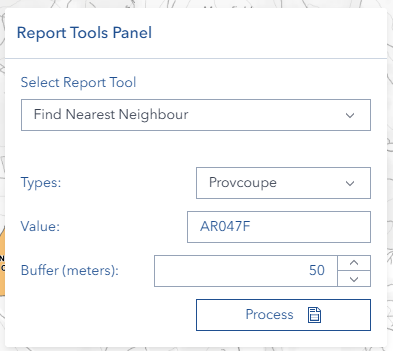
Click the Types dropdown and choose your search method:
| Search Type | What You'll Search For |
|---|---|
| Provcoupe | Forest harvest cutting permit area |
| Operation | Operation ID number |
| Asset | Asset ID number |
| My Layer Polygon | Custom polygon feature from your saved layers |
Step 2: Enter the Target Value
In the Value field, enter the identifier for your target feature:
- Provcoupe: Enter the Provcoupe code
- Case doesn't matter—the tool automatically converts to uppercase
- Operation: Enter the numeric Operation ID
- Must be a valid number
- Asset: Enter the numeric Asset ID
- Must be a valid number
- My Layer Polygon: Enter the feature identifier from your custom layer
Step 3: Set Buffer Distance
In the Buffer (meters) field, enter the search radius in meters:
- Minimum value: 1 meter
- No maximum limit (but larger buffers may return more results)
- Common values:
100- Immediate neighbors (0.1 km)500- Local area (0.5 km)1000- Broader area (1 km)2000- Extended search (2 km)
Note: Buffer value must be greater than 0 or the tool will display a validation error.
Step 4: Run the Analysis
Click the Process button to execute the search.
- The button will show a loading indicator while processing
- Processing time depends on buffer size and number of intersecting features
- Once complete, results appear automatically on the map and in tables
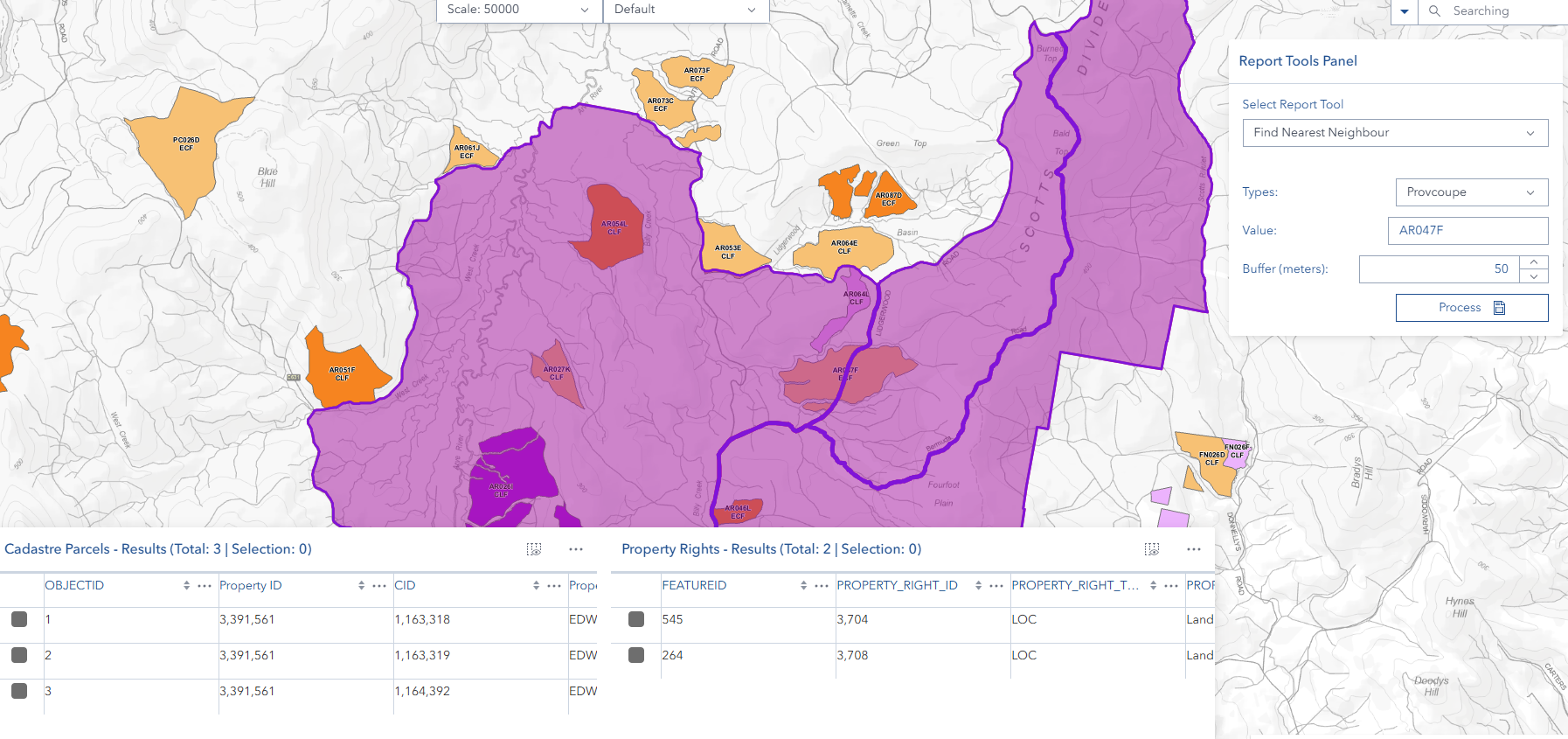
Step 5: Review Results
Results appear in two forms:
Map Display:
- Cadastre Parcels: Pink/magenta polygons with solid borders
- Property Rights: Purple polygons with solid borders
- Map automatically zooms to show all results
Feature Tables (bottom panel):
- Cadastre Parcels - Results: Table showing all matching cadastre parcels
- Property Rights - Results: Table showing all matching property rights
- Each table is sortable, filterable, and supports multi-column organization
Search Types
Provcoupe Search
Purpose: Find properties near a specific forest cutting permit area.
Input Format:
- Provcoupe code (alphanumeric)
- Case-insensitive (automatically converted to uppercase)
Operation Search
Purpose: Find properties near a specific forestry operation.
Input Format:
- Numeric Operation ID only
Validation:
- Must be a valid integer
- Non-numeric values trigger validation error
Asset Search
Purpose: Find properties near infrastructure or equipment assets.
Input Format:
- Numeric Asset ID only
Validation:
- Must be a valid integer
- Non-numeric values trigger validation error
My Layer Polygon Search
Purpose: Find properties near custom polygon features you've created.
Input Format:
- Feature identifier from your saved polygon layer
- Refer to your custom layer's attribute table for valid values
Understanding the Results
Data Sources
The Find Nearest Properties tool queries two authoritative data sources:
1. STT Property Rights:
- Internal STT (State Timber Trust) property rights database
- Contains legal property rights and ownership zones
- Purple coloring on map
- Rights holder information and spatial extents
2. Cadastre Parcel (NRE):
- Official cadastral data from NRE (Department of Natural Resources and Environment)
- Authoritative land parcel boundaries from cadastral registry
- Pink/magenta coloring on map
- Parcel identification, ownership, and boundary information
Both datasets are queried simultaneously to provide comprehensive property information within your specified buffer distance.
Result Types
Cadastre Parcels (from NRE):
- Official land parcel boundaries from cadastral registry
- Pink/magenta coloring on map
- Contains parcel identification, ownership, and boundary information
- Authority: Department of Natural Resources and Environment
Property Rights (from STT):
- Legal property rights and ownership zones
- Purple coloring on map
- Contains rights holder information and spatial extents
- Authority: State Timber Trust database
No Results
If no properties are found, you'll see:
No Results No properties found for [Search Type]: [Your Value]
Possible Reasons:
- Target feature doesn't exist in the database
- Buffer distance too small to intersect any properties
- Incorrect identifier or typo in the value field
- Feature not visible with current user permissions
Solutions:
- Verify the target identifier is correct
- Increase the buffer distance
- Try a different search type
- Check with your administrator about data access
Partial Results
You may receive results from only one category:
- Cadastre Parcels only: Property rights don't exist in this area
- Property Rights only: No cadastre parcels intersect the buffer
Both scenarios are valid—the tool shows whatever data exists in the buffered area.
Working with Results
Map Interaction
Viewing Results:
- Results automatically display on the map
- Map zooms to fit all results in view
- Each result type uses distinct coloring
Clicking Features:
- Click any polygon to view its popup
- Popup shows complete attribute information
- Navigate between overlapping features using popup arrows
Zooming and Panning:
- Results remain visible at all zoom levels
- Use standard map navigation tools
- Results are temporary and clear when the panel closes
Feature Table Analysis
Accessing Tables:
- Tables appear automatically in the bottom panel after processing
- Two separate tables: Cadastre Parcels and Property Rights
- Only tables with results are displayed
Table Features:
The results display in an interactive ArcGIS FeatureTable widget with the following capabilities:
- Sorting: Click column headers to sort ascending/descending
- Multi-sort: Hold Shift and click multiple columns for complex sorting
- Pagination: Navigate through large result sets page by page
- Column Resizing: Drag column borders to adjust width
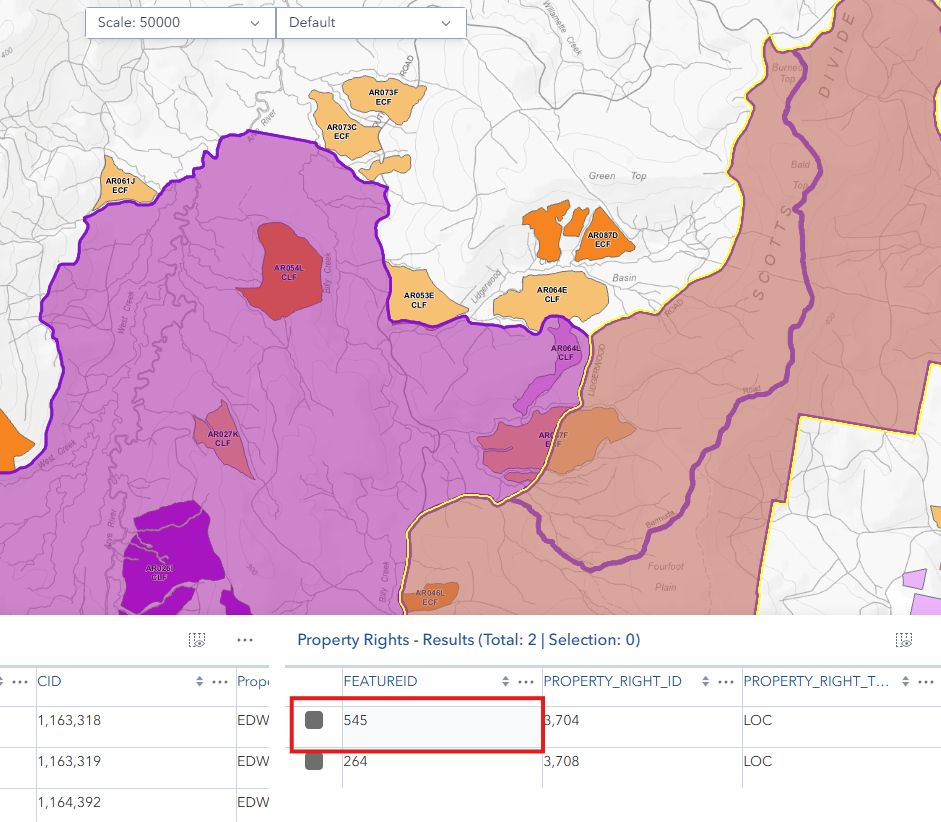
- Row Selection: Click rows to highlight corresponding features on map
- Column Reordering: Drag column headers to rearrange order
- Column Filtering: Use column menus for advanced filtering options
Advanced Table Interactions:
- Zoom to Feature: Select a row and the map zooms to that feature
- Flash Feature: Selected rows cause corresponding features to flash on the map
- Attribute Inspection: Click any cell to view detailed attribute information
- Column Menu: Click the column header menu (▼) for additional options
- Show/hide columns
- Freeze columns
- Sort options
- Filter by value
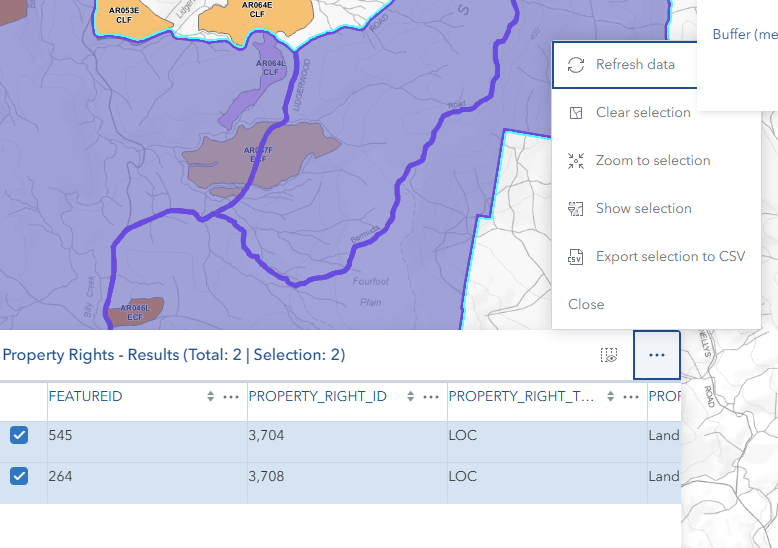
Table Menu:
- Each table has a menu button (three dots) in the top-right corner
- Close: Returns to the default feature table view
- Additional menu options may include:
- Zoom to selected features
- Clear selection
- Refresh table data
Exporting Data:
- Use the table menu to access export options
- Export to CSV format for spreadsheet analysis
- Export to JSON for data integration
- Useful for creating notification lists or compliance documentation
- Exported data includes all visible columns and their attributes
Selection Tools:
- Single Selection: Click a row to select one feature
- Multiple Selection: Ctrl-click to select multiple rows
- Range Selection: Shift-click to select a range of rows
- Select All: Use table menu to select all features
- Selected features highlight in blue on both map and table
Clearing Results
Automatic Clearing:
Results are automatically removed when:
- You close the Find Nearest panel
- You run a new search (previous results are replaced)
Manual Clearing:
- Close the panel to remove all result layers
- Close individual tables using the table menu
- Result layers are temporary and don't save to the map
Best Practices
Effective Buffer Distances
Small Buffers (0-100m):
- Immediate adjacent properties
- Direct neighbors only
- Fast processing
- Minimal results
Medium Buffers (100-500m):
- Local neighborhood properties
- Balanced result count
- Good for most notification scenarios
- Reasonable processing time
Large Buffers (500-2000m):
- Broader area analysis
- More comprehensive results
- Longer processing time
- Use when regulatory requirements specify larger distances
Very Large Buffers (2000m+):
- Regional analysis
- May return many results
- Longer processing time
- Consider performance impact
Data Quality Checks
- Verify Input: Double-check your target identifier before processing
- Review Results: Scan the feature tables for expected properties
- Check Map Display: Ensure results appear in the expected location
- Validate Attributes: Review property attributes for completeness
- Cross-Reference: Compare with known property information if available
Workflow Integration
Documentation:
- Export result tables for records
- Screenshot map results for reports
- Save property lists for notification tracking
Collaboration:
- Share buffer distances with team members for consistency
- Document search parameters in project files
- Use consistent search types across projects
Compliance:
- Maintain records of property searches
- Document buffer distances used for regulatory requirements
- Archive result tables with permit applications
Working with FeatureTable
Column Management:
- Hide unnecessary columns to focus on important data
- Freeze key columns (like parcel ID) for easy reference while scrolling
- Reorder columns to match your workflow preferences
Filtering and Sorting:
- Use multi-column sorting for complex data organization
- Apply column filters to narrow down results
- Combine map selection with table filtering for precise analysis
Data Export Strategy:
- Export to CSV for spreadsheet analysis and mail merges
- Export to JSON for integration with other systems
- Include only necessary columns to keep files manageable
Video Tutorials
Get nearest neighbour data
Troubleshooting
Common Error Messages
"Please enter a value to search"
- Cause: Value field is empty
- Solution: Enter a valid identifier for your selected search type
"Buffer value must be greater than 0"
- Cause: Buffer field is empty, zero, or negative
- Solution: Enter a positive number (minimum 1)
"Operation ID must be a number"
- Cause: Non-numeric value entered for Operation search
- Solution: Enter only numeric characters (e.g.,
8574)
"Asset ID must be a number"
- Cause: Non-numeric value entered for Asset search
- Solution: Enter only numeric characters (e.g.,
1023)
"Invalid search type selected"
- Cause: Internal error with search type selection
- Solution: Refresh the page and try again; contact support if issue persists
"No Results" appears
- Cause: No properties found within buffer distance
- Solution: Increase buffer distance, verify target identifier, or try different search type
"Error finding nearest properties"
- Cause: Server error, network issue, or invalid target
- Solution:
- Check network connection
- Verify target feature exists
- Try again in a few moments
- Contact support if problem persists
Performance Issues
Slow Processing:
- Large buffer distances increase processing time
- Many intersecting features slow down results
- Network latency affects response time
- Solution: Use smaller buffers when possible, ensure stable network connection
Results Don't Appear on Map:
- Check if you're zoomed to the correct area
- Verify results were actually returned (check feature tables)
- Try clicking the zoom button in feature table
- Solution: Close and reopen the panel, run search again
Tables Won't Load:
- Browser may be blocking content
- Insufficient memory for large result sets
- Solution: Refresh page, close other browser tabs, reduce buffer distance
FeatureTable Issues
Table Not Responding:
- Large datasets may cause performance issues
- Solution: Use column filters to reduce visible rows, close and reopen table
Column Menu Not Appearing:
- Click directly on the column header dropdown icon (▼)
- Solution: Ensure you're clicking the correct area of the column header
Export Function Missing:
- Export options are in the table menu (three dots)
- Solution: Look for menu button in top-right corner of table
Selection Not Highlighting on Map:
- Feature may be outside current map extent
- Solution: Use "Zoom to selected" option in table menu
Getting Help
When contacting support, please provide:
Search Parameters:
- Search type used
- Value entered
- Buffer distance
Error Details:
- Exact error message
- When error occurred (during processing, viewing results, etc.)
- Screenshot if possible
System Information:
- Browser type and version
- Horizon version
- Network connection type