Appearance
Plan Burn Editor
Table of Contents
- Overview
- Getting Started
- Layer Management
- Geometry Types
- Style Selection
- Drawing Features
- Managing Features
- Advanced Features
- Tips & Troubleshooting
- Video Tutorials
Overview
The Plan Burn Editor is a specialized prescribed fire planning system designed for professional burn operations management and EMSINA-compliant mapping. This advanced tool integrates ArcGIS SketchViewModel technology with specialized burn operation workflows, providing comprehensive mapping capabilities with professional fire management symbols, advanced geometric operations, and intelligent layer management optimized for prescribed burn planning, execution, and documentation.
Key Features:
- EMSINA Standard Compliance: Professional fire management symbols and mapping standards for prescribed burn operations
- Comprehensive Burn Planning Workflow: Complete support for burn area design, ignition planning, and safety zone mapping
- Specialized Symbol Library: 20+ professional burn operation symbols including ignition points, water sources, assembly areas, and fire breaks
- Advanced Drawing Integration: ArcGIS SketchViewModel with coordinate transformation and spatial reference handling
- Intelligent Layer Management: Automatic creation of Plan Burn data layer groups with proper categorization
- Integrated Advanced Editor: Built-in geometric operations for buffer, union, intersect, and difference operations
- Multi-Mode Support: Single and multiple feature drawing capabilities for enhanced productivity
Getting Started
Opening the Plan Burn Editor

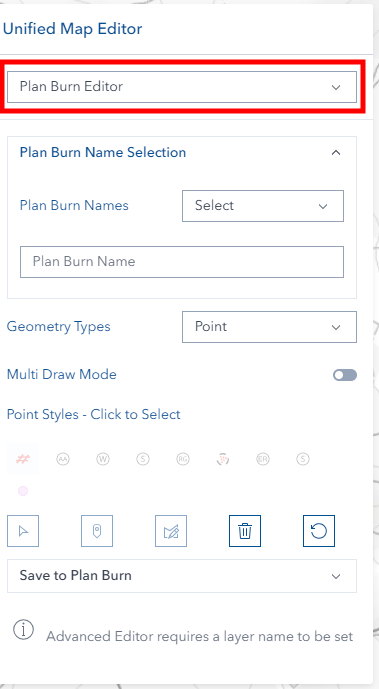
- Look for the Unified Editor icon (pencil) on the right toolbar
- Click the icon to open the editor panel
- Select Plan Burn mode from the mode selector at the top
What You Can Do
- Create burn operation plans with EMSINA standards
- Map ignition points, fire breaks, and burn boundaries
- Plan water sources and emergency assembly areas
- Create detailed burn progression maps
Layer Management
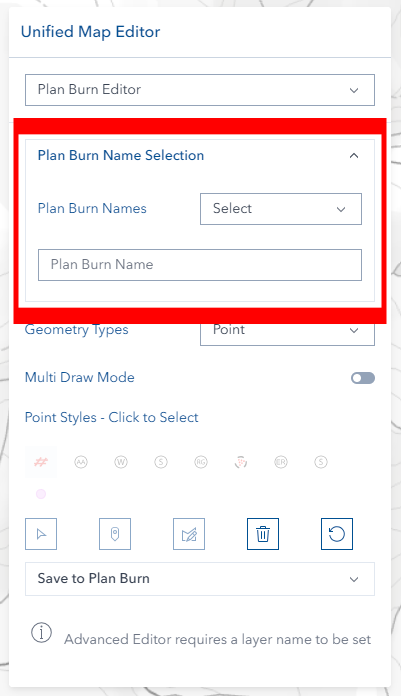
Setting Up Layer Names
Before you can start drawing, you need to set a layer name:
- Use Dropdown: Select an existing plan burn name from the list
- Type New Name: Enter a new burn plan name in the text field
- Wait for Activation: Drawing tools become available once a name is set
The system automatically creates these layers when you provide a layer name:
- Plan Burn Point layer (for burn operation points)
- Plan Burn Polyline layer (for burn lines and boundaries)
- Plan Burn Polygon layer (for burn areas and zones)
- Plan Burn Graphics layer (for temporary drawing)
Geometry Types

Choose the geometry type that matches what you want to create:
Point Features
- Best for: Ignition points, water sources, assembly areas, equipment locations
- Examples: Landing zones, rain gauges, escape routes, hazard markers
Line Features
- Best for: Fire breaks, burn lines, section boundaries, direction arrows
- Examples: Strip lighting patterns, containment lines, hand lighting paths
Polygon Features
- Best for: Burn areas, zones, constraints, boundaries
- Examples: Burn boundaries, planned burn areas, hazard zones, constraints
Style Selection
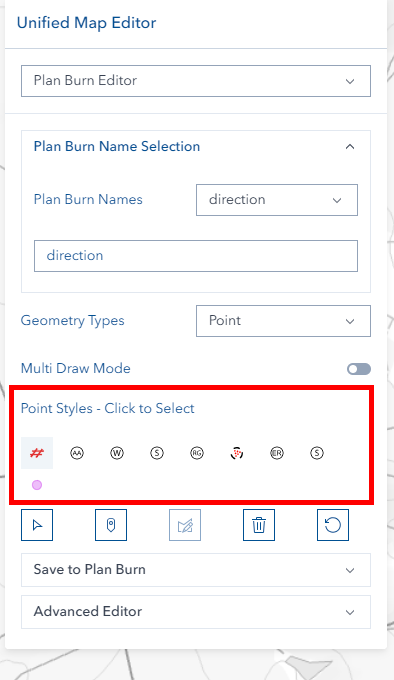
Choosing Styles
- Set your layer name first (styles are disabled until you do)
- Select your geometry type (Point, Line, or Polygon)
- Click on any style icon to select it
- The selected style will be highlighted with EMSINA standard symbols
Point Styles
| Icon | Style Name |
|---|---|
 | Landing |
 | Assembly Area Point |
 | Water Point |
 | Hazard Sticks |
 | Rain Gauge |
 | Aerial Ignition |
 | Escape Route |
| Special Point |
Line Styles
| Icon | Style Name |
|---|---|
 | Strip Light |
 | Spot Light |
 | Fire Break |
 | Direction Arrow |
 | Section Boundary |
 | Historic Lines |
 | Hand Lighting |
 | Text |
Polygon Styles
| Icon | Style Name |
|---|---|
 | Burn Boundary |
 | Burn Plan Area |
 | Constraint |
 | Hazard |
Special Options
Text Options: For Text line style, enter display label and choose font size (8-72pt)
Drawing Features
Before You Start
- ✅ Set a layer name
- ✅ Choose geometry type
- ✅ Select an EMSINA standard style
Multiple Mode Drawing
Enable continuous drawing to create multiple features without repeatedly clicking draw buttons. This mode allows rapid digitization of complex geometries and multiple feature creation.
Drawing Steps
For Points:
- Click the Point draw button
- Click on the map where you want the burn operation point
- The point appears immediately with EMSINA symbology
For Lines:
- Click the Line draw button
- Click points along your desired burn line or boundary
- Double-click to finish the line
For Polygons:
- Click the Polygon draw button
- Click points around your burn area
- Double-click to close the polygon
Visual Feedback
- Draw buttons light up when active
- Disabled buttons show helpful tooltips
- EMSINA standard symbols appear on the map as you draw
Feature Information
When you save features, the system automatically records:
- Layer name
- Display label (if provided)
- EMSINA style attributes
- Username for tracking
- Creation timestamp
Managing Features
Selecting Features
- Click the Select button (requires layer name)
- Click any plan burn feature on the map
- Feature information loads into the editor
- Current EMSINA style is detected and displayed
Editing Features
- Select a feature first
- Click the Edit button
- Use the editing tools to modify the geometry:
- Move vertices by dragging them
- Add vertices by clicking on edges
- Delete vertices by selecting and pressing Delete
- Move entire features by dragging
- Click Save when finished
Deleting Features
- Select the feature you want to delete
- Click the Delete button (trash icon)
- Confirm when prompted
- The feature is removed and layers refresh automatically
Advanced Features

Multi-Draw Mode
Toggle between two drawing behaviors:
Single Mode (Default):
- Draw multiple shapes
- They combine into one feature when saved
- Good for complex burn units made of multiple segments
Multi Mode:
- Draw multiple shapes
- Each becomes a separate feature when saved
- Good for creating multiple ignition points or water sources quickly
Advanced Editor

When you have a layer name set, the Advanced Editor becomes available for complex burn planning operations:
- Union: Combine multiple burn areas into unified zones
- Buffer: Create safety buffer zones around burn features
- Difference: Create exclusion zones by subtracting protected areas
- Intersection: Find overlapping areas between burn zones and constraints
- Cut: Split burn areas using cutting lines
Professional Burn Planning Applications
Union Operations: Combine multiple planned burn patches into single operational units
Buffer Operations: Create safety zones around:
- Water sources and supply points
- Assembly areas and escape routes
- Sensitive environmental areas
Difference Operations: Exclude protected areas from burn boundaries:
- Wildlife habitat zones
- Cultural heritage sites
- Infrastructure protection areas
Intersection Analysis: Identify overlaps between:
- Burn zones and environmental constraints
- Multiple burn unit boundaries
- Operational areas and safety zones
Tips & Troubleshooting
Common Issues
| Problem | Solution |
|---|---|
| Drawing buttons are grayed out | Set a layer name first in the dropdown or text field |
| EMSINA symbols not showing | Make sure layer name is set and style is selected |
| Can't select features | Ensure layer name is set and target features exist |
| Edit mode not working | Select a feature first, then click Edit button |
| Save failures | Check that geometry is complete and layer name is provided |
| Text line won't save | Enter text in the Display Label field for Text style |
| Font size options missing | Select Text line style first to enable font options |
Best Practices for Burn Planning
- Start with boundaries: Create burn boundaries first, then add internal features
- Use EMSINA standards: All symbols follow EMSINA guidelines for consistency
- Plan escape routes: Always include escape routes and assembly areas
- Mark water sources: Identify all available water sources and access points
- Consider weather: Use rain gauge locations for weather monitoring planning
- Safety first: Mark all hazards and create appropriate safety zones
Working with Text Lines
- Select the Text line style
- Enter your label text in the Display Label field
- Choose font size from the dropdown (8-72pt)
- Draw the line where you want the text to appear
- Text will render along the line path