Appearance
FPP Editor
Table of Contents
- Overview
- Getting Started
- Layer Management
- FPP Modes
- Geometry Types
- Style Selection
- Drawing Features
- Managing Features
- Advanced Features
- Tips & Troubleshooting
- Video Tutorials
Overview
The Forest Practices Plan (FPP) Editor is a comprehensive professional forestry planning system that provides advanced spatial editing capabilities for creating, managing, and processing forest operation plans. This sophisticated tool integrates ArcGIS SketchViewModel technology with specialized forestry workflows, supporting complete FPP lifecycle management through four distinct operational modes (Edit, Auth, Vary, Revoke) with extensive symbolic libraries, advanced geometric operations, and intelligent layer management for professional forestry planning applications.
Key Features:
- Multi-Mode Workflow System: Four distinct operational modes (Edit, Auth, Vary, Revoke) for complete plan lifecycle management
- Extensive Forestry Symbol Library: 50+ specialized forestry icons and symbols for points, lines, and polygons
- Advanced Permission Integration: Role-based access controls with FPP Admin and FPP User privilege levels
- Dual Layer Management: Separate draft and production layer systems with automatic layer group creation
- Professional Drawing Tools: ArcGIS SketchViewModel integration with coordinate transformation and union operations
- Integrated Advanced Editor: Built-in geometric operations including buffer, union, intersect, and difference
- Dynamic Style Management: Real-time style application with extensive customization options
Getting Started
Opening the FPP Editor

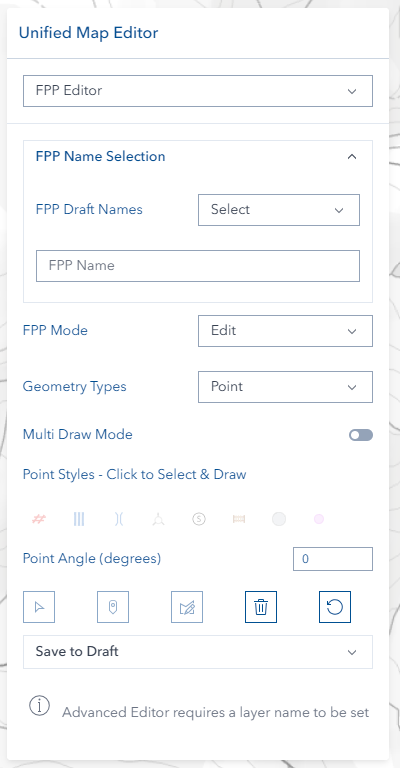
- Look for the Unified Editor icon (pencil) on the right toolbar
- Click the icon to open the editor panel
- Select FPP mode from the mode selector at the top
Permission Requirements
- Edit Mode: Basic access for creating draft plans
- Auth/Vary Modes: Requires appropriate planning permissions
- Revoke Mode: Restricted to FPP administrators only
If you don't see the FPP options you need, contact your GIS administrator about permissions.
Layer Management
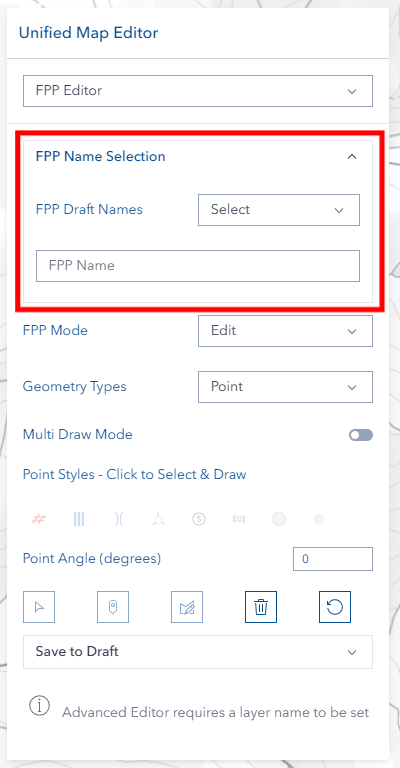
Setting Up Layer Names
Before you can start drawing, you need to set a layer name:
- Use Dropdown: Select an existing FPP plan name from the list
- Type New Name: Enter a new FPP plan name in the text field
- Wait for Activation: Drawing tools become available once a name is set
The system automatically creates appropriate layers for your geometry types when you provide a layer name.
FPP Modes
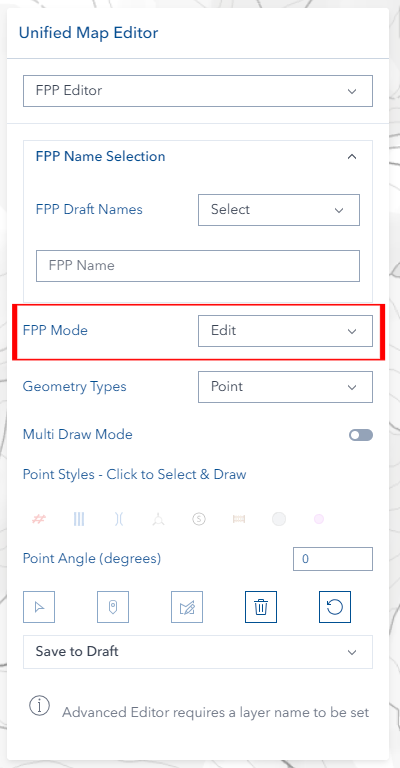
Edit Mode
Purpose: Create and modify draft FPP plans
- Full drawing and editing capabilities
- Access to all forestry symbols
- Save to draft layer system
Auth Mode
Purpose: Authorize draft plans to production
- Select existing draft plan
- Enter production FPP number
- Convert draft to official production plan
Vary Mode
Purpose: Create variations of existing production plans
- Select production plan as base
- Enter variation name/identifier
- Create modified version while preserving original
Revoke Mode (Admin Only)
Purpose: Revoke production plans
- Available to administrators only
- Select production plan to revoke
- Create revoked plan record
Mode selection automatically resets the interface and loads appropriate layer groups.
Geometry Types

Choose the geometry type that matches what you want to create:
Point Features
- Best for: Equipment locations, crossings, gates, cable settings
- Examples: Landing areas, bridges, control points
Line Features
- Best for: Boundaries, roads, extraction routes, constraints
- Examples: Contractor boundaries, located roads, drainage lines
Polygon Features
- Best for: Areas, zones, boundaries, constraints
- Examples: Harvest boundaries, exclusion zones, FPP boundaries
Style Selection
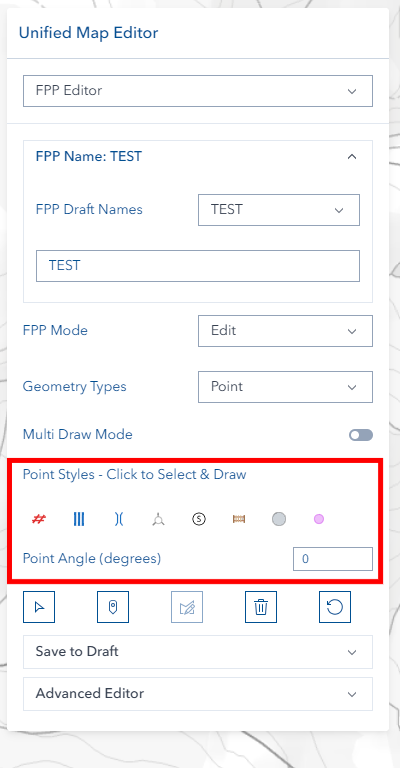
Choosing Styles
- Set your layer name first (styles are disabled until you do)
- Select your geometry type (Point, Line, or Polygon)
- Click on any style icon to select it
- The selected style will be highlighted
Point Styles
| Icon | Style Name |
|---|---|
 | Landing |
 | Crossing |
 | Bridge |
 | Cable Setting |
 | Special Point Feature |
 | Gate |
 | Label Point |
Line Styles
| Icon | Style Name |
|---|---|
 | Contractor Boundary |
 | Extraction Direction |
 | Located or marked outroad |
 | Scrub Roll Boundary |
 | Continuous Landing |
 | Linear Constraint |
 | Drainage depression Line |
 | PTPZL Boundary |
| Stream Label Line |
 | Label Line |
 | Text Line |
 | Marked Boundary |
Polygon Styles
| Icon | Style Name |
|---|---|
 | FPP Boundary |
 | Harvest Boundary |
 | Machinery Exclusion Zone |
 | Vegetation Constraint |
 | Hazard |
 | WTE exclusion zone |
 | Constraint |
 | Constraint1 |
 | Constraint2 |
 | WTE Exclusion Zone 500m |
 | Line of Sight Exclusion Zone |
Special Options
Point Angle: For directional point symbols, enter rotation angle (0-359 degrees)

Text Options: For Text Line style, enter display label and choose font size
Drawing Features
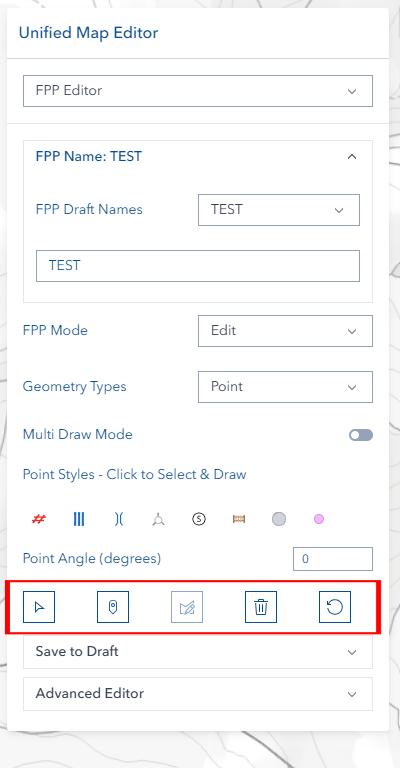
Before You Start
- ✅ Set a layer name
- ✅ Choose geometry type
- ✅ Select a style
- ✅ Ensure you're in Edit mode (other modes only allow selection)
Multiple Mode Drawing
Enable continuous drawing to create multiple features without repeatedly clicking draw buttons. This mode allows rapid digitization of complex geometries and multiple feature creation.
Drawing Steps
For Points:
- Click the Point draw button
- Click on the map where you want the point
- The point appears immediately
For Lines:
- Click the Line draw button
- Click points along your desired path
- Double-click to finish the line
For Polygons:
- Click the Polygon draw button
- Click points around your area
- Double-click to close the polygon
Visual Feedback
- Draw buttons light up when active
- Disabled buttons show helpful tooltips
- Features appear on the map as you draw them
Managing Features
Selecting Features
- Click the Select button (requires layer name)
- Click any FPP feature on the map
- Feature information loads into the editor
- Current style is detected and displayed
Editing Features
- Select a feature first
- Click the Edit button (Edit mode only)
- Use the editing tools to modify the geometry:
- Move vertices by dragging them
- Add vertices by clicking on edges
- Delete vertices by selecting and pressing Delete
- Move entire features by dragging
- Click Save when finished
Deleting Features
- Select the feature you want to delete
- Click the Delete button (trash icon)
- Confirm when prompted
- The feature is removed and layers refresh automatically
Advanced Features

Multi-Draw Mode
Toggle between two drawing behaviors:
Single Mode (Default):
- Draw multiple shapes
- They combine into one feature when saved
- Good for complex boundaries made of multiple parts
Multi Mode:
- Draw multiple shapes
- Each becomes a separate feature when saved
- Good for creating many similar features quickly
Advanced Editor

When you have a layer name set, the Advanced Editor becomes available for complex operations:
- Union: Combine areas together
- Buffer: Create setback zones around features
- Difference: Remove areas from other areas
- Intersection: Find overlapping areas
- Cut: Split features with lines
Authorization Workflow
- Switch to Auth mode
- Select the draft plan you want to authorize
- Enter the production FPP number
- Process the authorization
Variation Workflow
- Switch to Vary mode
- Select the production plan to vary
- Enter a descriptive variation name
- Make your changes and save
Tips & Troubleshooting
Common Issues
| Problem | Solution |
|---|---|
| Drawing buttons are grayed out | Set a layer name first, and make sure you're in Edit mode |
| Can't select styles | Set a layer name first - styles are disabled until you do |
| Authorization option missing | Check that you have Auth mode permissions |
| Revoke option not visible | This feature is for administrators only |
| Text line won't save | Enter text in the Display Label field |
| Point angle not working | Enter a number between 0-359 degrees |
Best Practices
- Name consistently: Use clear, descriptive layer names
- Check permissions: Make sure you have access to the mode you need
- Save frequently: Use the save function regularly to avoid losing work
- Review before authorization: Double-check draft plans before making them official